

Before you start
- You have an existing Planningboard widget embedded in a Polarion LiveDoc or Wiki page.
- You have edit rights on the page and an active Planningboard license.
- You know which Polarion field or hierarchy you want to use as the grouping dimension (assignee, parent item, enumeration field, project, or SAFe resource).
1
Open the widget configuration
- Open the page containing your Planningboard widget in Polarion.
- Switch the page to edit mode (Edit button in the Polarion toolbar).
- Expand the Tools panel next to the widget.
- Click the Edit (pencil) button to open the widget parameters panel.
2
Choose an assignment type
In the Swimlanes (Rows) section, open the Assignment Type dropdown. The available options are described below.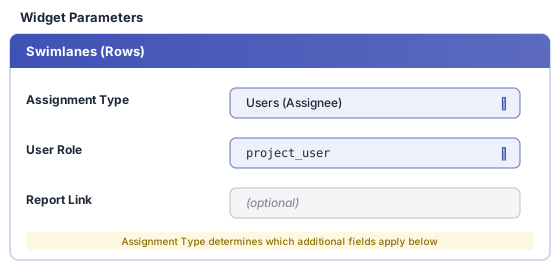
Users (Assignee)
Each swimlane represents one user who holds a specified role in the project. Use this for workload and capacity planning at the individual level.Example report link:
Parent Item
Each swimlane represents a parent work item (for example, a Feature or Epic). Child items can only be placed in the swimlane of their actual parent — dragging to a different row automatically snaps the card back to its correct parent.Enumeration Field
Each swimlane represents one value from a Polarion enumeration custom field. Use this for team, component, priority, or any other enumeration-typed attribute.Project
Each swimlane represents one Polarion project. Use this for cross-project planning views where multiple projects share a single board.SAFe Assignment Types
Swimlane types designed for Scaled Agile Framework environments — Program / Solution Teams (SAFe), Agile Release Train Teams (SAFe), and Programs (SAFe) — are available but require additional configuration. Contact Nextedy support for setup guidance.No Swimlanes
Disables row grouping entirely. All cards appear in a single flat view. Use this for high-level planning overviews where swimlane separation is not needed.3
Configure sort order and visibility
Two additional options in the Swimlanes (Rows) section affect how rows are displayed:
4
Save and verify
- Click Save (or Apply) in the widget parameters panel.
- Reload the page — the board reloads automatically after a parameter save.
- Verify the swimlane rows appear as expected.
Configuration example
The following widget parameter scenario configures swimlanes by user assignee, limiting rows to members of theproject_user role and linking each swimlane label to a per-user capacity report:
team field):
Limitations
- Page parameters in swimlane configuration accept string type only. Polarion page parameters (
$pageParameters.xxx) are accepted in swimlane configuration as string values requiring manual text entry. An enum picker dropdown is not currently available. For multi-team deployments where string-entry is not sufficient, create a separate Planningboard page per team and configure swimlanes statically using link roles. - Custom Team work item types not supported. Planningboard’s swimlane configuration does not recognise custom Team work item types. Only Nextedy’s standard Team work item with its specific custom fields is supported. This differs from Gantt 25.5.0+, which added support for custom team types.
- Swimlane sort order is coupled to item sort order. Changing the swimlane sort setting also affects how cards within each swimlane are ordered.