

What you will achieve
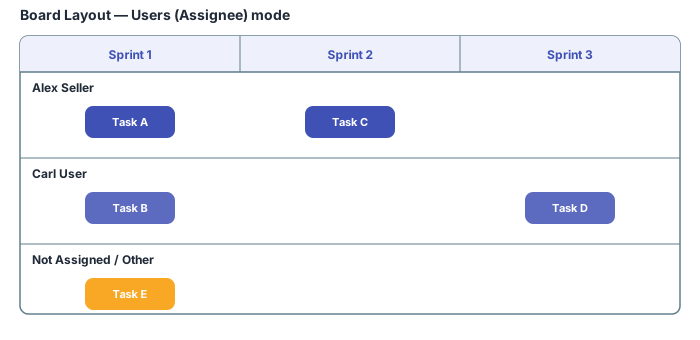
After following this guide, each row on your board represents one user who holds a specified role in the project. Cards appear in the swimlane of the work item’s assignee, and you can drag cards between rows to reassign work.Prerequisites
- A Planningboard widget already embedded on a Polarion LiveDoc or Wiki page
- Users added to the project with a defined role (for example,
project_user) - Basic familiarity with the Widget Parameters panel
1
Open the Widget Parameters panel
- Navigate to the page containing your Planningboard widget.
- Expand the Tools area and click the Edit button for the widget.
- The Widget Parameters panel opens on the right side of the page.
2
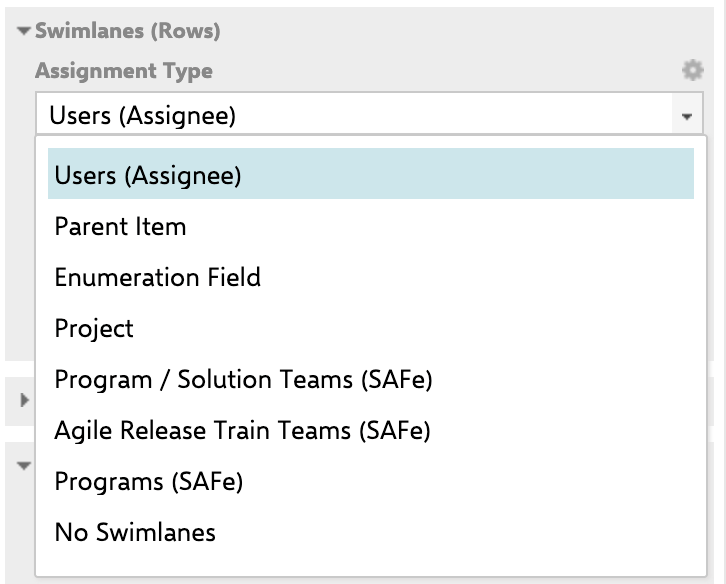
Set the Assignment Type to Users (Assignee)
- In the Widget Parameters panel, locate the Swimlanes (Rows) section.
- Open the Assignment Type dropdown.
- Select Users (Assignee).
3
Set the User Role
The User Role field controls which project role determines who appears as a swimlane. Only users who hold this role in the current project are shown as rows on the board.Set User Role to the role ID you want to use. For most projects the value is 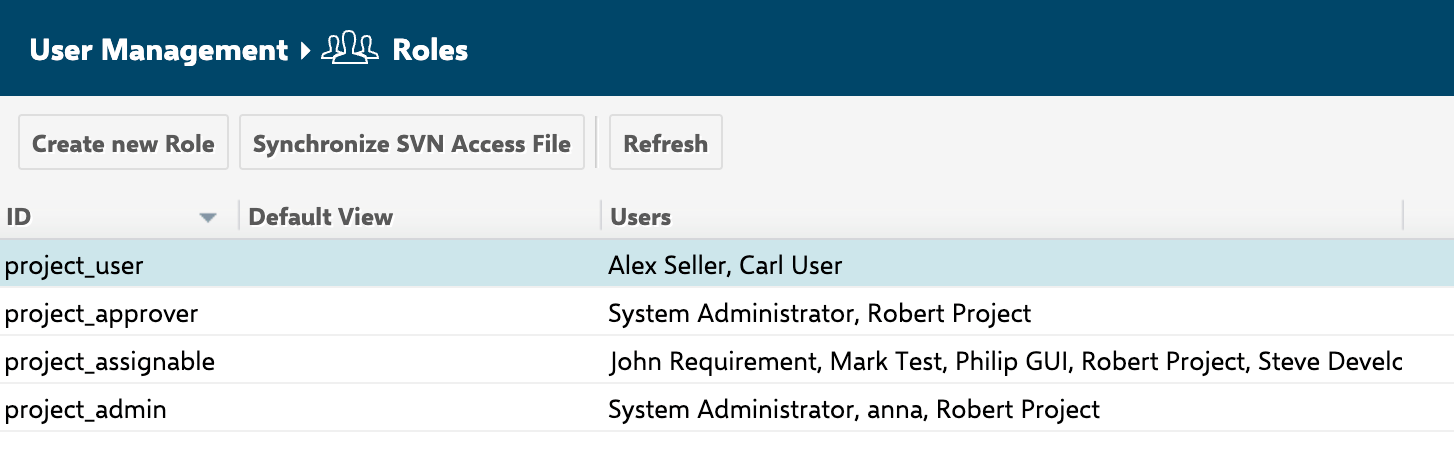
project_user. Check your Polarion project’s role configuration under Administration > User Management > Roles to confirm the correct role ID.4
(Optional) Add a Report Link
The Report Link field lets you attach a Polarion report URL to each swimlane. When set, a link icon appears next to each user’s swimlane header, opening the report filtered for that user’s work.Leave this field empty if you do not need per-user report navigation.
5
Save and review the board
Click Save in the Widget Parameters panel. The board reloads and now displays one swimlane per user who holds the configured role.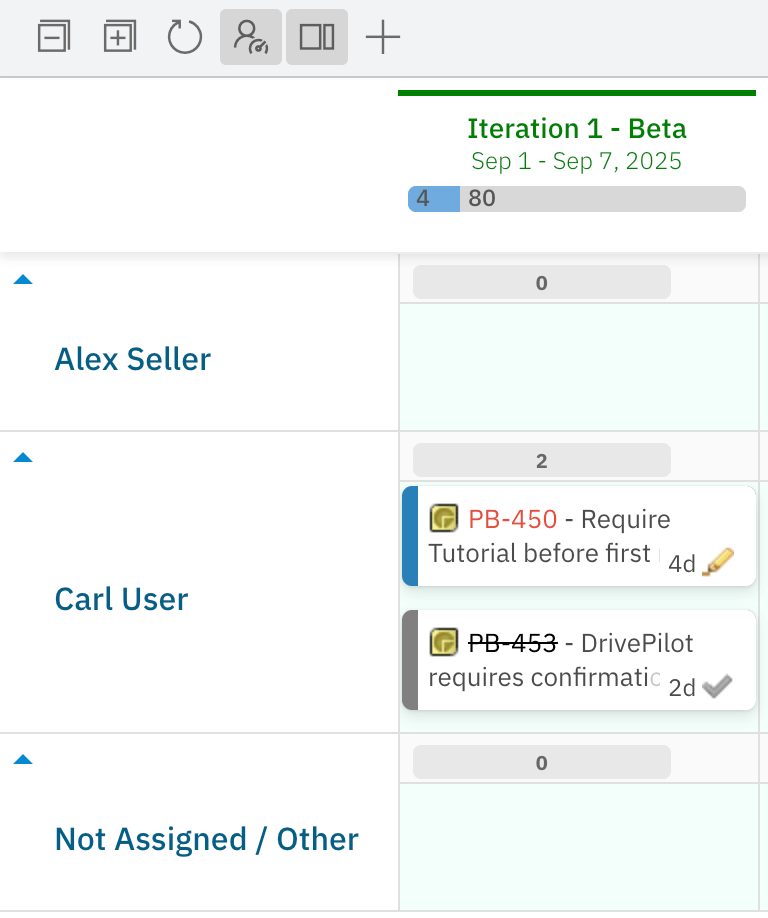
Filtering swimlanes by Plan range (version 25.12.0+)
When user swimlanes are derived from Team Assignments, you can hide users who have no active Team Assignment within the date range of the currently displayed Plans. This keeps the board focused on team members who actually have capacity in the shown timeframe. To enable this behavior, add the following property to Administration > Configuration Properties:Deprecated alternative
An earlier approach (nextedy.planningboard.activeTeamAssignmentsOnly=true) hid users with past-only assignments regardless of the Plans shown. This property was introduced in version 25.3.0 and deprecated in version 25.12.0. Use activeTeamAssignmentsInPlanRangeOnly instead.
Filtering the board by team
If you want swimlanes to show only users from a specific team (rather than all users with the configured role), you must configure two things together:- Team page parameter — filters which users appear as swimlane rows
- Plans query — filters which iterations (Plans) appear as columns, scoped to the same team
Known limitations
Verification
After saving your Widget Parameters, you should now see:- One labeled swimlane row per user who holds the configured role in the project
- Work item cards placed in the row matching their assignee
- A Not Assigned / Other row at the bottom for items with no matching assignee
- If Plan-range filtering is enabled: users with no Team Assignment in the displayed Plans’ date range are no longer visible
See also
- Configure Swimlanes (Rows) — full reference for all swimlane widget parameters
- Filter Swimlanes by Team — coordinate Team page parameters with a Plans query for team-scoped boards
- Filter Swimlanes by Plan Range — hide users outside the active plan window
- Parent Item Swimlanes — group rows by parent work item instead of assignee
- Enumeration Field Swimlanes — group rows by a custom field value such as team or component
- Track User Capacity — add capacity bars to user swimlanes
- Sort Swimlanes — control the vertical order of swimlane rows