

Overview
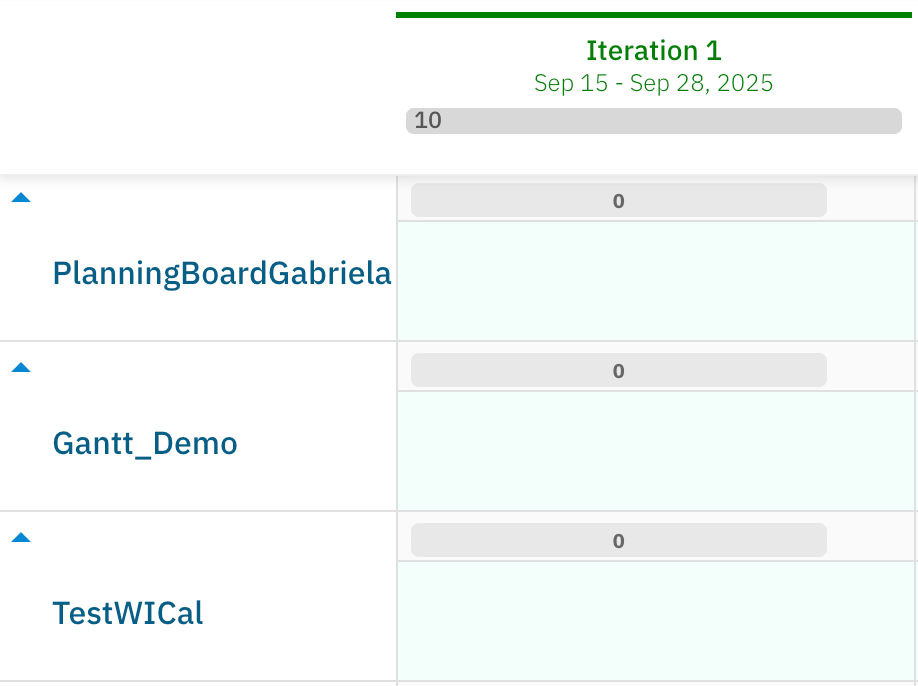
The Project swimlane assignment type creates one horizontal row per sub-project in the current project group. Each row shows the work items belonging to that project, letting you compare workload, allocate tasks across projects, and drag cards between projects without switching contexts.
Only sub-projects that the current user can read are included. The current project itself is excluded from the swimlane list; only its sub-projects appear as rows.
Prerequisites
- A Polarion project group with at least two readable sub-projects.
- A Planningboard widget already embedded on a LiveDoc or Wiki page.
- Widget edit permissions for your Polarion account.
1
Open Widget Parameters
- Navigate to the LiveDoc or Wiki page containing your Planningboard widget.
- Expand the widget toolbar and click the Edit (pencil) icon to open the widget configuration panel.
2
Set the Assignment Type to Project
- In the configuration panel, select Swimlanes (Rows).
- Open the Assignment Type dropdown.
- Select Project.
3
Configure Optional Fields
The Project assignment type exposes one optional field:
Fill in Report Link if your team uses per-project reports and you want one-click access from the board row header.
4
Save and Verify
- Click Save (or Apply) in the widget configuration panel.
- The Planningboard reloads. You should now see one swimlane row per readable sub-project in the group.
- Verify that the expected projects appear and that cards are distributed correctly across rows.
5
Drag Cards Between Projects
With project swimlanes active, dragging a card from one row to another reassigns the work item to the target project. This is a data change — the work item’s project field is updated in Polarion.
Controlling Which Swimlanes Appear
Show or hide empty swimlanes
By default, swimlanes with no work items may still appear depending on theshowEmptySwimlanes configuration. To show all sub-projects regardless of whether they have cards in the visible Plans, confirm the showEmptySwimlanes property is set to true in your widget configuration. Set it to false to hide projects that have no items in the currently visible Plan columns.
Swimlane sort order
Use theswimlaneSort property to control the vertical order of project rows. The default value is alphabetical.
Collapsing individual rows
Project swimlanes are collapsible by default (collapsibleSwimlanes = true). Click the row header to collapse a project’s swimlane and reduce visual noise when focusing on other projects. Click again to expand.
Configuration Example
The following widget parameter snippet enables project-based swimlanes with a report link template:Common Pitfalls
Verification
After saving, you should see:- One swimlane row per readable sub-project in the project group.
- Work item cards placed in their respective project rows.
- The swimlane header showing the sub-project name (and a report link icon if configured).
- Drag-and-drop between rows moving cards to the target project.
See also
- Configure Swimlanes (Rows) — full reference for all swimlane parameters
- User and Assignee Swimlanes — group rows by individual team members
- Enumeration Field Swimlanes — group rows by a custom enum field
- Parent Item Swimlanes — group rows by parent work item
- Filter Swimlanes by Plan Range — hide swimlanes outside the active Plan window
- Cross-Project Planning — broader cross-project planning workflows