

Before you begin
- You have a Nextedy PLANNINGBOARD widget already embedded in a Polarion Wiki page or LiveDoc.
- The work items you want to display have parent–child link relationships configured in Polarion (for example, tasks that implement a feature).
- You know the link role that connects child items to their parents (for example,
implements,is parent of, or a custom role).
1
Open widget configuration
- Open the page containing your Planningboard widget.
- Expand the tools panel and click the edit (pencil) button to enter widget configuration mode.
- In the configuration panel, navigate to Swimlanes (Rows).
2
Set the Assignment Type to Parent Item
In the Assignment Type dropdown, select Parent Item.The Swimlanes (Rows) section expands to show the fields specific to this mode: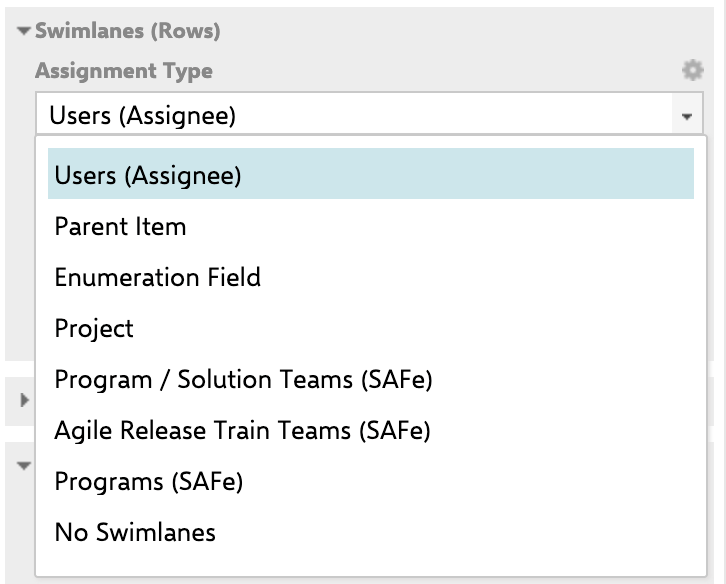
3
Configure Load Parents in the Unplanned Sidebar
For parent swimlanes to display correctly, Planningboard must load the parent work items alongside the child items.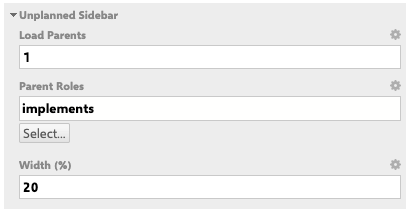
- In the widget configuration panel, navigate to Unplanned Sidebar.
- Set Load Parents to at least
1. - Set Parent Roles to the same link role you chose in Step 2 (for example,
implements).
4
Sort parent swimlanes
The Sort By field controls the vertical order in which parent swimlanes appear. It is available since version 25.9.0.Enter one or more Polarion work item field IDs, separated by spaces:Use the tilde operator (Sorting examples: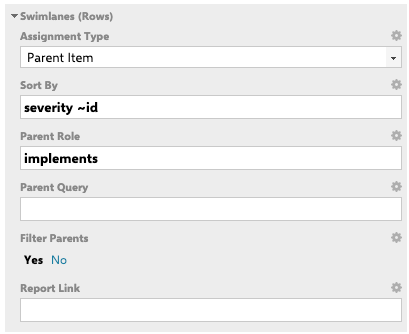
~) to sort in descending order:5
Optionally filter parent items
If you want only a subset of parent items to appear as swimlanes:
- Enter a Lucene query in Parent Query — for example,
type:feature AND status:open. - Set Filter Parents to Yes.
6
Save and refresh
Click Save in the widget configuration panel. The board reloads and displays one swimlane per parent work item.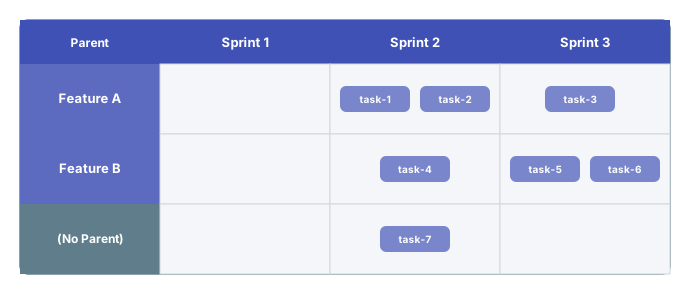
How drag and drop works in this mode
Cards can still be dragged between columns (Plans) within the same parent swimlane to change their planned sprint or release.Configuration example
The following widget parameter values configure a board grouped by parent features, sorted by priority descending, and filtered to open features only:Limitations
Troubleshooting
You should now see
A board with one horizontal swimlane per parent work item, ordered according to your Sort By field, with child work item cards distributed across the Plan columns (sprints or releases) within each parent’s row.See also
- Configure Swimlanes (Rows) — full overview of swimlane widget parameters
- Sort Swimlanes — detailed sorting options across all swimlane types
- User and Assignee Swimlanes — grouping rows by assignee instead of parent
- Enumeration Field Swimlanes — grouping rows by a custom enumeration field
- Filter Swimlanes by Plan Range — limit visible swimlanes to the active plan window
- Widget Parameters Overview — full parameter reference