

What prioritization means on the board
In most project management contexts, “priority” is a field on a work item: a value like High, Must Have, or Blocker that describes its importance in isolation. Planningboard supports that field-based concept through swimlane grouping (for example, grouping rows by aseverity or priority enumeration field), but prioritization as a board concept is distinct: it refers to the relative order of cards within a column-and-swimlane cell.
Think of a physical card wall. The card pinned at the top of a swimlane column is worked on first; the card at the bottom waits its turn. Planningboard models this same convention — the vertical order of cards within a cell reflects their priority for that Plan and swimlane combination.
The Prioritize mode
Prioritization is not always active. The toolbar contains a Prioritize button that toggles prioritization mode on and off. When Prioritize is off, the board displays cards in their default sort order (driven by the work item query’s sort settings). When Prioritize is on, the board switches to a manually maintained order that persists across sessions.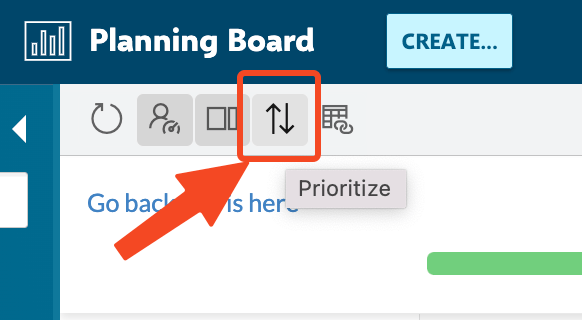
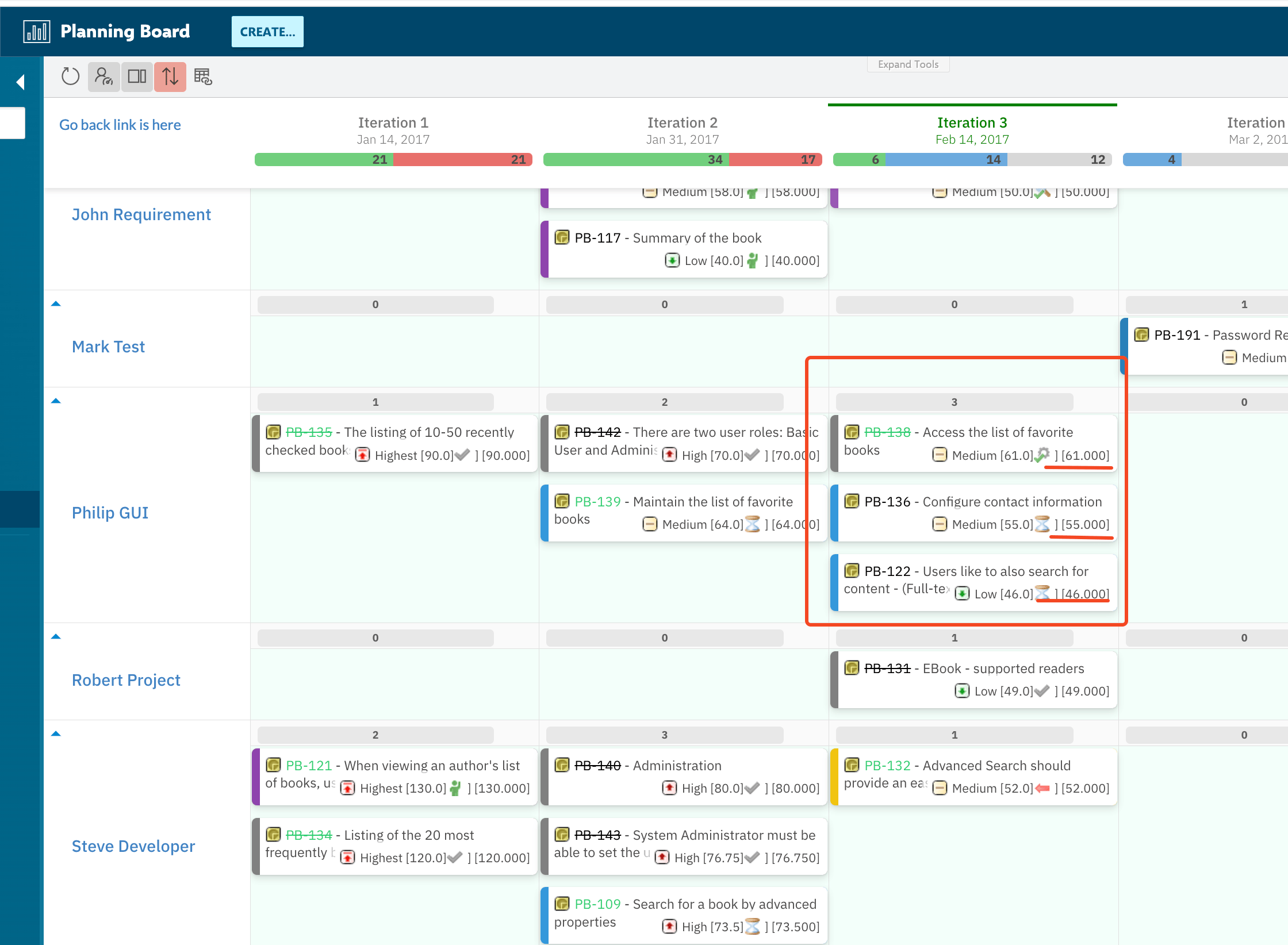
Prioritize is a board-level toggleThe Prioritize button applies to the entire board instance, not to individual swimlanes or columns. When you enable it, all cells on that board switch to manually ordered mode simultaneously.
How card order is stored
When Prioritize mode is active and you drag a card to a new position within a cell, Planningboard records that relative position and saves it. The order is associated with the board widget (the specific Polarion page and widget instance), not with the work item itself. This means:- The same work item can have a different position on two different Planningboard boards in the same project.
- Moving a card to a new Plan column (assigning it to a different Plan) resets its position within that new cell to the default.
- The priority order is independent of the work item’s own priority field — reordering on the board does not write back to any Polarion field unless your configuration explicitly maps it.
Swimlane sort order and its effect on prioritization
One important constraint to understand: the sort order of swimlanes is coupled to the sort order of items within swimlanes. Planningboard does not maintain entirely independent sort axes for rows and for card positions within rows. When the swimlane assignment type is set to Parent Item, theSort By configuration determines both how parent swimlanes are ordered vertically and how items within those swimlanes are initially sequenced.
This means that if you change the swimlane sort setting (for example, switching from alphabetical to a custom property like priority), the card order within cells may also be affected. Plan for this when rolling out a prioritization workflow — agree on the swimlane sort order before teams begin manually reordering cards.
Relationship to the Unplanned section
Cards in the Unplanned section (the backlog on the right) are also subject to ordering. When you enable Prioritize mode, the unplanned list becomes manually orderable as well. This is useful for agreeing on backlog priority before pulling items onto the board for a sprint or release. The Unplanned section can be filtered by assignee, team, or custom query — but those filters do not change the underlying priority order; they only affect visibility. Once you remove a filter, the full ordered list reappears with positions intact.
Priority as a swimlane grouping field
Separate from the Prioritize ordering mode, teams often want to visualize priority as a dimension of the board itself. Planningboard supports this through the Enumeration Field swimlane assignment type. When you configure swimlanes by an enumeration field such asseverity (which may contain values like Must Have, Should Have, Could Have, Won’t Have in a MoSCoW model), each priority value becomes its own swimlane row. Cards with that priority level appear in the corresponding row, giving an immediate visual overview of the priority distribution across Plans.
This approach answers a different question than the Prioritize toggle:
Both can be used simultaneously: you can have swimlanes grouped by
severity and enable Prioritize mode so that cards within each severity row are manually ordered.
What happens when Verified items are present
Cards with the status Verified are locked on the board — they cannot be moved or unplanned. This lock applies in Prioritize mode as well: you cannot drag a Verified card to a new position. Non-Verified cards around it can be repositioned, but the Verified card itself remains anchored. This behavior ensures that completed and verified work does not accidentally get deprioritized or moved out of its Plan during an active reordering session. Use the Filter columns option in the Unplanned section to hide Verified items from the board if they create visual clutter during prioritization.Priority and dependencies
When work items have dependency links between them (configured via thePARAMETER_DEPENDENCY_LINK_ROLE widget parameter), the board can display those relationships visually using the Show Dependencies toolbar button. Prioritization and dependency visualization work independently: enabling Prioritize mode does not automatically enforce dependency ordering. It is the team’s responsibility to ensure that the manual card order respects dependencies.
The Show Links quick action on individual cards (hover → link icon) lets you check which cards a specific item depends on before repositioning it. This is the recommended workflow when using Prioritize mode in conjunction with dependency visualization.

How same-priority cards are handled
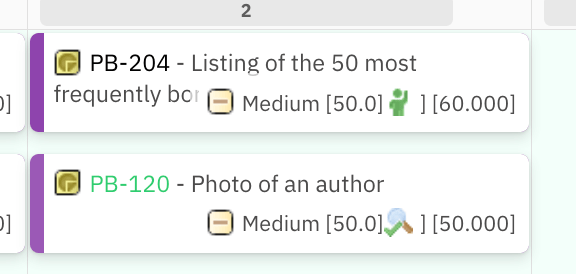
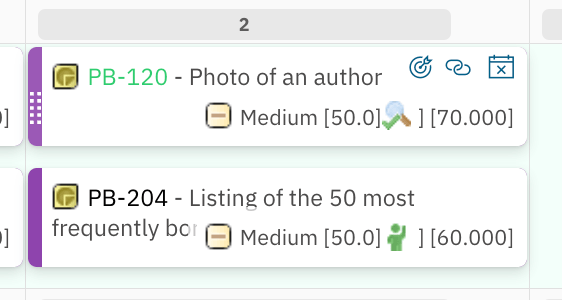
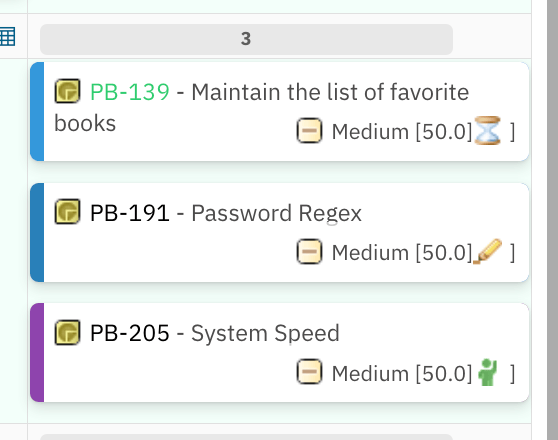
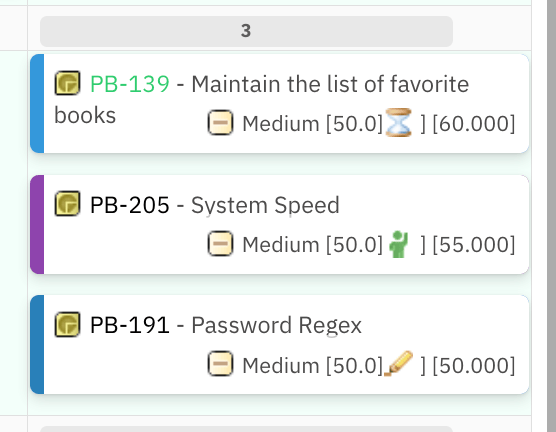
When two or more cards have the same initial priority value, Planningboard still assigns a deterministic order when you drag one of them. The algorithm adds a fixed increment or calculates an average to spread the values apart. Two cards with the same priority: when both cards share the same value (e.g., 50.0), dragging one above the other adds 10 points to the top card. The cycle can repeat, always maintaining a 10-point difference: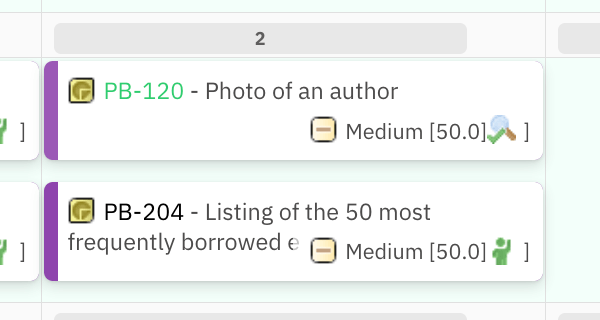
Common misconceptions
“Enabling Prioritize mode changes the work item’s priority field in Polarion.” It does not. Prioritize mode manages the visual order of cards on the board. It does not write to any Polarion field. If you need priority changes to be reflected in a Polarion custom field, that requires a separate workflow outside Planningboard. “The card order I set in one board applies everywhere.” Card order is scoped to the individual board widget. Two boards on different Polarion pages, even in the same project, maintain independent priority orders. “Sorting swimlanes by a custom property is the same as prioritizing cards.” Sorting swimlanes (via the Parent Item assignment type’sSort By setting) reorders the rows, not the cards within rows. These are distinct concepts, though they share the same underlying sort mechanism and can interfere with each other as noted above.
“All swimlane assignment types support the same prioritization behavior.”
The Parent Item assignment type has one important constraint: you cannot freely place a card in any parent’s swimlane. When you drag a card, Planningboard automatically places it under its actual parent. This means manual card positioning within a cell is still possible, but cross-swimlane repositioning is constrained by the hierarchy.
Putting it together: a mental model
Imagine the Planningboard as a physical sprint planning wall:- Columns = Plans (sprints, releases, iterations)
- Rows = Swimlanes (assignees, teams, priority tiers, parent features)
- Cards = Work items
- Card position within a cell = Priority order (top = highest, bottom = lowest)
- Unplanned section = The backlog tray beside the wall
Related pages
- Board Structure — how columns, swimlanes, and cells are organized
- Swimlane Assignment Modes — configure rows by assignee, parent, enumeration field, or project
- Capacity Tracking — understand how card order interacts with capacity bars
- Dependencies and Links — visualize and manage work item dependencies alongside prioritization