

Two different assistantsThe Nextedy AI package that brings this assistant also adds a second one to Powersheet: the Admin AI Assistant, a chat in the configuration editor that answers questions about Powersheet configuration and never changes anything.The assistant on this page works in the sheet, needs a valid Nextedy AI license, and writes to Polarion when you accept a suggestion and save.
Actions, not free-form chat
An administrator defines the actions in a Nextedy AI action configuration and links it to the sheet with theassistantConfig sheet configuration key. Each action describes one job:
Every key is listed in the AI Assistant reference.
Because actions are configured rather than typed, two engineers who run the same action on the same sheet get the same kind of search and ranking.
Actions Belong to Levels
A Powersheet row spans several levels — for example, a customer requirement, the system requirement under it, and the design requirement under that. Each level can have its own actions. When you select a cell, its level is highlighted in the toolbar, and a sparkle button ✦ on that level lists the level’s actions. An action works on the work item of that level in the selected row: an action run on the system requirement level works on the system requirement, not on the customer requirement at the start of the row. The administrator chooses where an action is offered by listing columns inscope.columns. An action without it is offered on every level.
Where an action is offered and where it writes are separate: an action offered on the system requirement level can write into a link column of the same row.
The action can also use information from other levels of the row. For example, an action on a design requirement can send along the descriptions of the system and subsystem requirements above it. The Show context sent list on the run card shows what was sent.
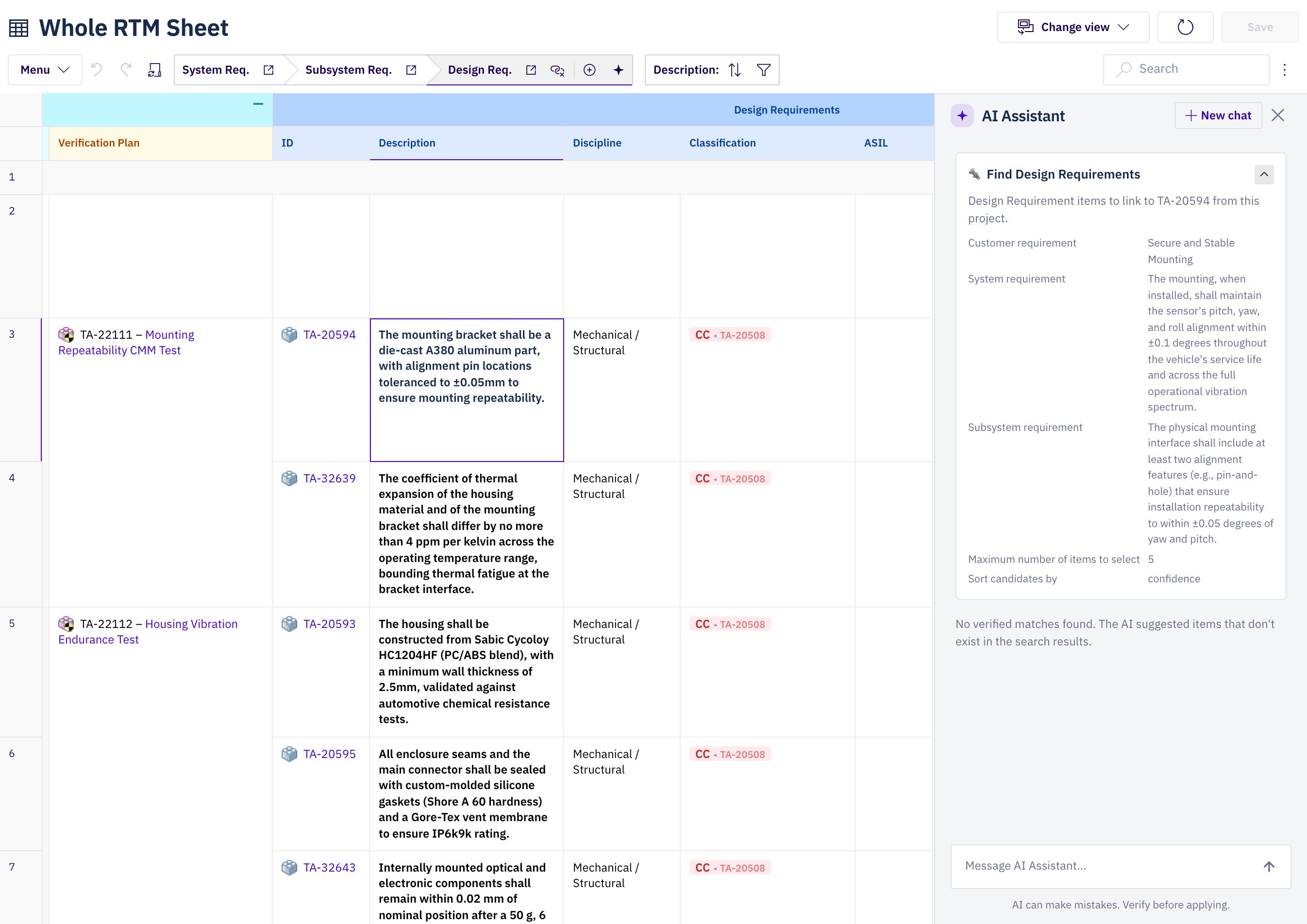
An action run on a design requirement, using information from the customer, system and subsystem requirement levels of the same row.
How a suggestion is constrained
Before you see a suggestion, it goes through three steps:- Search. The action looks for candidates in the current project, by default among the work item types the target column accepts. Items already linked in that column are skipped.
- Rank. The model ranks the candidates against the row and gives each one a short reason why it fits.
- Filter. Anything the target column would not let you pick by hand is dropped.
What “apply” writes
Applying a suggestion is an ordinary sheet edit on the row the action ran on. What it does depends on the target column:
If the same parent appears several times in the sheet, the new row is added under each of them.
Like any other edit, an applied suggestion can be undone and reaches Polarion only when you save. Until then the panel marks it Unsaved, and leaving the document without saving discards it. See Working sessions.
Refining an answer
After an action has run, you can talk to the assistant about the result in the panel. Once you have sent a message, Refine runs the same action again on the same work item, using the conversation as guidance — for example, “these are all from the wrong subsystem”. Only the first 4,000 characters of the conversation are used. Each action you run starts a new conversation; only Refine continues one. Each document keeps its own conversation, and New chat in the panel header clears it.Availability
When the assistant is not available, its entry points — Menu › AI Assistant and the levels’ sparkle buttons — are greyed out, and the rest of the sheet works as usual. It is available when the Nextedy AI plugin is installed with a valid license and a model key, and at least one action is set up for the sheet. Hover over the greyed-out entry to see why:
Two project context properties change this:
nextedy.powersheet.aiAssistant removes the assistant from every sheet in the project, and nextedy.powersheet.promotions hides the greyed-out entry points when the assistant is not available. See Configure the AI Assistant.
Installing the plugin and its license, and configuring the model key, are covered in Install Nextedy AI.
Related Pages
Use the AI Assistant
Run an action on a level and apply what it suggests.
Configure the AI Assistant
Enable it for a project, point a sheet at an action configuration, and edit
its actions.
AI Assistant Reference
Every action configuration key and project context property, with defaults.
Link Cardinality
The cardinalities that decide what applying a suggestion writes.
See Also
- Create a Link — the manual route the assistant automates
- Admin AI Assistant — the other assistant, in the configuration editor, which never changes anything
- Working Sessions — the change buffer and undo stack an applied suggestion lands in