

Evaluation options at a glance
Option 1: Hosted trial (recommended)
- Go to the trial signup page at Try Nextedy Solutions Online
- Fill in your details
- Your evaluation account and dedicated demo project are created automatically
- You will receive login credentials by email
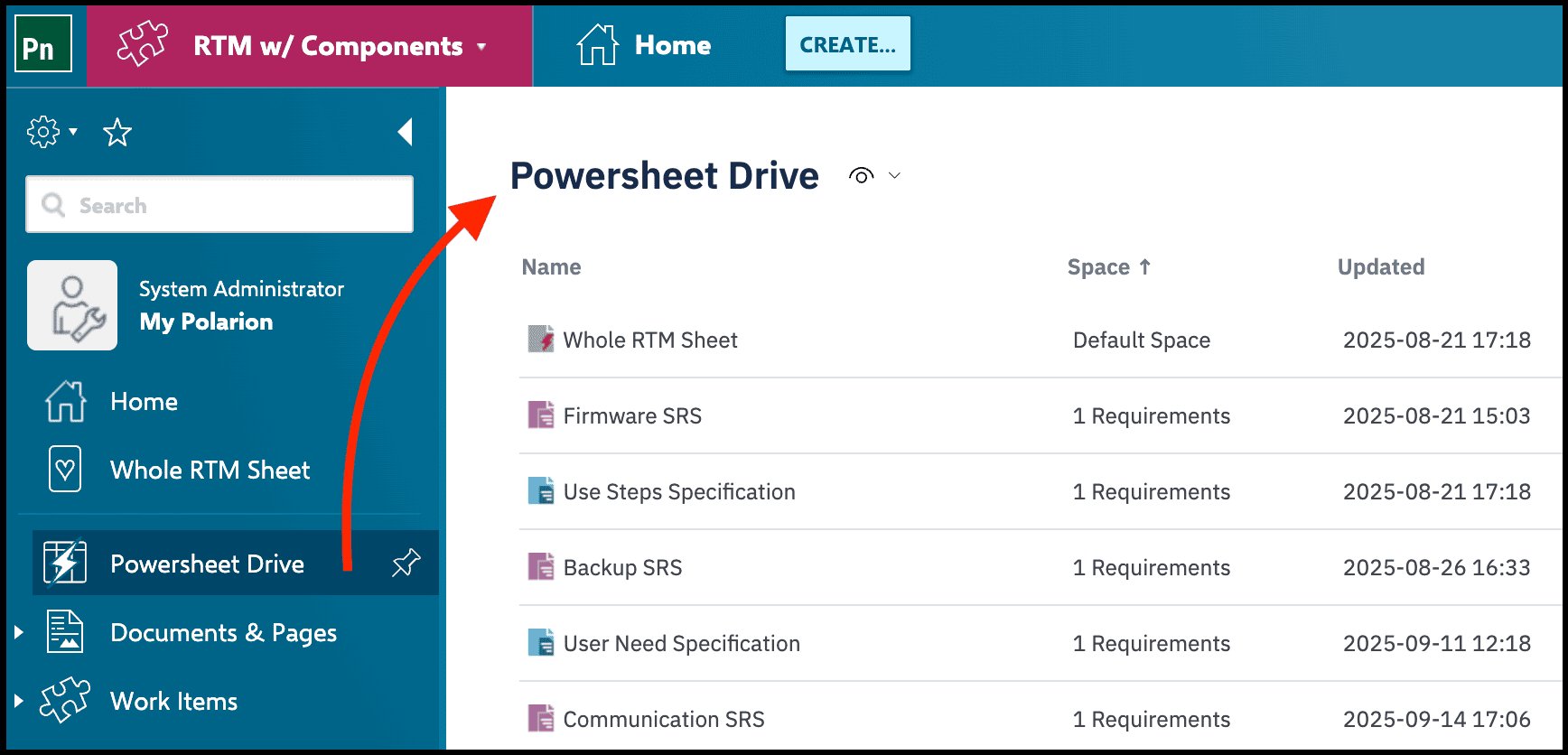
- Log into the demo server, open the demo project, and use the Powersheet Drive in the left-hand navigation to explore the available views
Option 2: Local trial
- Request the trial package and license from Nextedy. You will receive a download link and a trial license (unlimited users, valid for 30 days)
- Install the package following the installation guide
- Upload the license in Administration > Nextedy POWERSHEET > License and assign the named Powersheet users following the guidance on the administration page
- Instantiate the Powersheet RTM Demo Project from the installed template via Administration > Nextedy POWERSHEET > Setup
- Open the project and navigate to the Powersheet Drive to begin exploring
What the demo project includes
The demo project provides everything needed to explore Powersheet capabilities out of the box:- Example User Needs Specifications with pre-populated work items
- RTM configuration:
UserNeed>SystemRequirement>DesignRequirement> Tests - Pre-populated data for trying guided authoring, linking, and traceability coverage
Verification
After completing either evaluation option, you should see:- The Powersheet Drive in the left sidebar listing available documents
- A demo document opening in sheet view with a hierarchical table
- Editable cells where you can add, link, and modify work items directly in the sheet
See also
- Installing Powersheet — full installation walkthrough for local setup
- Setting Up Navigation — configure the Powersheet topic in your sidebar
- Creating Your First Data Model — begin configuring your own data model
- Incremental Configuration Approach — why starting simple prevents errors