

License Status and Behavior
What license statuses can Powersheet display?
What license statuses can Powersheet display?
Powersheet communicates its license state through four severity levels:
When the status is anything other than
OK, a message in the license panel explains the specific issue, such as an approaching expiration date or exceeded user count.How does an invalid license affect editing?
How does an invalid license affect editing?
When the license status reaches
INVALID, Powersheet enforces a global readOnly flag across the entire application. All data editing, configuration changes, and save operations are disabled for every user in the project. The effective read-only state is determined by combining the license status with user permissions — if either the license is invalid or the user lacks write permissions, the sheet becomes read-only.License Management
How do I request an evaluation license?
How do I request an evaluation license?
Contact Nextedy support and provide your Polarion server details (hostname, environment type, and Polarion version). Nextedy will generate a time-limited evaluation license file that you can apply through the Polarion administration interface. Evaluation licenses typically provide full functionality for a fixed trial period.
Where do I manage the Powersheet license in Polarion?
Where do I manage the Powersheet license in Polarion?
Navigate to Administration > Nextedy POWERSHEET > License in the Polarion administration interface. The license management page is available at the project, project group, and repository (global) scope levels. From this page you can view the current license status, see expiration details, and apply new license files.
How do I renew an expiring license?
How do I renew an expiring license?
Contact Nextedy support with your server information and current license details before the expiration date. Once you receive the renewal file, apply it through Administration > Nextedy POWERSHEET > License in Polarion. The new license takes effect immediately without requiring a server restart.
Verify in applicationThe exact renewal workflow may vary depending on your organization’s agreement with Nextedy. Contact your account representative for specific renewal procedures and pricing.
Permissions and Access Control
How do permissions interact with the license?
How do permissions interact with the license?
Powersheet enforces a three-layer access model. Each layer must grant access for the user to have full capabilities: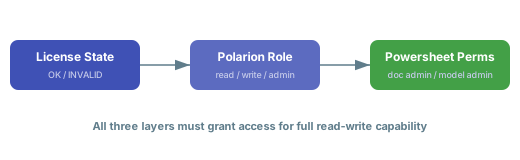
- License layer — The license status sets the baseline. An
INVALIDlicense forces read-only mode for everyone, regardless of other permissions. - Polarion role layer — The user’s Polarion project role determines what actions are available in the platform (viewing, editing, administering).
- Powersheet permission layer — Powersheet checks specific capability flags fetched from the server at load time:
- Document administration —
readto view sheet configuration,writeto modify it - Model administration —
readto view the data model,writeto modify it
- Document administration —
INVALID.Can I check my current permissions?
Can I check my current permissions?
Your effective permissions are determined by Powersheet at load time based on your Polarion user role combined with the current license status. If you cannot edit data or access configuration settings, verify two things with your Polarion administrator: (1) that you have the appropriate project role assigned, and (2) that the license status is
OK. See the Configuration FAQ for additional permission-related troubleshooting.What happens if my Polarion role changes while Powersheet is open?
What happens if my Polarion role changes while Powersheet is open?
Powersheet fetches permissions from the server when the sheet loads. If your Polarion role is changed while you have a sheet open, the change will not take effect until you reload the page. Save any pending edits before asking your administrator to change your role, then refresh the browser to pick up the new permissions.
Product Registration
How does Powersheet register itself with Polarion?
How does Powersheet register itself with Polarion?
Powersheet registers as a product within the Polarion server during initialization. The registration includes identity metadata (product name and version), a license status provider for real-time license checks, and an authorization checker that determines whether the current user can access Powersheet. This registration process is automatic and requires no manual configuration beyond applying a valid license file.
Configuration file accessPowersheet also registers a file supplier under the identifier
sheet_configuration, which enables storage and retrieval of YAML sheet configurations from the project repository. This is why sheet configurations appear under Administration > Nextedy POWERSHEET in the Polarion UI.