

General FAQ
Overview questions about Powersheet capabilities, target audience, and how it fits into Polarion.
General FAQ
Overview questions about Powersheet capabilities, target audience, and how it fits into Polarion.
What is Powersheet and what problems does it solve?
What is Powersheet and what problems does it solve?
Who is Powersheet designed for?
Who is Powersheet designed for?
What is the difference between a data model and a sheet configuration?
What is the difference between a data model and a sheet configuration?
How does Powersheet connect to Polarion data?
How does Powersheet connect to Polarion data?
polarionType property. Relationships between entity types are stored using Polarion link roles, with direct and back navigation directions defined in the data model. When users load a sheet, Powersheet queries Polarion for work items matching the source configuration and displays them according to the column definitions. Save operations write changes back to Polarion work items through the server API.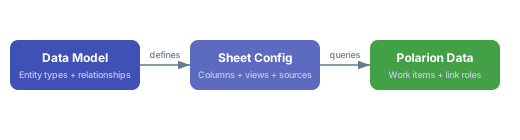
What standards and processes does Powersheet support?
What standards and processes does Powersheet support?
UserNeed > SystemRequirement > DesignRequirement > Hazard > RiskControl to demonstrate traceability across these domains. For industry-specific models, see the Example Models Reference.How should I start configuring Powersheet?
How should I start configuring Powersheet?
What are master-downstream relationships in sheets?
What are master-downstream relationships in sheets?
UserNeed) expand to show their related downstream items (such as SystemRequirement). The sheet automatically merges cells for master-level columns to span all downstream rows, providing visual grouping. Users can add or remove items at both levels, and undo/redo is fully supported across all operations.What is review mode?
What is review mode?
Where can I get help if I encounter issues?
Where can I get help if I encounter issues?
Licensing FAQ
Questions about license types, activation, evaluation periods, and user count limits.
Licensing FAQ
Questions about license types, activation, evaluation periods, and user count limits.
License Status and Behavior
What license statuses can Powersheet display?
What license statuses can Powersheet display?
OK, a message in the license panel explains the specific issue, such as an approaching expiration date or exceeded user count.How does an invalid license affect editing?
How does an invalid license affect editing?
INVALID, Powersheet enforces a global readOnly flag across the entire application. All data editing, configuration changes, and save operations are disabled for every user in the project. The effective read-only state is determined by combining the license status with user permissions — if either the license is invalid or the user lacks write permissions, the sheet becomes read-only.License Management
How do I request an evaluation license?
How do I request an evaluation license?
Where do I manage the Powersheet license in Polarion?
Where do I manage the Powersheet license in Polarion?
How do I renew an expiring license?
How do I renew an expiring license?
Permissions and Access Control
How do permissions interact with the license?
How do permissions interact with the license?
- License layer — The license status sets the baseline. An
INVALIDlicense forces read-only mode for everyone, regardless of other permissions. - Polarion role layer — The user’s Polarion project role determines what actions are available in the platform (viewing, editing, administering).
- Powersheet permission layer — Powersheet checks specific capability flags fetched from the server at load time:
- Document administration —
readto view sheet configuration,writeto modify it - Model administration —
readto view the data model,writeto modify it
- Document administration —
INVALID.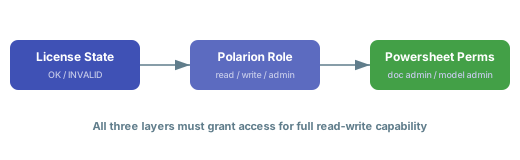
Can I check my current permissions?
Can I check my current permissions?
OK. See the Configuration FAQ for additional permission-related troubleshooting.What happens if my Polarion role changes while Powersheet is open?
What happens if my Polarion role changes while Powersheet is open?
Product Registration
How does Powersheet register itself with Polarion?
How does Powersheet register itself with Polarion?
sheet_configuration, which enables storage and retrieval of YAML sheet configurations from the project repository. This is why sheet configurations appear under Administration > Nextedy POWERSHEET in the Polarion UI.Configuration FAQ
Common questions about YAML configuration files, project setup, and global vs. project scope.
Configuration FAQ
Common questions about YAML configuration files, project setup, and global vs. project scope.
Administration Access
Where do I find the Powersheet configuration pages in Polarion?
Where do I find the Powersheet configuration pages in Polarion?
- Data Models — manage data model YAML files
- Sheet Configurations — manage sheet configuration YAML files
- Setup — initial Powersheet setup and configuration
- License — license management
What is the difference between global and project-specific configurations?
What is the difference between global and project-specific configurations?
Configuration Editor
What scopes does the configuration editor support?
What scopes does the configuration editor support?
ENABLED, DISALLOWED, or DISABLED depending on your permissions and the current editing context.Does the editor support JSON Schema validation?
Does the editor support JSON Schema validation?
Can I switch between YAML and JSON in the editor?
Can I switch between YAML and JSON in the editor?
lang: yaml). Your language preference is saved in your browser and persists across sessions.Sheet Configuration Assignment
How does a Powersheet document find its configuration file?
How does a Powersheet document find its configuration file?
nextedySheetConfig) that references a sheet configuration YAML file. Powersheet scans both the global and project-specific configuration directories for available YAML files and populates a picklist from which you select the desired configuration. If no configuration is selected, the document uses a bundled default configuration (powersheet.yaml).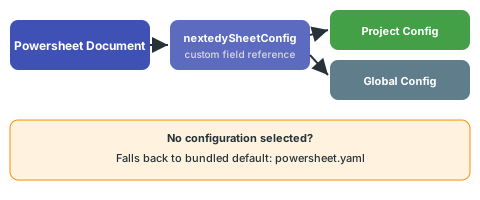
How do I update the configuration for an existing document?
How do I update the configuration for an existing document?
nextedySheetConfig custom field on the document, either through the Polarion work item editor or programmatically. You can also edit the configuration YAML directly through Administration > Nextedy POWERSHEET > Sheet Configurations, which will affect all documents referencing that configuration.See Creating Your First Sheet Configuration for a guided walkthrough.Data Model FAQ
Questions about data model entity types, relationships, properties, and naming conventions.
Data Model FAQ
Questions about data model entity types, relationships, properties, and naming conventions.
Data Model Basics
What is a data model and why do I need one?
What is a data model and why do I need one?
Where do I manage data models?
Where do I manage data models?
What is the relationship between data model, sources, and columns?
What is the relationship between data model, sources, and columns?
- Data model defines entity types and relationships (with
directandbacknavigation names) - Sources define how to query and expand those relationships (using the navigation names)
- Columns define how to display the resulting data (using dot-notation binding paths)

Entity Types and Properties
How do I define entity types in the data model?
How do I define entity types in the data model?
domainModelTypes section of the YAML file using map format only — each key is the entity type name, and the value contains its configuration. The polarionType property maps the entity type to a Polarion work item type.How do entity type properties work?
How do entity type properties work?
properties defines a field exposed in the Powersheet sheet. Properties are listed as keys under the entity type. Key property attributes include:serverName to alias Polarion field names to more user-friendly names, and customFieldName when a property maps to a Polarion custom field rather than a built-in field.Relationships and Cardinality
What relationship cardinalities are supported?
What relationship cardinalities are supported?
relationships array of the data model and map to Polarion link roles via the linkRole property. Each relationship specifies a direct and back navigation property name.How do I configure a many-to-one relationship?
How do I configure a many-to-one relationship?
direct navigation property name in your source expand and column binding:chapter for a reference picker or chapter.title for a read-only display of the referenced entity’s title.How do many-to-many relationships differ from many-to-one?
How do many-to-many relationships differ from many-to-one?
systemRequirements) reaches the association entity; the second level (systemRequirement) reaches the actual target entity. See the Data Model Guides for walkthrough examples.Configuration Tips
Should I start with a complex or simple data model?
Should I start with a complex or simple data model?
How does Powersheet know which Polarion link role to use?
How does Powersheet know which Polarion link role to use?
linkRole property in a relationship definition specifies the Polarion link role used to persist the connection. This must match a link role defined in your Polarion project’s link role configuration. The storage property determines how the relationship is persisted — linkedWorkItems is the only supported storage mechanism, using Polarion’s native linking to persist connections.Sheet Configuration FAQ
Questions about column setup, views, formatters, sources, and display options.
Sheet Configuration FAQ
Questions about column setup, views, formatters, sources, and display options.
Configuration Basics
What is a sheet configuration?
What is a sheet configuration?
nextedySheetConfig custom field. Configurations are managed in Administration > Nextedy POWERSHEET > Sheet Configurations.See Creating Your First Sheet Configuration for a step-by-step tutorial.How does a sheet configuration relate to the data model?
How does a sheet configuration relate to the data model?
model property in the sources section specifies which data model to use. If the model and configuration do not match, you will see errors when loading the sheet.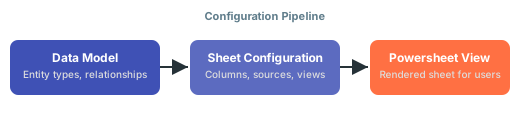
Should I start with a complex configuration or build incrementally?
Should I start with a complex configuration or build incrementally?
Columns and Binding Paths
How do column binding paths work?
How do column binding paths work?
title maps directly to the base entity, while a multi-level path like systemRequirements.systemRequirement.severity navigates through a relationship to access a property on a related entity type. Each segment of the path corresponds to a navigation property in the data model.What column properties can I configure?
What column properties can I configure?
Data Sources and Scoping
How do data sources work in the sheet configuration?
How do data sources work in the sheet configuration?
sources section defines how Powersheet queries data from Polarion. Each data source specifies a model reference, a from entity type, optional where filters, expand paths for loading related entities, and take limits. Powersheet automatically applies document-scoping constraints to all queries, ensuring data is filtered to the current document context.Can I use dynamic values in my configuration?
Can I use dynamic values in my configuration?
$context expressions that are resolved at runtime. For example, $context.document.id resolves the current document path, and $context.source.project.id resolves the source entity’s project. Dynamic values are also used in constraint definitions to route entity creation based on the source entity type.Document Management
How are Powersheet documents created?
How are Powersheet documents created?
Migration FAQ
Questions about migrating from legacy configurations or from Risksheet to Powersheet.
Migration FAQ
Questions about migrating from legacy configurations or from Risksheet to Powersheet.
Upgrading Powersheet
How do I upgrade Powersheet to a new version?
How do I upgrade Powersheet to a new version?
Will my existing configurations work after an upgrade?
Will my existing configurations work after an upgrade?
$version field for schema compatibility checking, which allows Powersheet to handle older configuration formats. In most cases, existing configurations continue to work without changes.Do I need to update my license after upgrading?
Do I need to update my license after upgrading?
Configuration Migration
Can I move configurations between projects?
Can I move configurations between projects?
Can I duplicate a Powersheet document from another project?
Can I duplicate a Powersheet document from another project?
How do I migrate from standard Polarion LiveDoc views to Powersheet?
How do I migrate from standard Polarion LiveDoc views to Powersheet?
Troubleshooting FAQ
Quick answers to common error messages, symptoms, and where to find detailed resolution guides.
Troubleshooting FAQ
Quick answers to common error messages, symptoms, and where to find detailed resolution guides.
Loading and Display Issues
Why does my Powersheet show a blank or empty sheet?
Why does my Powersheet show a blank or empty sheet?
sources does not exist, or there is a YAML syntax error in the configuration. Start by verifying the data model exists in Administration > Nextedy POWERSHEET > Data Models, then confirm work items of the expected polarionType exist in the project. Check the browser developer console for error messages that pinpoint the failure.Why is my Powersheet stuck in read-only mode?
Why is my Powersheet stuck in read-only mode?
Why are some columns not showing data?
Why are some columns not showing data?
systemRequirements.systemRequirement.severity) follows a valid expansion path defined in your data model relationships, that the referenced properties exist on the target entity type in domainModelTypes, and that your data source expand array includes the navigation properties the column path depends on. If the expansion path is missing from sources, the related data simply will not be loaded.Configuration Issues
Why does my sheet configuration fail to load?
Why does my sheet configuration fail to load?
Why don't my configuration changes take effect?
Why don't my configuration changes take effect?
_global project scope if that is where your sheet reads from.Why does my sheet open with some of its columns missing?
Why does my sheet open with some of its columns missing?
Why does my entity picker show unexpected items?
Why does my entity picker show unexpected items?
pick constraints defined in the data model for each entity type. If you see unexpected items, review the constraints.pick section on the relevant entity type — these entries control filtering by document.moduleFolder, document.moduleName, document.type, or document.component. The list.search property on the column definition controls which fields are searchable when typing in the picker. Missing or overly broad constraints are the most common cause of unfiltered picker results.For full constraint configuration details, see the Data Model Reference.Data Model Issues
Why do I get errors about entity types not being found?
Why do I get errors about entity types not being found?
domainModelTypes section. Entity type names are case-sensitive and must match exactly — SystemRequirement is not the same as systemRequirement or Systemrequirement. Verify naming consistency between your data model, sheet configuration column paths, and sources definitions.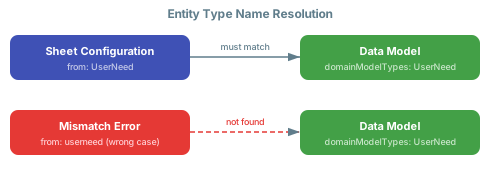
Administration and Setup Issues
How do I access the Powersheet administration interface?
How do I access the Powersheet administration interface?
_global project) provide system-wide defaults that individual projects can override.See Administration Guides for detailed setup instructions.Why do changes to my global configuration not appear in my project?
Why do changes to my global configuration not appear in my project?
Data and Save Issues
Why does saving data fail with validation errors?
Why does saving data fail with validation errors?
cardinality is set to many-to-one), picking entities from outside the allowed moduleFolder or moduleName scope, or submitting duplicate property values where uniqueness is enforced. The error message usually includes a numbered list of failing conditions.For detailed resolution steps, see Resolve Validation Errors.Why do dynamic value expressions return empty results?
Why do dynamic value expressions return empty results?
$context syntax like $context.source.document.component) resolve at runtime based on the current document context. If a dynamic expression returns an empty result, verify that the source document has the expected property set. For example, $context.source.document.component only works if the Polarion document has a component property assigned. Missing context values resolve to empty strings, which can cause picker constraints to match all items or no items depending on the filter logic.See Sheet Configuration Guides for more on dynamic values in source configurations.