

What you will achieve
By the end of this tutorial you will have:- A working sheet configuration with columns for
UserNeedand relatedSystemRequiremententities - A data source that queries and expands the entity hierarchy from your data model
- A complete configuration ready to be linked to a Nextedy Powersheet document

Prerequisites
- Powersheet installed and licensed (see Installing Powersheet)
- A data model created with at least
UserNeedandSystemRequiremententity types (see Creating Your First Data Model) - Navigation topic enabled (see Setting Up Navigation)
1
Open the sheet configuration administration
Navigate to Administration > Nextedy POWERSHEET > Sheet Configurations.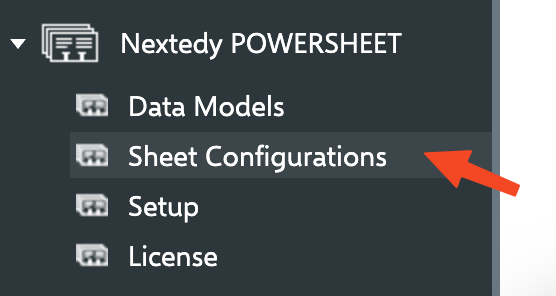
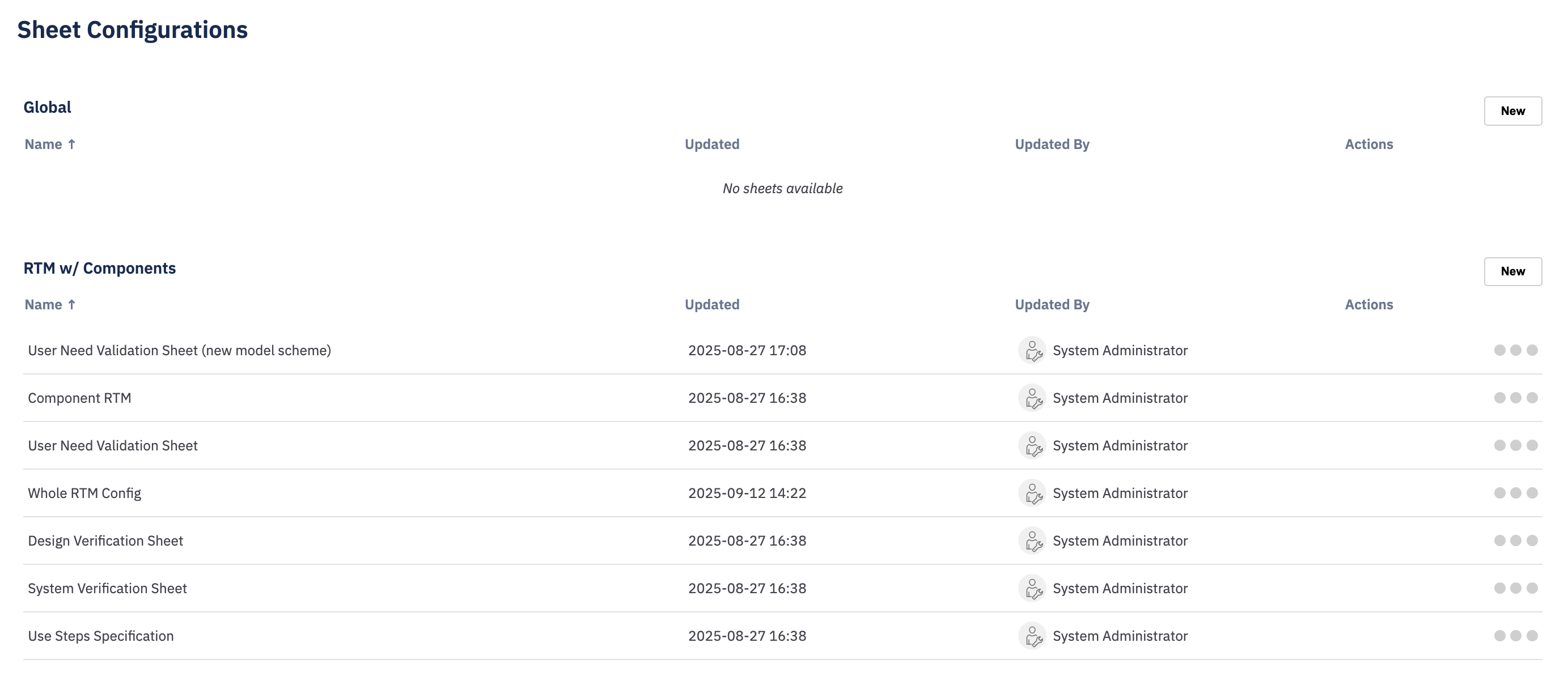

rtm-sheet).The screenshot above shows a different example name (
my new powersheet config). This tutorial uses rtm-sheet throughout — including when linking the configuration to a document in Step 5 — so use rtm-sheet (or your own chosen name) consistently wherever the tutorial refers to it.2
Define columns
Replace the editor content with the following YAML. This defines columns for the root Each key under
UserNeed entity and nested columns for related SystemRequirement entities:columns is a binding path that references properties from your data model. A simple key like title refers to a property on the root entity type. A dot-separated path navigates through relationships defined in the data model:You should see: Four column definitions in the YAML editor.
The
title property sets the column header text. Without it, the header defaults to the binding path (e.g., 0.systemRequirements.systemRequirement.title), which is not user-friendly. Always set an explicit title for clarity.3
Define the data source
Add a The source configuration has three required parts (plus optional expansion):
sources section below the columns. This tells Powersheet which data model to use, which entity type to query, and which relationships to expand when loading data:id(required) — a unique identifier you choose for this data source. You can name it anything meaningfulmodel(required) — the name of the data model to use, which must match the data model file name (without the.yamlextension). Thertmvalue here assumes you named your modelrtm; use whatever name you actually gave the model when you created it in Creating Your First Data Model. For example,model: rtmreferences thertm.yamldata model file, while a model namedtraceabilitywould requiremodel: traceabilityquery.from(required) — the root entity type name, matching a key indomainModelTypesfrom your data modelexpand(optional) — which relationships to follow when loading data. Eachnamecorresponds to a navigation property from your data model. Expansion can be nested to follow multi-level relationships
columns and sources sections.Built-in properties like
id and title do not need to be explicitly defined in your sources or data model to be queried; they are implicitly available. However, you must explicitly list them in your columns section if you want them to appear in the sheet.4
Review the complete configuration
Your complete sheet configuration should look like this:Save the configuration file.You should see: The editor accepts the YAML without errors. The configuration is now stored in your project repository.
5
Link the configuration to a document
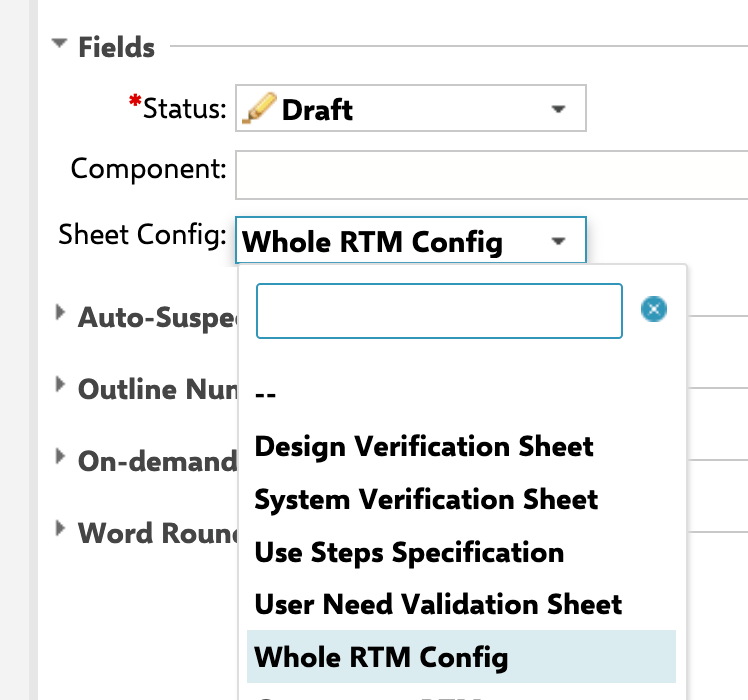
nextedySheetConfig, labelled Sheet Config in the UI. Use its dropdown to select the configuration you just created (rtm-sheet), as shown above.The
nextedySheetConfig field must be registered on the document type before it appears in Properties. If it is missing, see Installing Powersheet for adding the custom field. If your project uses a different field ID, it must be declared via the com.nextedy.powersheet.sheetConfigFieldId configuration property.UserNeed title and severity at the root level, and SystemRequirement title and severity as expandable child rows.Understanding root-level properties
The sheet configuration supports several root-level properties beyondcolumns and sources. You do not need all of these to start — columns and sources are sufficient for a working sheet:
Next steps
- Incremental Configuration Approach — learn how to extend your configuration step by step
- Creating Your First Powersheet Document — create a document and see your sheet in action
- Sheet Configuration Reference — full property reference for all sheet configuration options
- Columns Reference — detailed reference for column settings like
isReadOnly,formatter, andgroupBy - Data Model Guides — extend your data model with additional entity types and relationships