

What you will achieve
By the end of this tutorial you will have:- A
nextedySheetConfigcustom field configured on documents - A LiveDoc assigned to your sheet configuration
- A working powersheet document accessible from the Powersheet Drive
Prerequisites
- Powersheet installed and licensed (see Installing Powersheet)
- Navigation topic enabled (see Setting Up Navigation)
- A data model created (see Creating Your First Data Model)
- A sheet configuration created (see Creating Your First Sheet Configuration)

1
Create the nextedySheetConfig custom field
If you set up your project from the RTM Demo template (the template the install flow configures), the Sheet Config document custom field is likely already present — check Administration > Documents & Pages > Custom Fields before adding it. Step 1 is for projects that don’t have the field yet.
custom-fields.xml definition, where each field is declared as a <field> element. Add (or upload) a field definition with the following attributes:In other words, the field Type is
Enum, and the enum it points to is the Nextedy - Sheet Config enumeration — a Powersheet-provided enum that dynamically discovers the available sheet configuration files in the repository. A minimal entry looks like:custom-fields.xml content to apply the definition.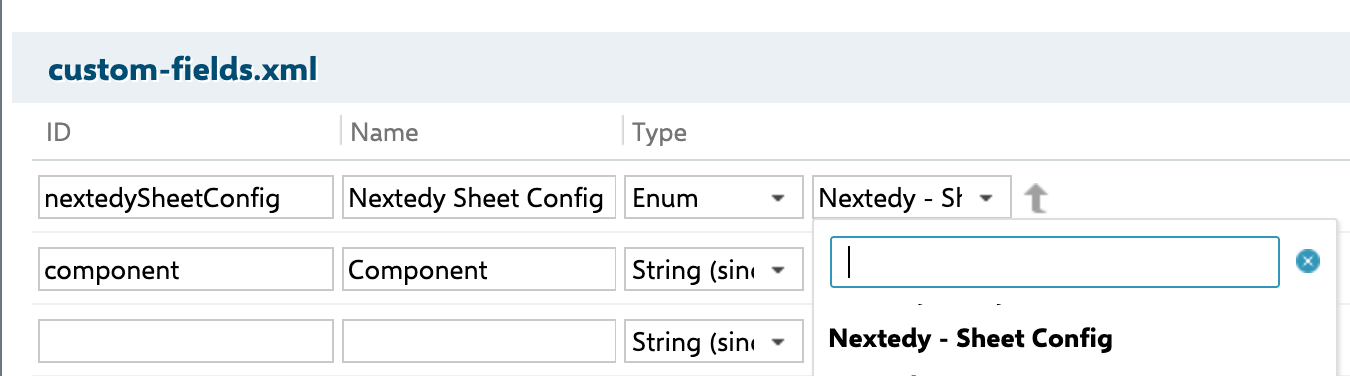
Nextedy - Sheet Config enum that dynamically discovers available sheet configuration files from the repository.The field ID and name can be customized. If you use a different ID, you must declare it in Administration > Nextedy POWERSHEET > Configuration Properties with:
com.nextedy.powersheet.sheetConfigFieldId=yourFieldId
(only needed when you deviate from the default nextedySheetConfig id).2
Create a LiveDoc
Create a new LiveDoc in your project. The creation wizard exposes several fields; the ones that matter here are: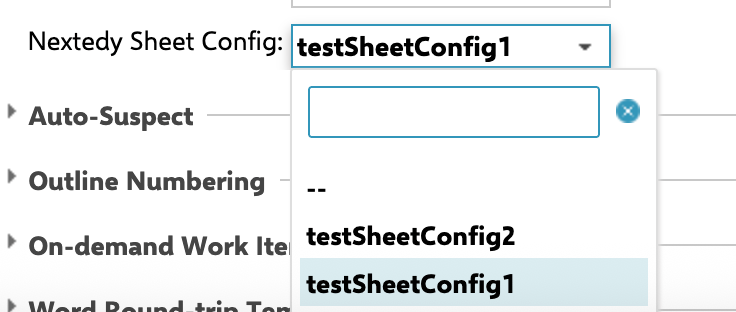
After the document is created, open its Properties and set the Sheet Config field to your sheet configuration name (e.g.,
rtm-sheet).3
Add the Open with Powersheet button (optional)
To allow users to easily switch from the LiveDoc view to the Powersheet view, add the following Velocity snippet directly into the document body — the LiveDoc’s You should see: An “Open with Nextedy Powersheet” button appears in the LiveDoc, allowing users to jump directly to the sheet view.The button opens the sheet for the document as you are viewing it: the live document by default, the historical revision when you view an older revision, or the Collection’s pinned revisions when you are inside a Polarion Collection. See Open a Sheet in a Polarion Collection.
homePageContent (the rich-text content area you edit in the document itself), not a separate sidebar or panel:4
Open the document from Powersheet Drive
Navigate to the Powersheet Drive in the left sidebar. Your new document should appear in the list.Click the document name to open it in the Powersheet view.You should see: The sheet loads with the columns defined in your sheet configuration. If the project contains work items matching the
The Drive doesn’t always list a freshly created document right away. If it doesn’t appear, reload the Drive (or do a hard refresh of the browser) to force the list to update.
UserNeed type, they appear as rows with their related SystemRequirement items expandable beneath them.5
Test basic operations
With the sheet open, try the following operations: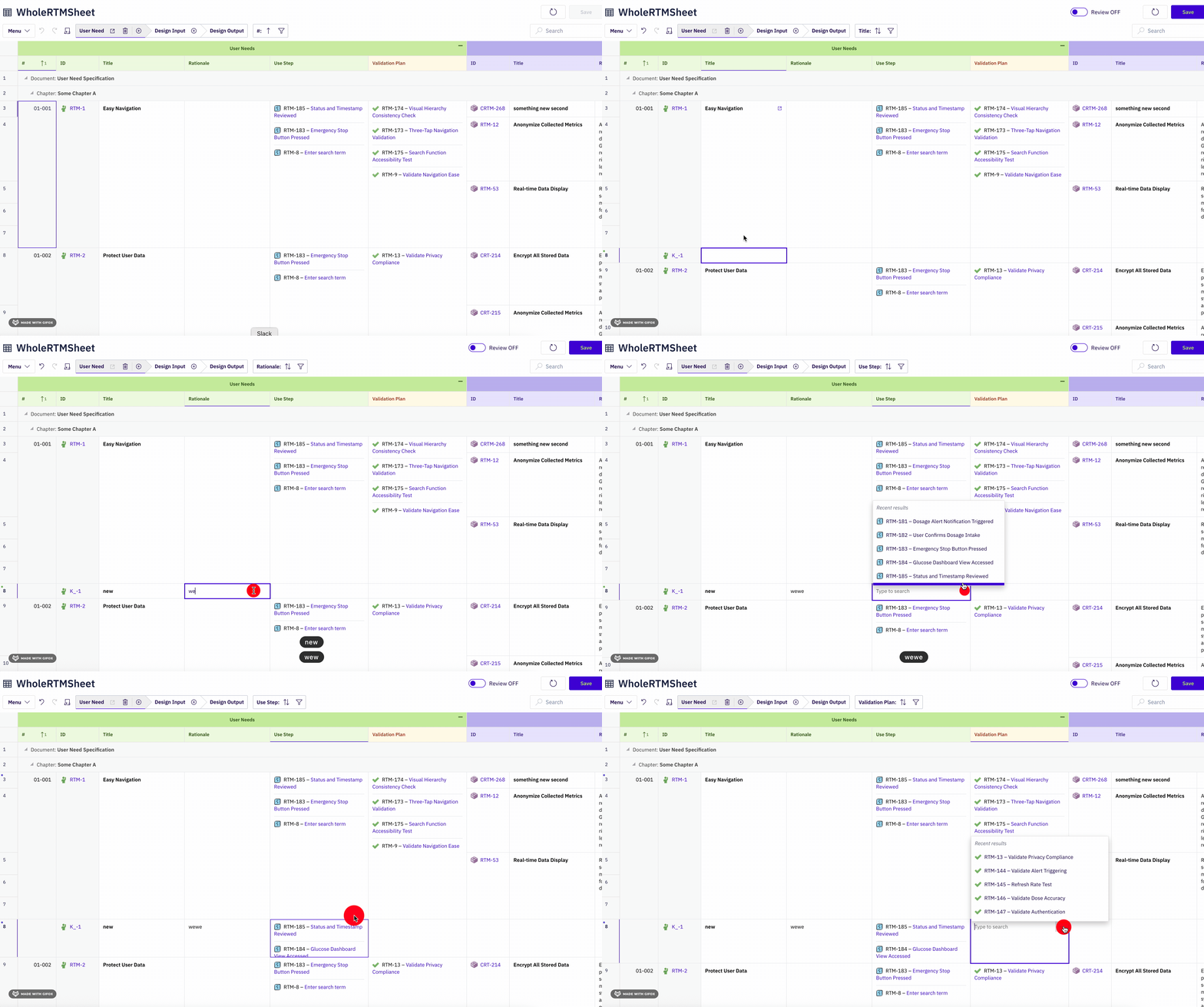
- Add a row — click the add button to create a new
UserNeedwork item. If the sheet has more than one hierarchy level, each level has its own(+)control; use the one at the level you want the row at. For a top-level entity likeUserNeed, use the root-level add button. - Edit a cell — click on the title cell and type a name
- Save — click the save button to persist your changes to Polarion
Next steps
- Incremental Configuration Approach — learn how to extend your configuration step by step
- How-To Guides — task-oriented guides for common operations
- Reference — complete YAML property reference
Related guides
- Creating Your First Sheet Configuration — define the columns and views referenced by this document
- Creating Your First Data Model — define the entity types that appear as rows
- Setting Up Navigation — enable the Powersheet Drive topic in the sidebar