

The Problem Powersheet Solves
Polarion ALM stores data as individual work items connected through link roles, but viewing and editing those relationships at scale is cumbersome. Any team managing structured hierarchical data — whether requirements traceability, risk registers, task boards, or custom data models — faces the same challenge: they need to see the full chain at once, not click through dozens of separate pages. This is especially acute in regulated industries (automotive, aerospace, and medical devices) where traceability evidence must be complete and auditable. Nextedy Powersheet solves this by projecting those multi-level relationships into a single, configurable sheet where every column, row hierarchy, and edit behavior is defined through YAML configuration.Core Architecture
Powersheet separates concerns into three distinct layers: a data model that defines the data structure, a sheet configuration that controls presentation and interaction, and a document that serves as the entry point within Polarion.
1. Data Model
The data model is a YAML file that defines what slice of the Polarion data model is visible and editable within Powersheet. It acts as a semantic layer that maps Polarion’s native elements — work item types, link roles, document types — into structured entity types and relationships. Key responsibilities of the data model:- Mapping and normalization — Enables centralized configuration even across projects with slightly different Polarion setups. You can reuse the same sheet configuration while only adjusting the data model mapping.
- Process constraints — Defines custom rules not natively enforceable in Polarion, such as link cardinality (for example, a
SystemRequirementmay link to only oneUserNeedin an RTM model) and document rules (an entity must exist in documents of a specific type). - Reusability — You can define both global models and project-specific models. Multiple models can exist and be reused across projects.
2. Sheet Configuration
The sheet configuration defines how data from the model is displayed and interacted with. Stored as a YAML file, it specifies:- Columns — Which attributes and relationships are visible, which are editable, and how they are formatted
- Sources — Where to query data and how to expand related entities through expansion paths
- Views — Named column visibility presets for different analysis perspectives (for example, one view for coverage analysis, another for risk assessment)
3. Document Entry Point
Each powersheet is anchored to a Polarion LiveDoc. There are two patterns:- Self-contained — The document is associated with a sheet configuration and visualizes data defined by that configuration.
- Template-based — The document references a shared sheet configuration that can be reused across many documents.
Powersheet Drive
Powersheet introduces Powersheet Drive, a dedicated topic in the Polarion sidebar that serves as a navigator for all configured powersheet documents. By default, it lists all documents with an assigned sheet configuration, providing a central entry point into structured traceability and planning views. From the Drive you can also open a sheet inside a Polarion Collection; see Open a Sheet in a Polarion Collection.The Powersheet Drive topic must be enabled in Polarion’s topic configuration before it appears in the sidebar. See Setting Up Navigation for instructions.
How Configuration Layers Work Together
The separation between data model and sheet configuration is intentional. Consider a scenario where two projects use different Polarion work item type IDs for the same logical concept — one usessys_req and the other uses system_requirement. With Powersheet, you create two data models (each mapping to their project’s type IDs) but share a single sheet configuration. The sheet configuration refers to the logical entity type (for example, SystemRequirement from the RTM model), and the data model handles the mapping to the actual Polarion type.
This architecture supports standards compliance for ISO 15288, Automotive SPICE, and ISO 26262 by keeping the process-level configuration (data model) separate from the presentation-level configuration (sheet configuration).
What You Can Do in a Powersheet
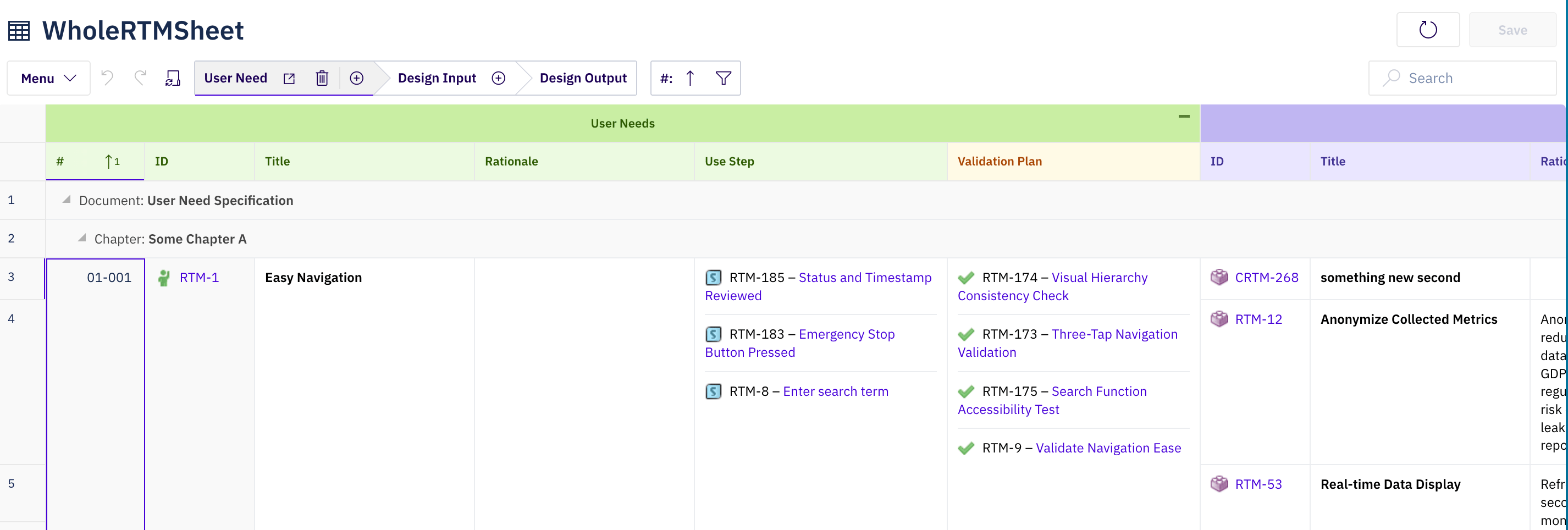
- View hierarchical data with expandable rows showing related entities
- Edit work item properties inline with type-aware editors
- Create new work items and links directly in the sheet
- Filter and sort across all columns, including related entity properties
- Group rows by column values with collapsible group headers
- Switch between named views for different analysis perspectives
- Copy and paste cell ranges within the sheet
- Use keyboard shortcuts for common operations
Next Steps
- Installing Powersheet — Deploy Powersheet into your Polarion instance
- How to Evaluate Powersheet — Try Powersheet through a hosted or local trial
- Concepts — Deep dive into architecture, entity types, and relationships