

What you will achieve
By the end of this tutorial you will have:- The
nextedySheetConfigcustom field created for documents in your project - The Powersheet topic added to your project’s navigation views
- Powersheet Drive visible in the left sidebar, listing all configured powersheet documents
Prerequisites
- Powersheet installed and licensed (see Installing Powersheet)
- Administrator access to the Polarion project
- At least one sheet configuration uploaded to Administration > Nextedy POWERSHEET > Sheet Configurations
1
Create the nextedySheetConfig custom field
Before Powersheet Drive can discover documents, each document needs a custom field that stores the reference to its sheet configuration file. You must create this field at the project level.
- Navigate to Administration > Documents & Pages > Document Custom Fields
- Add a new custom field with these settings:
- Save the custom field definition
nextedySheetConfig field listed among your document custom fields. Powersheet automatically populates the enum options through the @NextedySheetConfigs enum provider, which discovers all uploaded sheet configuration files.2
Open the Topics configuration
Navigate to Administration > Portal > Topics in your Polarion project.You should see: A list of views (such as
admin, team, docspec) with their configured topics. Each view defines which sidebar topics are visible for users assigned to that view.3
Add the Powersheet topic
Add the following topic entry to each view where Powersheet should be available:Add this entry to the
admin, team, and docspec views so that all relevant user roles can see the Powersheet Drive in the sidebar.You should see: The topic entry appears in the view configuration alongside other topics like Documents, Work Items, and Plans.4
Assign a sheet configuration to a document
For Powersheet Drive to list a document, the document must have its
nextedySheetConfig field set to a valid sheet configuration.- Open a LiveDoc in your project
- Open the document properties panel
- Set the Nextedy Sheet Config field to one of the available sheet configurations
- Save the document
5
Verify the Powersheet Drive
Save the topics configuration and navigate to your project home page. In the left sidebar, you should now see the Powersheet Drive entry.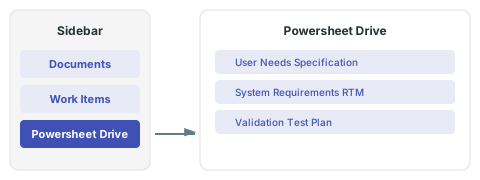
nextedySheetConfig custom field value. Each document entry opens directly in the Powersheet sheet view.If no documents appear in Powersheet Drive, verify that at least one document has a sheet configuration assigned in its
nextedySheetConfig field. The drive discovers documents by querying for all documents where this field is populated.The Drive is not listed inside a Polarion CollectionInside a Collection, Polarion’s sidebar shows only the Collection’s own topics, so Powersheet Drive is not among them. Sheets are opened from the Collection’s documents instead; see Open a Sheet in a Polarion Collection.
6
Open a document with Powersheet
Click any document listed in Powersheet Drive. Powersheet loads the associated sheet configuration and data model, then renders the hierarchical sheet with your configured columns and expansion paths.You should see: The document opens in the Powersheet sheet view showing the configured columns, entity types, and hierarchical data. The toolbar provides access to editing, filtering, sorting, and export features.
Configuration scope
Data model and sheet configuration files can be managed at multiple levels through the Polarion administration interface:- Administration > Nextedy POWERSHEET > Data Models — for data model YAML files
- Administration > Nextedy POWERSHEET > Sheet Configurations — for sheet configuration YAML files
Troubleshooting
Next steps
- Creating Your First Data Model — define entity types and relationships for your project
- Creating Your First Sheet Configuration — configure columns, formatters, and views
- Creating Your First Powersheet Document — build your first working powersheet document
- Incremental Configuration Approach — learn how to extend configurations step by step