

The Explicit Save Model
Powersheet uses an explicit save model, not auto-save. Every edit you make — changing a cell value, adding a row, deleting a row, creating a link — is captured in a local change buffer within your browser session. Nothing is written to Polarion until you click Save. Think of this like a text editor with an unsaved document indicator. You can make dozens of changes, undo some of them, review what you have modified, and only persist when you are satisfied. The alternative — auto-saving every keystroke to the server — would be impractical in a regulated engineering environment where each save creates a revision in Polarion’s audit trail.
- Navigating away discards unsaved changes. If you close the browser tab, navigate to a different page, or refresh the browser, your local change buffer is lost. There is no draft recovery or local persistence.
- Each save creates Polarion revisions. Every saved modification produces an auditable revision in Polarion’s version history, which is critical for compliance in regulated industries.
- Undo only works before saving. The undo/redo stack (
Ctrl+Z/Ctrl+Y) tracks operations within the current session. Once changes are saved, the stack is cleared. Reverting a saved change requires using Polarion’s native revision history.
Session Lifecycle
A working session starts when Powersheet loads data and ends when you navigate away or close the browser. During this lifecycle, several phases occur.Loading Phase
When you open a powersheet document, the client application requests metadata and data from the server:- Configuration loading — the server reads the data model and sheet configuration YAML files
- Metadata generation — the server produces a typed schema describing entity types, properties, relationships, and constraints
- Data query — the server translates the sheet’s source configuration into Polarion queries and returns matching work items
- Client rendering — the browser renders the sheet with loaded data, applying column definitions, formatters, and conditional styling
Editing Phase
During the editing phase, all changes are local:
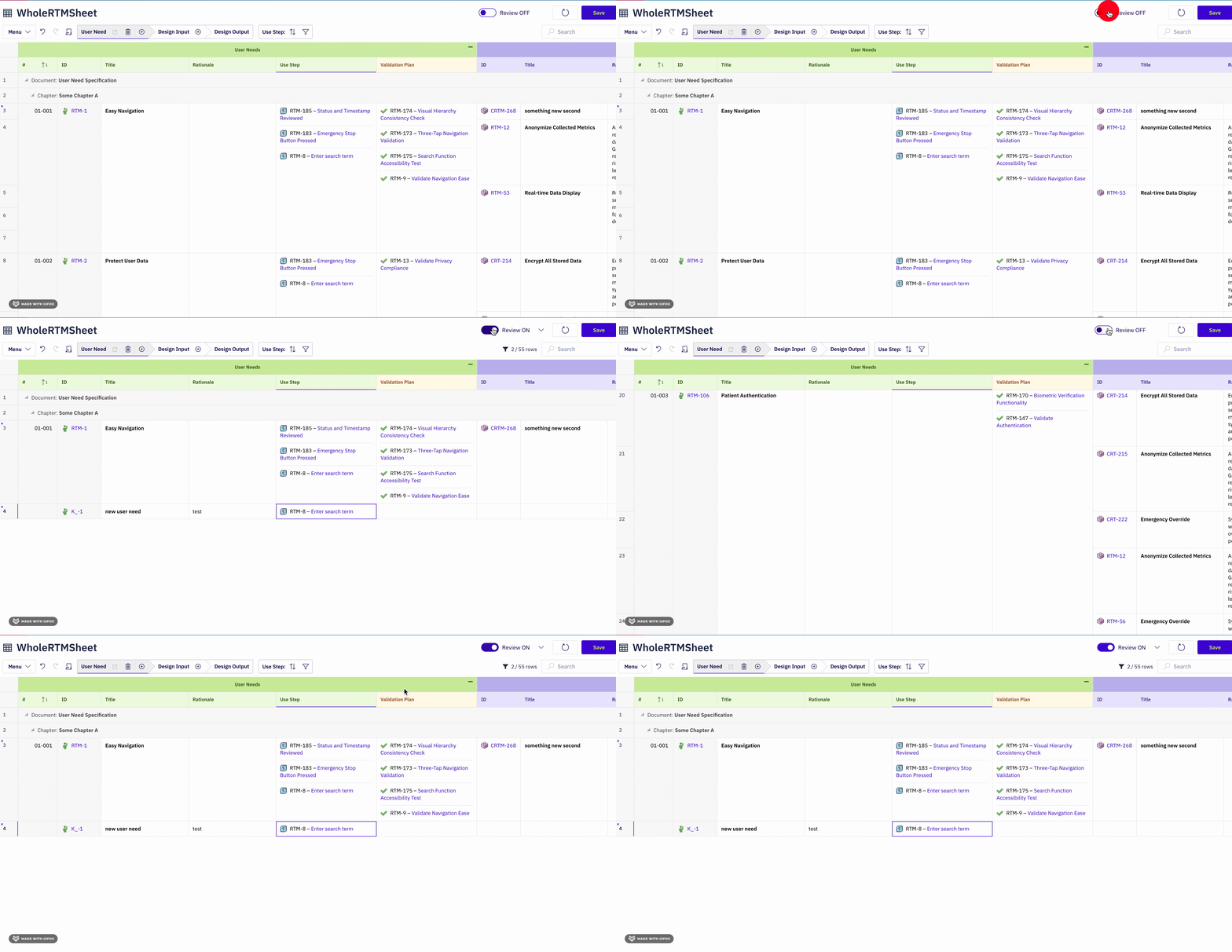
The Save button activates only when the change buffer contains at least one pending operation. The toolbar displays a count of changed rows when review mode is active.
Save Phase
When you click Save, Powersheet executes a structured commit sequence:- Validation — all pending changes are checked against data model constraints, including required fields, cardinality rules, and process constraints
- Dependency ordering — entities are sorted so that items referenced by links are saved before the links themselves
- Server commit — each entity is saved to Polarion via the server API, creating work items, updating fields, and establishing links
- Confirmation — on success, the change buffer and undo stack are cleared, and the sheet refreshes to show the persisted state
Save is atomic per entityThe save operation processes entities one by one in dependency order. If an error occurs partway through, entities already saved remain persisted. This is not a database transaction that rolls back entirely — partially saved states are possible, though rare. Always review validation results before saving.
Session End
A session ends when you navigate away from the document, close the browser tab, or refresh the page. There is no session timeout that automatically saves your work. Unsaved changes are lost silently.The Change Buffer
The change buffer is the central data structure of a working session. It acts as a local transaction log, recording every operation in sequence. Understanding what the change buffer tracks helps explain behaviors like undo granularity and review mode filtering. The change buffer records:- Cell edits — the original value and the new value for each modified cell, enabling undo
- Row additions — new entities with temporary IDs and their initial field values
- Row deletions — which existing entities are marked for removal
- Link operations — staged relationship changes (new links, removed links)
Concurrent Editing
In any multi-user environment, the question arises: what happens when two users edit the same sheet — or the same work item — at the same time? Powersheet handles this through a last-write-wins model at the Polarion level, combined with session-level isolation.Session Isolation
Each browser session operates independently. When User A and User B open the same powersheet document, they each receive their own snapshot of the data at load time. Their change buffers are completely separate. Neither user sees the other’s unsaved changes.
Last-Write-Wins
Because Powersheet does not maintain its own data store (all data lives in Polarion), concurrent save operations are resolved by Polarion’s native behavior. If User A saves a change to a work item’sseverity field and User B subsequently saves a different value to the same field, User B’s value overwrites User A’s. There is no merge dialog or conflict detection within Powersheet itself.
This has practical implications:
- Non-overlapping edits are safe. If two users edit different fields on the same work item, or different work items entirely, their saves do not interfere with each other.
- Overlapping edits follow last-write-wins. If two users modify the same field on the same work item, the last save prevails. The earlier save is overwritten without warning.
- Stale data is possible. After User A saves, User B’s sheet still shows the data from their original snapshot. User B does not automatically see User A’s changes until they refresh the page.
Refresh to Synchronize
To see changes made by other users (or by other Polarion tools), you must reload the page. Powersheet does not poll the server for updates or push real-time notifications. The data you see in the sheet reflects the state at the time the page was loaded (or last refreshed). This behavior is consistent with the broader Polarion architecture, where LiveDoc pages and reports also display point-in-time snapshots rather than live-updating views.Handling Errors and Recovery
Validation Errors
If the save operation encounters a validation error — for example, a required field is empty or a constraint is violated — the save is blocked. The error is displayed in the sheet, and you must resolve the issue before the save can proceed. Validation errors do not discard your changes. The change buffer remains intact, and you can fix the problematic field and retry the save. See Handle Validation Errors for detailed steps.Error State
In rare cases, an unexpected error during save can place the sheet in an error state. When this happens, further save operations are blocked with a message indicating that the application has encountered an error. The recommended recovery is to reload the browser page.Browser and Network Issues
Because all unsaved changes exist only in the browser’s memory, several common scenarios can cause data loss:
Network disconnections are the most recoverable scenario — if the browser stays open, your change buffer remains intact. Once the network is restored, you can retry the save without losing work.
Why Explicit Save Matters
The explicit save model is a deliberate architectural choice that aligns with the regulated engineering context where Powersheet is typically deployed. Auditability. In environments governed by ISO 26262, Automotive SPICE, or similar standards, every change to a requirement or risk assessment must be traceable. Auto-saving every keystroke would create an excessive revision history, making it difficult to distinguish intentional decisions from typing corrections. The explicit save model ensures that each revision represents a completed, reviewed set of changes. Batch coherence. Engineering changes often span multiple related fields and entities. A system requirement update might involve changing the title, updating the verification status, and adjusting a linked hazard’s risk level. The explicit save model lets you make all related changes before committing them together, ensuring that the Polarion revision history shows a coherent state rather than intermediate half-finished updates. Undo safety. The ability to undo changes before saving provides a safety net that auto-save cannot offer. If you accidentally delete a row or overwrite a field,Ctrl+Z restores the previous state immediately. With auto-save, such mistakes would require navigating Polarion’s revision history to recover.
Common Misconceptions
“Powersheet auto-saves my work.” It does not. Every edit is local until you explicitly click Save. Closing the browser without saving discards all pending changes. “Other users can see my changes in real time.” They cannot. Each session is isolated. Other users see the state of the data at the time they loaded the page. They must refresh to see your saved changes. “If the save fails, I lose everything.” Not necessarily. Validation errors keep your change buffer intact — you fix the issue and retry. Only browser-level events (closing, crashing, refreshing) destroy the change buffer. “Undo works after saving.” It does not. The undo stack is cleared when a save completes. To revert a saved change, use Polarion’s native revision history on the affected work item. “Saving locks the work items for other users.” It does not. Powersheet does not acquire locks during save. Multiple users can save to the same work items, with last-write-wins resolution at the Polarion level.Related Pages
- Powersheet Architecture — how the client, server, and Polarion data layer interact
- Process Constraints — validation rules that can block save operations
- Update a Work Item — step-by-step editing and saving workflow
- Handle Validation Errors — resolving errors that prevent saving
- Create a Work Item — adding new entities with constraint enforcement