

Prerequisites
- A Powersheet document open in Siemens Polarion ALM with a valid sheet configuration and data model
- The entity type you want to create must be defined in the data model with a valid
polarionTypemapping - Your user account must have create permissions (
isCreatableenabled) for the target work item type
1
Add a New Row
Click the Add button ( ) in the sheet toolbar. A new empty row appears in the sheet with default values from the entity factory configuration.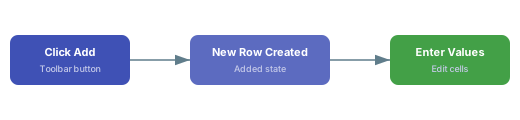
) in the sheet toolbar. A new empty row appears in the sheet with default values from the entity factory configuration.Row placement in hierarchical sheetsThe new row is created at the current hierarchy level. If you have a multi-level sheet (for example,
UserNeed > SystemRequirement > DesignRequirement), the row is added at the level corresponding to the selected cell’s entity type.2
Enter Required Fields
Click into the new row and type directly into cells to populate field values. The cell that receives initial focus is determined by the Press Enter to commit the cell edit. Fields configured as
hasFocus property in your sheet configuration:isReadOnly: true or with updatable: false in the data model cannot be edited.3
Understand Document Routing
When your data model defines constraints on the entity type, new work items are automatically routed to the correct Polarion document. The constraint system scopes new entities to the current document context automatically.For example, a data model that routes When a user creates a
SystemRequirement items to a specific document:SystemRequirement, it is automatically placed in the document matching the specified folder, name, and type.Constrained Picker Values
In a multi-level sheet, constraints can also filter the available values in picker columns. For example, when creating aUserNeed and selecting a linked SystemRequirement, the picker shows only system requirements from the matching document type.4
Review Before Saving
Before saving, use review mode to inspect your pending changes:
- The Review toggle appears automatically in the toolbar when any changes exist
- Click it to filter the sheet to show only rows with pending changes
- New rows are indicated with the Added state marker on the row header
- Use the review mode dropdown menu to filter by change type
The row count display shows the format N/M rows where N is the number of visible filtered rows and M is the total row count.
5
Save Changes
Click the Save button (💾) in the toolbar. During the save operation:
- The sheet checks for any active error state — if errors exist, you see an alert message and the save is blocked
- The sheet temporarily enters read-only mode to prevent concurrent edits
- All pending entity changes (with
Addedstate) are validated and sent to the server - Server-generated identifiers (such as
objectId) are assigned to new items via key mapping - The undo stack is cleared on successful save
- Original read-only state and permissions (
isCreatable,isDeletable,isUpdatable) are restored
6
Undo and Redo
If you make a mistake before saving, use the Undo () and Redo () buttons in the toolbar:
- Undo reverses the last operation (add, remove, or edit) and restores the previous sheet state including row position and content
- Redo re-applies a previously undone operation
- Both operations preserve selection state, including multi-row selections
- Undoing all operations disables both the Undo and Save buttons
7
Verify
You should now see the new work item in the sheet with a server-assigned ID. The row header no longer shows the Added state indicator, and the Save button is disabled (indicating no pending changes remain).
Verify in applicationOpen the corresponding Polarion LiveDoc to confirm the work item appears in the expected document location with the correct work item type. If document routing constraints are configured, verify the item was placed in the correct module folder.
Troubleshooting
See Also
- Update a Work Item — modify existing work item fields
- Create a Link — link the new work item to other entities
- Handle Validation Errors — resolve errors during save
- Configure Constraints — set up document routing constraints
- Create an Entity Type — configure
polarionTypemappings - Set Entity Permissions — control
readableandupdatableproperties