

Prerequisites
- A powersheet document with pending changes that you are attempting to save
- Familiarity with the review mode toolbar controls
1
Identify the Error
When a save operation encounters validation errors, Powersheet collects all errors across all entities and presents them as a single aggregated error message. The sheet does not lose your changes — all pending modifications remain in place for correction.Errors fall into two categories:
2
Enter Review Mode
After a failed save, the review mode remains active. Use it to locate problematic rows: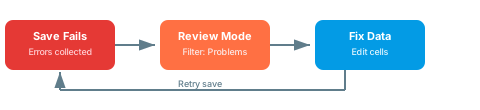
- Click the Review toggle if it is not already active
- Open the review filter menu and select Problems to filter to rows with validation errors
- The row count display shows how many rows have issues (e.g., “2/45 rows”)
3
Inspect Problem Rows
Rows with validation errors display both the modified and error visual indicators on the row header. The review filter menu shows the count of problem rows (e.g., “Problem rows: 2”).Individual cells contributing to errors may also show a modified state indicator. Check the following common causes:
- Missing required fields — a required Polarion field has no value
- Invalid enum value — the selected value is not in the allowed options for the work item type
- Constraint violations — the entity does not match the document routing constraints
- Workflow state conflicts — attempting a workflow transition on an unsaved entity
4
Correct the Data
Edit the problematic cells directly in the sheet:
- Click into the cell with the error
- Enter a valid value
- The error indicator should clear when you commit the edit
5
Retry the Save
After correcting all validation errors, click Save again. Entities are saved in topologically sorted order (parents before dependents) to prevent foreign key violations.
Error state save guardIf the sheet entered an error state during the previous save attempt, you may see a blocking message: “There is an error in the app and save should not happen. Please, reload the browser.” In this case, reload the page. Your unsaved changes may need to be re-entered.
6
Verify
You should now see all rows saved successfully. The review mode toggle disappears when no pending changes remain. The Save button is disabled, and row headers show no modification or error indicators.
See Also
- Create a Work Item — understand the creation flow and constraints
- Update a Work Item — edit existing fields with change tracking
- Resolve Validation Errors — troubleshoot persistent validation problems
- Configure Constraints — adjust constraints that may cause routing errors