

What the unplanned sidebar does
The Nextedy PLANNINGBOARD layout is split into two sections: the Planningboard Area (columns and swimlanes) on the left and the Unplanned Section on the right. The unplanned sidebar holds cards that have not yet been assigned to a Plan. You drag cards from the sidebar onto the board to schedule them.
Prerequisites
- A Planningboard widget already embedded in a Polarion LiveDoc or Wiki page.
- Access to the widget parameters editor (expand the widget’s tools menu and click Edit).
1
Confirm the sidebar is visible
The unplanned sidebar can be toggled with the Show Unplanned toolbar button (the panel icon). If the sidebar is not visible:
- Locate the toolbar in the upper-left corner of the Planningboard.
- Click Show Unplanned to toggle the sidebar on.
2
Configure the parent hierarchy depth
The sidebar can group cards under their parent work items, showing a tree structure. The depth is controlled by the With these settings, the sidebar groups each card under its direct parent, and uses the
PARAMETER_US_DEPTH widget parameter, which sets how many levels of parent work items are loaded.- Open the widget parameters editor (expand tools → click Edit).
- Find the Unplanned Sidebar section.
- Set the depth value:
The parent-child relationships are determined by the
PARAMETER_PARENTS_LINK_ROLE parameter, which specifies which Polarion link role defines the parent relationship. Set this to the link role ID used in your project for parent-child links (for example, parent).Example widget parameter configuration:parent link role to resolve the hierarchy.3
Add custom queries to the sidebar
You can predefine Polarion queries that users can activate from the sidebar filter, making it easy to surface specific subsets of unplanned cards without typing a query each time.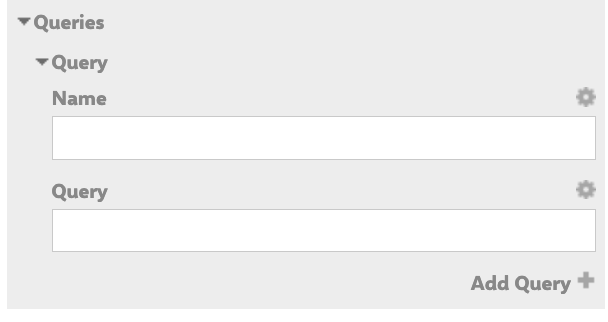
- In the widget parameters editor, locate the Queries section.
- Add one or more named queries. Each query has a display name and a Lucene query string.
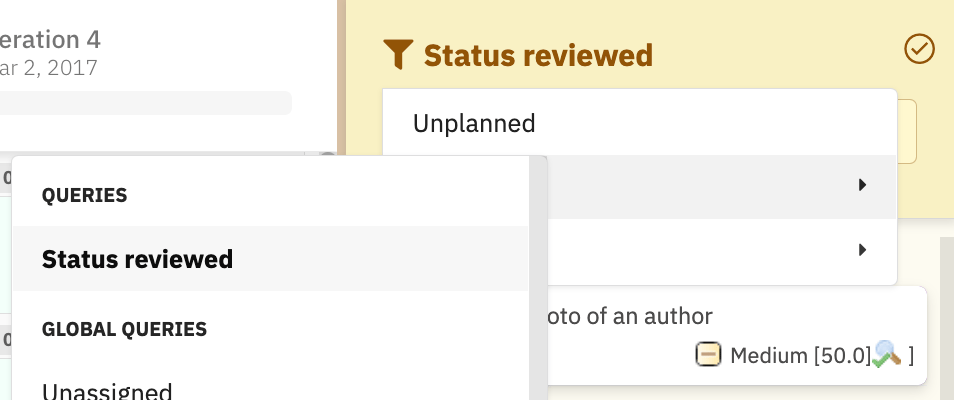
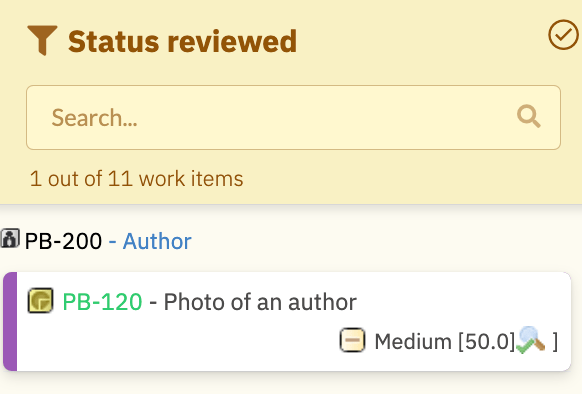
Reviewed with the Lucene query status:reviewed. When a user clicks the funnel icon in the sidebar and selects Reviewed, the sidebar shows only cards with status reviewed.4
Configure sidebar fields
When a user clicks a card in the unplanned sidebar, the Work Item Properties sidebar opens showing configurable fields. These are set via the
PARAMETER_SIDEBAR_FIELDS widget parameter (defaults to title, status, plannedIn).- In the widget parameters editor, find Sidebar Fields.
- Add the field IDs you want users to see when clicking a card.
Users can also personalize their sidebar view using the Select Fields (gear icon) button in the sidebar. Fields added this way apply only to that user and affect all work items of the same type.
Using sidebar filters at runtime
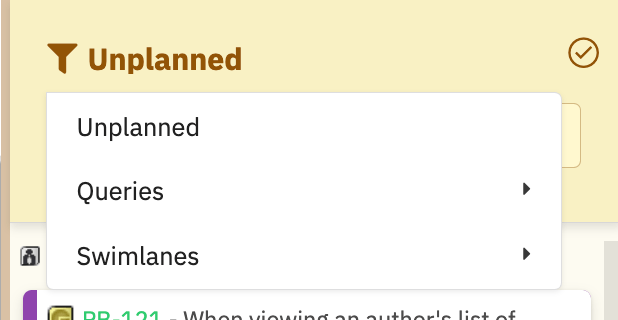
Once configured, users interact with the sidebar filters in several ways: Filter by assignee or team Click the funnel icon to filter cards by assignee or team. If custom queries are defined, they appear here as selectable filters. Hide verified work items Click the upper-right button in the sidebar to filter out cards with theVerified status.
Filter out already-planned verified items
The Filter columns option hides verified cards that are already assigned to a Plan.
Resource filter and query filter are mutually exclusive
Filtering by resource and filtering by query cannot be active simultaneously. Activating one clears the other. Use Clear filter to remove all active filters (this does not clear the search text or the verified toggle).
Search
The search box performs real-time, case-insensitive text search across card content and parent names. Search combines with other active filters.
Verification
After saving the widget parameters, reload the Planningboard page. You should now see:- The unplanned sidebar showing cards grouped under parent items (if
PARAMETER_US_DEPTHis1or higher). - The funnel icon in the sidebar, with your custom queries listed when clicked.
- The sidebar header showing an item count in the format
X out of Y work items. - Dragging a card from the sidebar onto a Plan column assigns it and removes it from the sidebar.