

Before you start
- You have an existing Planningboard widget embedded in a Polarion LiveDoc or Wiki page.
- You can open the widget’s configuration panel (expand the widget tools, then click Edit).
- You know the Lucene query syntax used in Polarion for filtering work items.
1
Open the Work Items parameters panel
- Navigate to the Polarion page that contains your Planningboard widget.
- Expand the widget toolbar and click the Edit (pencil) icon to open the configuration panel.
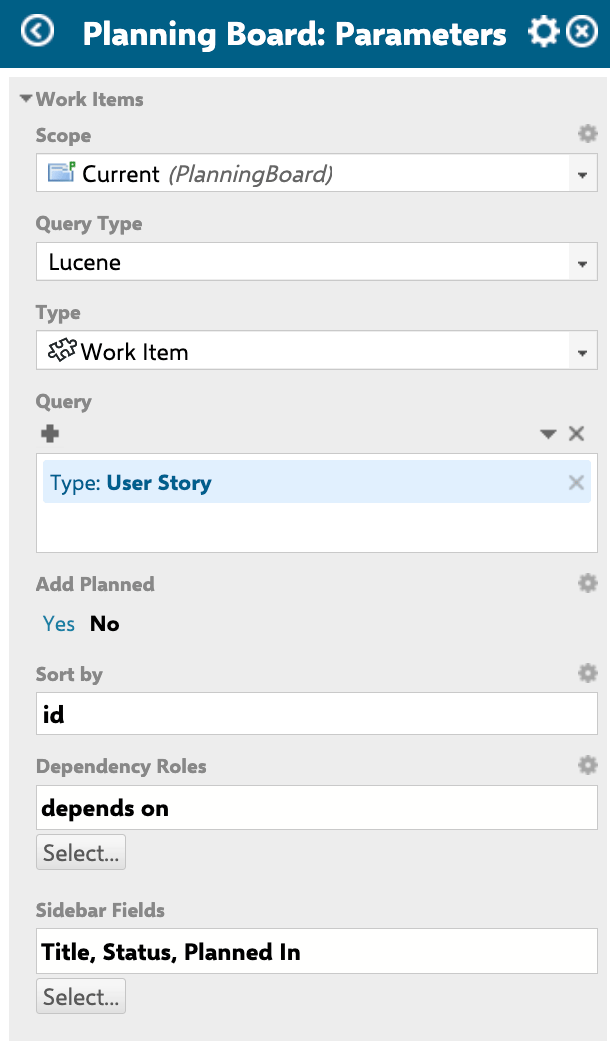
- In the configuration panel, locate the Parameters for Work Items section.
2
Set the project scope
The Scope field defines which Polarion project (or project group) provides work items for this board instance.
- Set Scope to the project ID you want the board to draw work items from.
- Leave blank to use the project the page lives in.
3
Define the work item query
The Query field contains a Lucene query that filters which work items are loaded onto the board. The default value in the configuration is Add Planned — enable this option to load all work items that are already planned into any Plan, in addition to items matching the Type and Query fields. Use this when you want the board to show a complete picture of both backlog and already-scheduled items.
NOT *:*, which matches nothing — you must set an explicit query.Query type controls how the query string is interpreted:Example queries:
4
Filter by work item type
Use the Work Item Type field (
wiType) to restrict the board to a single work item type, such as story, task, or feature. This is equivalent to adding type:<id> to your query but is applied as a separate filter.- Leave blank to show all types matching the query.
- Set to a single type ID (e.g.
story) to narrow the dataset.
5
Set the sort order
The Sort by field defines the initial ordering of cards on the board. Cards are sorted within each swimlane according to this setting.
6
Configure dependency link roles
The Dependency Roles field specifies which Polarion work item link roles are visualized as dependency arrows between cards on the board.
- Enter one or more link role IDs (as configured in your Polarion project).
- Dependencies are only shown visually when the Show Dependencies toolbar button is toggled on.
depends_on as a link role ID:The Show Dependencies toolbar button must be enabled for arrows to appear. Dependency roles must already exist in your Polarion project’s link role configuration — Planningboard does not create link roles.
7
Configure sidebar fields
When a user clicks on a card, the Work Item Properties sidebar opens. The Sidebar Fields parameter controls which fields appear by default in that sidebar.Users can further customize their own sidebar view using the Select Fields (gear icon) button in the sidebar. Personal field selections apply only to that user and affect all work items of the same type.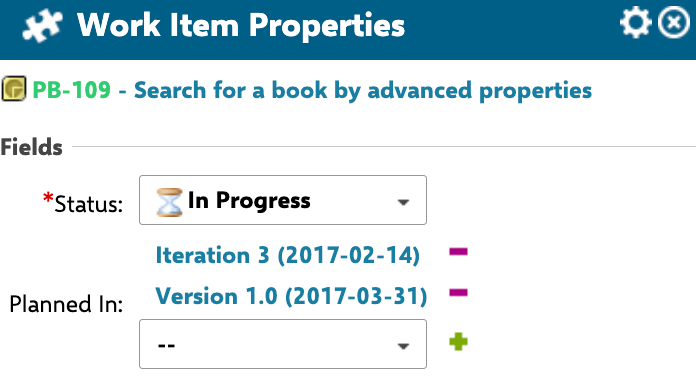
- Default fields:
title,status,plannedIn - Enter additional field IDs separated by the configured delimiter.
8
Save and verify
- Save the widget configuration.
- Reload the Planningboard page.

Configuration example
The following widget parameter values set up a board for a sprint team working with user stories:Known limitations
- Custom Team work item types are not supported for swimlane configuration in Planningboard. If your project uses a custom Team work item type (rather than the standard Nextedy Team work item with required custom fields), swimlane assignment by team is not available. Use Nextedy GANTT (version 25.5.0 and later) if you need custom Team work item type support.
- Page parameters in work item queries — dynamic filtering via Polarion page parameters (e.g.,
$pageParameters.xxx) in the swimlane row configuration is not supported. As a workaround, configure a separate Planningboard page per team using static link roles. - Multi-assignee capacity — Planningboard assigns each work item to a single resource for capacity purposes. Multi-assignee capacity distribution (as available in Nextedy GANTT) is not currently supported.