

Prerequisites
- A Planningboard widget is already embedded in a Polarion LiveDoc or Wiki page.
- The Polarion work item link roles you want to visualize already exist in the project (for example,
depends_on,blocks, or a custom link role). - You have permission to edit widget parameters on the page.
1
Open the widget parameters
- Navigate to the Polarion page containing the Planningboard widget.
- Click Edit to enter page editing mode.
- Open the widget’s parameter editor (click the widget configuration icon or choose Edit Widget Parameters from the widget context menu).
2
Set the Dependency Roles parameter
In the Parameters for Work Items section, locate the Dependency Roles field.Enter one or more work item link role IDs that should be treated as dependencies. Separate multiple roles with a comma.Or for multiple roles:
3
Save and reload the page
Save the widget parameters and reload the page to apply the change.
4
Enable the Show Dependencies toolbar button
With 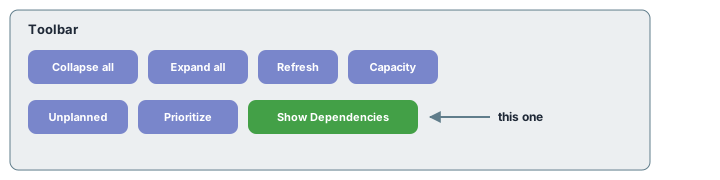
Dependency Roles configured, the Show Dependencies button in the Planningboard toolbar becomes functional.Toolbar vs. card-level Show LinksThe toolbar Show Dependencies button reveals all dependency arrows for the entire board at once. The per-card Show Links quick action (hover over a card) shows only links for that specific card and dims all others. Both use the same
Dependency Roles configuration.5
Use card-level Show Links for focused inspection
When you need to trace a single card’s dependencies without visual clutter:
- Hover over the card whose dependencies you want to inspect.
- Click the Show Links icon (chain link icon) that appears in the card’s upper-right corner.
- All other cards are dimmed; only the selected card and its directly linked cards remain highlighted.
- Click the icon again or click elsewhere to return to the full board.
- Hover over the source card and click the Add Link icon (also in the upper-right corner).
- The same icon appears on all other cards. A red icon means a link already exists.
- Click the target card to establish the link. Click a card with a red icon to remove that link.
How dependency arrows are visualized
The diagram below shows how dependencies flow between cards across columns (Plans):
Configuration example
The following widget parameter snippet shows a typical dependency configuration alongside related work item parameters:Verification
After completing these steps you should see:- A Show Dependencies button is active in the toolbar (it was previously greyed out or had no effect without
Dependency Rolesconfigured). - Clicking Show Dependencies draws arrow lines between cards that have links of the configured role types.
- Hovering over a card and clicking Show Links highlights only that card’s direct links.
- Clicking Add Link on a card, then clicking another card, creates a new Polarion link of the configured role between the two work items.
See also
- Widget Parameters Overview — full reference for all widget parameters including
Dependency RolesandSidebar Fields - Visualize and Manage Dependencies — planning workflow for working with dependencies day-to-day
- Basic Board Interactions — card quick actions including Show Links and Add Link
- Configure Plans (Columns) — controlling which Plans (and therefore which cards) are visible on the board