

Before you begin
Dependency visualization requires the Dependency Roles widget parameter to be configured. Without it, the Show Dependencies toolbar button has no effect. Confirm you have edit access to the widget parameters for your Planningboard page.1
Configure dependency link roles
Open the widget parameters for your Planningboard page and locate the Dependency Roles field under the Parameters for Work Items section.Enter one or more Polarion link role IDs that represent dependency relationships in your project — for example, Save the widget parameters. The board will reload with dependency tracking active.
depends_on or blocks. Separate multiple roles with a comma.2
Show all dependencies on the board
Once dependency roles are configured, use the toolbar to reveal all dependency arrows at once.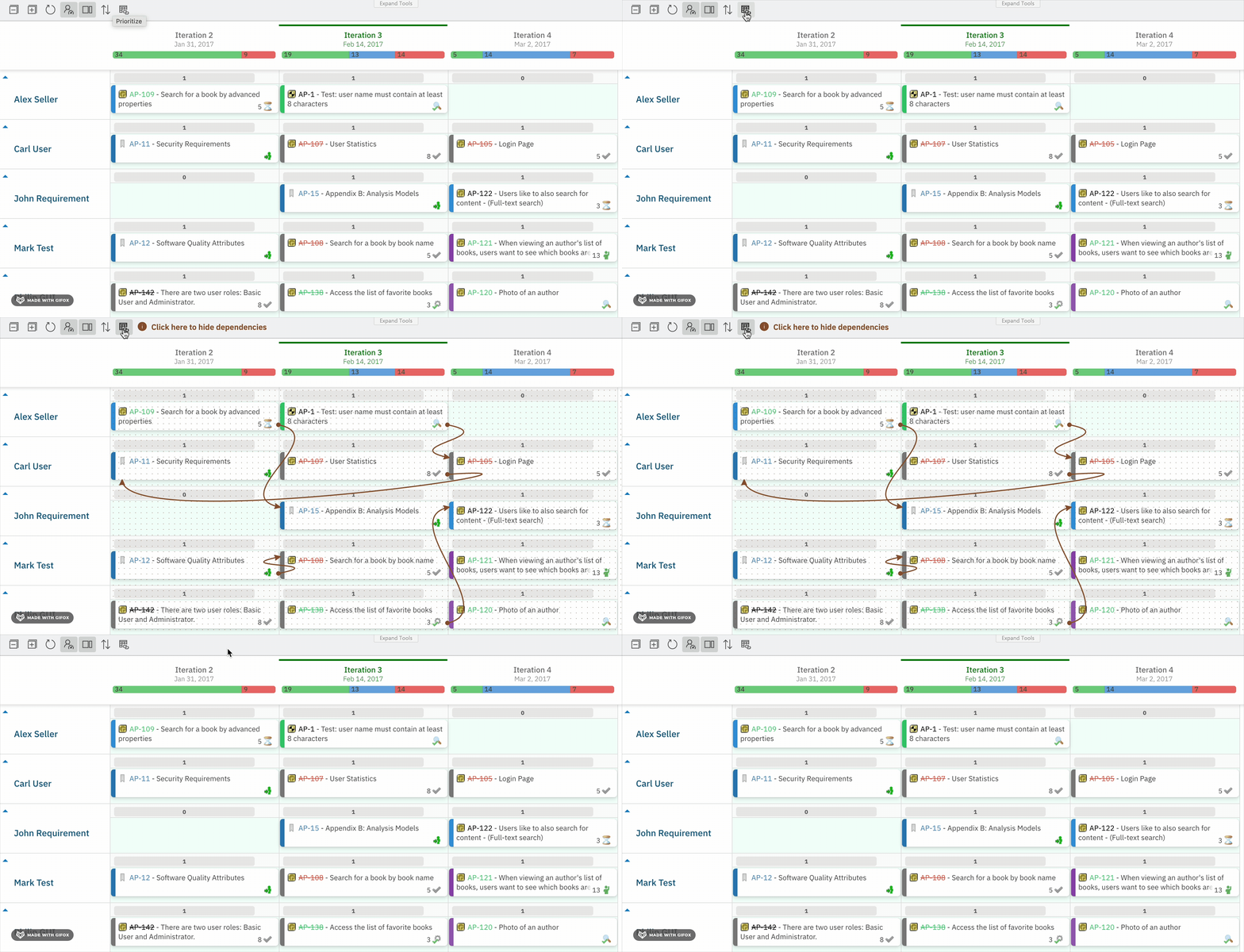
- Open your Planningboard page.
- In the toolbar (upper-left corner), click the Show Dependencies button.
3
Inspect links for a single card
To examine one card’s dependencies without the noise of the full board:
- Hover over the card you want to inspect.
- Click the Show Links icon (chain-link icon) that appears in the upper-right corner of the card.
4
Add a new dependency link between cards
You can create a link between two cards without leaving the Planningboard:
- Hover over the source card.
- Click the Add Link icon (appears alongside Show Links in the card’s upper-right corner).
- The same icon appears on all other cards. Click the target card to establish the connection.
Dependency relationship on the board

Common pitfalls
You should now see
After completing this guide:- The Show Dependencies toolbar button reveals directional arrows between all linked cards on the board, following the link roles you configured.
- Hovering a card and clicking Show Links isolates that card and its linked neighbours.
- Clicking Add Link on a card lets you draw a new dependency to any other card on the board; a red icon flags existing links, which you can remove by clicking them.
See also
- Widget Parameters Overview — full reference for all widget parameters including Dependency Roles
- Configure Dependencies Display — additional configuration options for dependency visualization
- Basic Board Interactions — overview of card actions, toolbar controls, and the Show Links feature
- Prioritize Work Items — ordering cards on the board alongside dependency management