Before You Begin

  • You need edit permissions on the work items in the board scope.
  • The board must be displaying work items as cards (not in read-only mode). See Read-Only Mode if the Prioritize button is not shown.
  • Familiarize yourself with the board layout if needed: Basic Board Interactions.

1

Open the Board and Enable Prioritization Mode

  1. Navigate to the Polarion page that contains your Nextedy PLANNINGBOARD widget.
  2. In the toolbar in the upper-left corner of the board, click the Prioritize button ( icon).
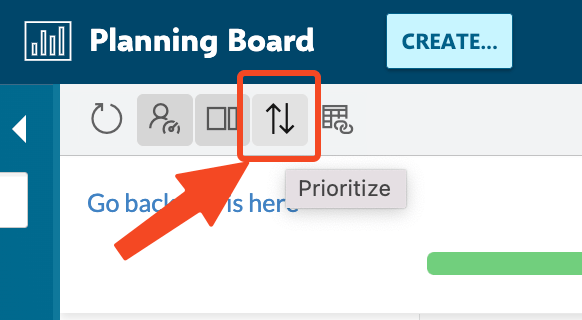
Toolbar with the Prioritize button highlighted, showing the sort-order icon and tooltip
Prioritization mode is now active. A visual indicator shows that the board is in priority-editing state.
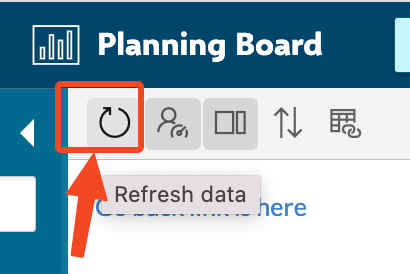
The Prioritize button is one of several toolbar controls. If you cannot see the toolbar, check that the board has loaded fully. Use the Refresh data button to reload if cards are missing.

2

Drag Cards to Set Their Priority Order

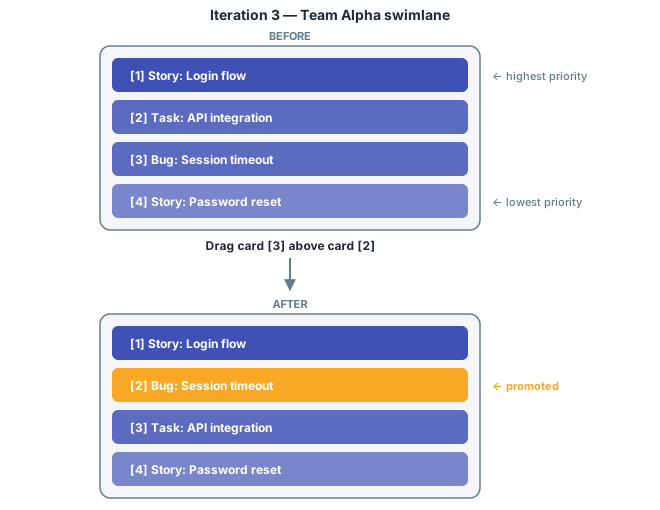
Within each swimlane, drag cards up or down to reflect their priority. The card at the top of a swimlane column is treated as the highest priority.
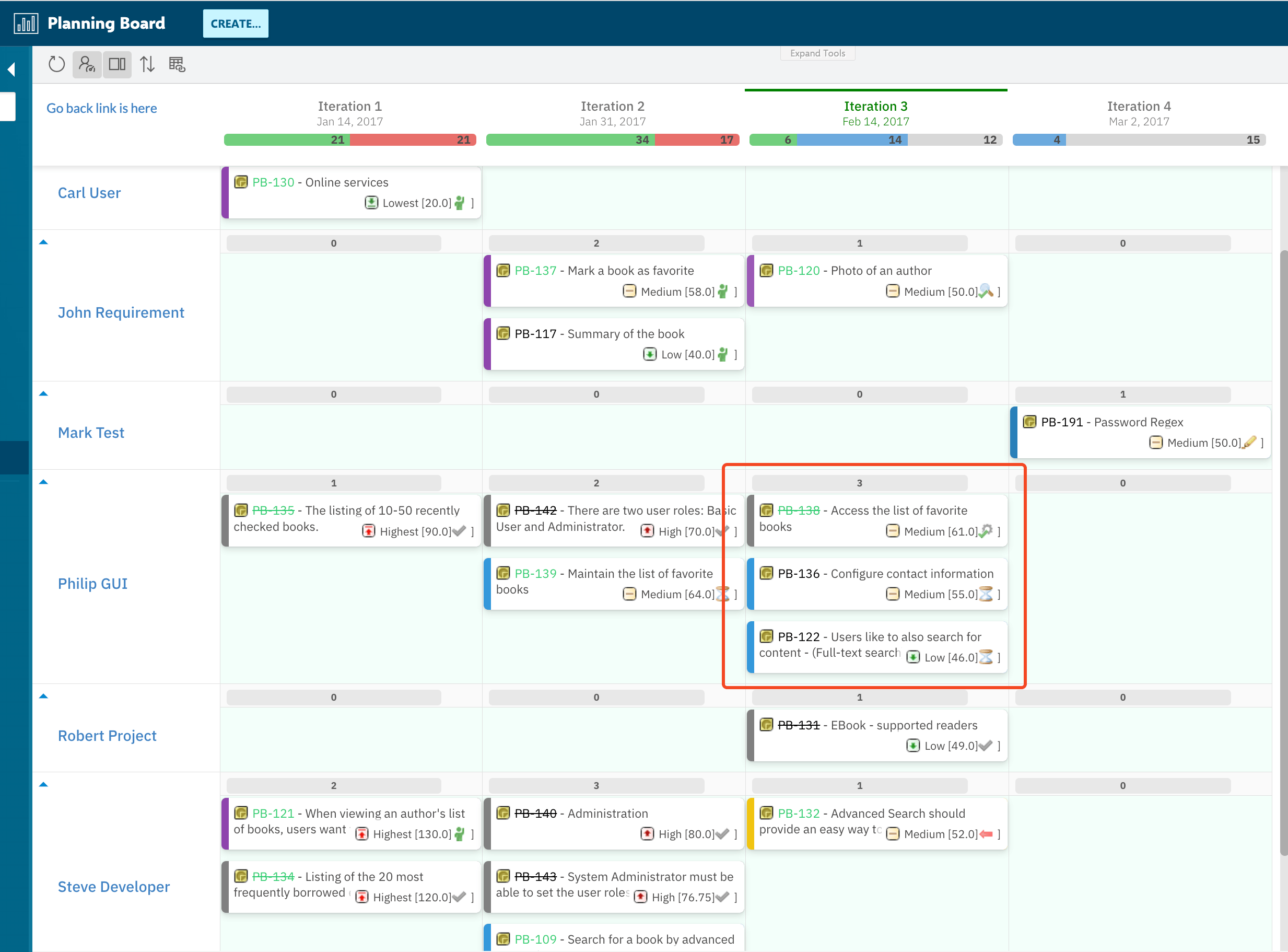
Full Planningboard view in prioritization mode with cards highlighted in the Iteration 3 swimlane cell
Iteration 3 Team Alpha swimlane before and after dragging card 3 (Bug: Session timeout) above card 2, promoting it in priority order
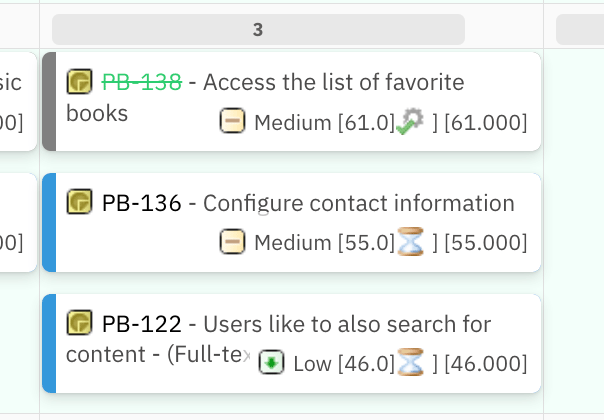
When Prioritize mode is active, each card shows its current priority value in brackets next to its priority field. Here are three cards before any reordering — PB-138 at 61.0, PB-136 at 55.0, and PB-122 at 46.0:
Three cards in a swimlane cell showing priority values in brackets before drag: PB-138 at 61, PB-136 at 55, PB-122 at 46
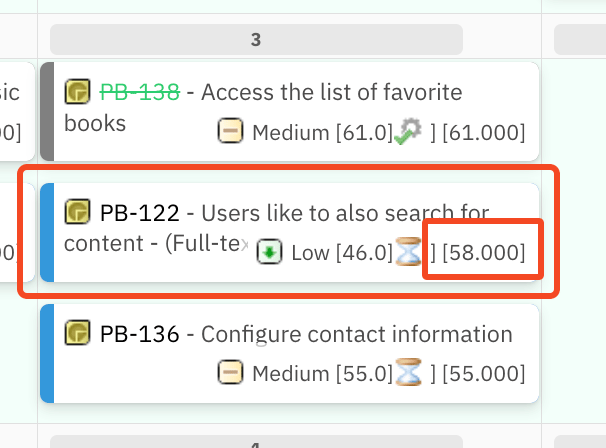
After dragging PB-122 above PB-136, its priority value updates to reflect its new position (58.000 — the average between 61 and 55):
Cards after drag showing PB-122 moved up with updated priority value of 58.000 between PB-138 and PB-136
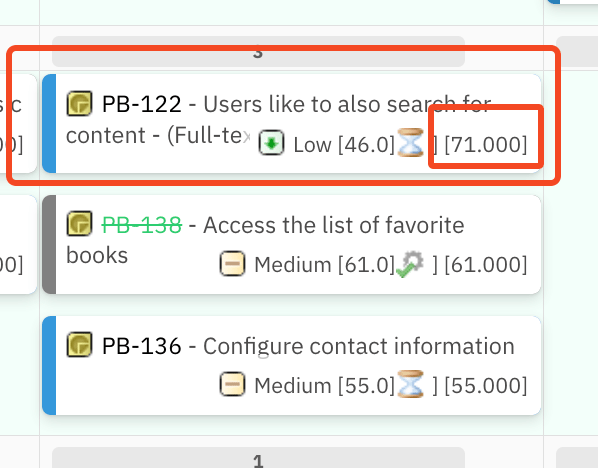
Dragging PB-122 further to the top position assigns it a value of 71.000 (10 points above the previous top card):
Cards after second drag showing PB-122 at the top of the cell with priority value 71.000
Each drop is saved immediately — you do not need to confirm or submit changes.
The card sort order within a swimlane is coupled to the overall item sort order configured via the Sort by widget parameter. Changing priority order in Prioritization mode rewrites the item rank in Polarion. If your board is configured to sort by a field such as due date or severity, enabling prioritization overrides that display order for subsequent loads. Verify your Sort by setting before using prioritization in boards that rely on field-based sorting.

3

Work Across Swimlanes

Repeat the drag-and-drop reordering for each swimlane that needs priority adjustments. Each swimlane maintains its own card order independently.
When you drag a card and Planningboard saves the change, the board preserves your current swimlane and scroll position. You will not be jumped back to the top of the board, which makes it practical to work through a long list of items in a large board.

4

Exit Prioritization Mode

Click the Prioritize button again in the toolbar to turn off prioritization mode. The board returns to its standard drag-and-drop planning state.

Configure the Sort Order Used for Prioritization

The Sort by widget parameter controls the initial ordering of cards when the board loads, and it interacts directly with prioritization. To configure it:
  1. Open the widget configuration (expand tools → click the edit button on the widget).
  2. Locate the Parameters for Work Items section.
  3. Set Sort by to the field or criterion that should establish the default order before manual prioritization is applied.
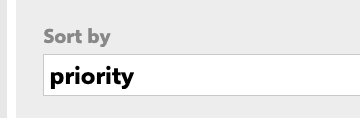
Widget configuration field showing Sort by set to priority
All Plans on the board must use consistent calculation types. Mixing Plans with different calculation configurations causes summation issues in capacity and effort totals, and can affect how items sort relative to each other across columns. If items appear in unexpected positions after prioritization, verify that all Plans in your project use the same calculation type.

Verified Items Cannot Be Moved

Work items with the Verified status are locked on the board. Cards in Verified status cannot be dragged in either standard planning mode or prioritization mode. This applies both to moving them between Plans and to reordering them within a swimlane.
This is expected behaviour. Verified items have completed their planning lifecycle. If you need to reorder a Verified item, change its status first via the work item sidebar.

Interaction with the Unplanned Section

Items in the Unplanned section (the right-hand backlog sidebar) are not part of the prioritization order. Prioritization applies only to cards already placed on the board (i.e., assigned to a Plan column). Plan items from the Unplanned section first, then use Prioritization mode to rank them within their swimlane. Attempting to drag a card from one column (Plan) to another while Prioritization mode is active is blocked. The board displays an error message:
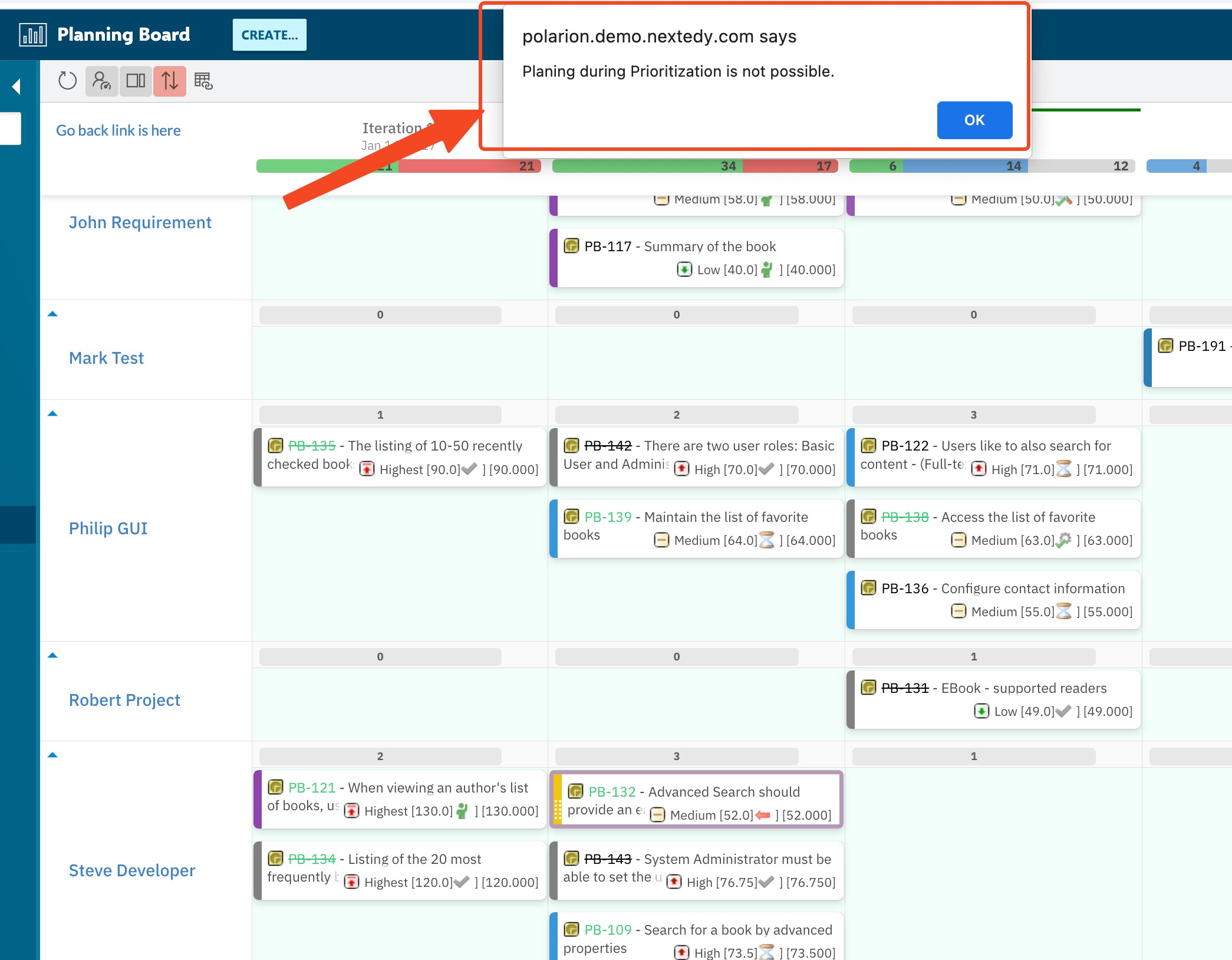
Board with a pop-up error message stating 'Planing during Prioritization is not possible' when trying to move a card between columns
See Manage Unplanned Backlog for guidance on moving items from the backlog onto the board.

Prioritization and Card Filtering

When the board has active card filters (for example, filtered by assignee or by a custom query via the funnel icon), Prioritization mode operates on the currently visible cards only. Hidden cards retain their position in the full order. Reordering filtered-view cards may produce gaps in the overall rank sequence.
If you only want to prioritize a subset of items — for example, only stories assigned to a specific user — apply that filter before entering Prioritization mode. This limits the drag targets to the relevant cards and makes the relative order easier to reason about.

Verification

After reordering cards and exiting Prioritization mode, you should now see:
  • Cards in each swimlane column appear in the order you set.
  • Refreshing the board (using the Refresh data toolbar button) reloads the board with the updated order intact — confirming the priority was saved to Polarion.
  • If another user opens the same board, they see the same ranked order.
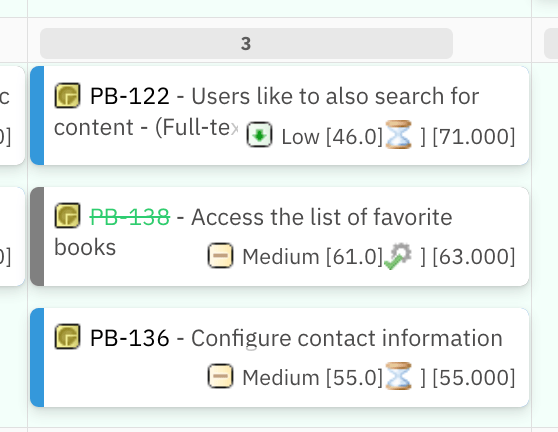
After exiting prioritization mode the priority brackets disappear from the cards. The card positions are preserved but the values are no longer shown:
Cards after exiting prioritization mode showing the new order without priority value brackets
Use the Refresh data button to confirm the new order persists:
Toolbar with the Refresh data button highlighted, showing the circular arrow icon and tooltip
After refreshing, the cards reload with the updated priority values visible:
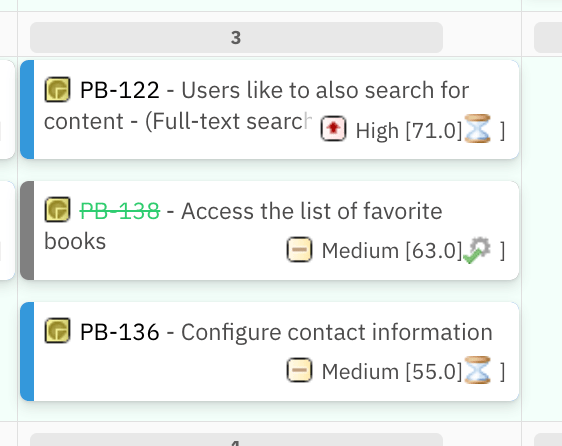
Cards after data refresh showing updated priority values: PB-122 at High 71.0, PB-138 at Medium 63.0, PB-136 at Medium 55.0
If cards revert to a different order after refresh, check whether the Sort by widget parameter is set to a field value that overrides the manual rank on load.

See Also

KB Articles
  • Introduction to Planningboard
  • Planningboard interface & basic interactions
  • Planningboard Widget Parameters
Support TicketsSource Code
  • Item.java
  • PlansMode.java
  • Config.java
  • PlanningBoardDataService.java
  • PlanningBoardWidgetRenderer.java
Last modified on July 10, 2026