

SAFe hierarchy overview
Planningboard models SAFe planning across four levels. Each level maps to aplansMode value and a corresponding Plan ID pattern:

1
Choose a naming scheme for each level
Adopt one naming pattern per level and apply it uniformly. The examples below match the patterns used in support tickets for enterprise SAFe deployments:
Rules:
- Use only alphanumeric characters, dashes (
-), and underscores (_) in Plan IDs. - Dashes are safe from version 25.3.0 onward — do not use them on earlier versions.
- Keep the delimiter consistent within each level (all dashes or all underscores — do not mix).
- The Plan ID must be unique within the project; the Plan Name is the display label shown in column headers.
2
Create Plan IDs in Polarion
When creating Plans manually in Polarion, set both the ID and the Name fields:
- ID — enter the pattern ID exactly (e.g.
PI-2401). This is the value Planningboard stores internally and uses when syncing SAFe parent plans. - Name — enter the human-readable label (e.g.
PI 2401). This appears in the board column header.
Plan ID Pattern and Plan Name Pattern widget parameters to match your chosen scheme. See Configure Plans (Columns) for parameter details.3
Configure Plan ID Pattern for board-created plans
Open the widget parameters for your Planningboard widget and locate the New Plan section:
4
Set plansMode to match the hierarchy level
The
plansMode widget parameter controls which Plans Planningboard loads and how it groups them. Set it to the value that matches the board’s level in the SAFe hierarchy:Plans Type selectorIn the widget configuration UI,
plansMode appears as the Plans Type dropdown. Selecting a SAFe type changes which configuration fields are shown — for example, the Program Increment Parameter ID field appears only for the SAFe Sprints in Program (safeSprints) and SAFe Sprints in Portfolio (safePflSprints) modes, and the plan items section is hidden for SAFe modes (it is available only in Project Plans (PROJECT_PLANS) mode).5
Verify the Plan Name Pattern matches the Last Plan Query
When Planningboard creates a new plan, it finds the “last plan” to calculate the next plan’s date range using the 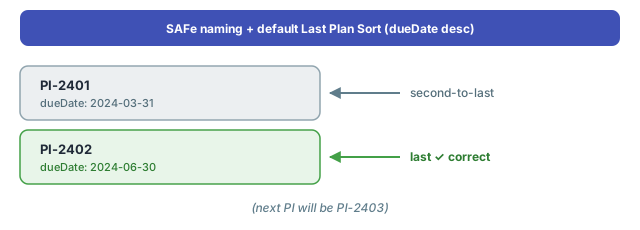
Last Plan Query (defaults to the latest plan of the same template type if left empty) and Last Plan Sort (defaults to dueDate descending).If your IDs contain dates or sequence numbers, confirm that the query can still find the correct last plan after renaming. For example, if you use PI-2401, PI-2402, PI-2403, the default sort by dueDate finds the last PI correctly without a custom query.Last Plan Query to pin the lookup.6
Validate Plan visibility on the board
After applying your naming scheme:
- Open the Planningboard page in Polarion.
- Check that the expected Plans appear as columns and that column headers show the display names (not the IDs).
- Hover over a capacity bar to confirm the capacity tooltip shows a non-zero value. A zero capacity value is a symptom of Planningboard failing to parse the plan name — upgrade to 25.3.0 if this occurs on a plan with dashes in the name.
- Confirm that plan shortcuts (the links in column headers) open the correct Polarion Plan pages.
ASCII diagram — SAFe Plan ID hierarchy

syncSAFEParentsFromChildren) rely on the ID patterns being parseable — consistent dash placement ensures correct parsing.
Common pitfalls
You should now see
- All Plans appear as columns with the correct display names from your naming scheme.
- Hovering over a capacity bar shows a non-zero capacity tooltip (assuming capacity is configured).
- Plan shortcut links in column headers navigate to the correct Polarion Plan pages.
- The New Plan button (if enabled) creates plans whose IDs follow your chosen pattern.
See also
- SAFe Planning Workflows — end-to-end SAFe board configuration by hierarchy level
- Configure Plans (Columns) —
Plan ID Pattern,Plan Name Pattern,Last Plan Query, and other column parameters - Bulk Plan Creation — scripted creation of multiple Plans with consistent naming
- Use Plan Templates — template IDs and how they interact with plan creation
- Capacity Calculation Issues — diagnosing zero capacity after naming changes