Prerequisites

Before adding columns, ensure you have:
  • Located your risksheet.json configuration file (see Find Configuration Files)
  • Identified the Polarion field ID you want to display
  • Determined which level (1, 2, or 3) the column should appear at

Steps

1. Open the Configuration File

Navigate to your RISKSHEET configuration file location:
  • Per-document: .polarion/risksheet/<space>/<document>/risksheet.json
  • Per-template: .polarion/risksheet/template/<templateId>/risksheet.json

2. Add the Column Definition

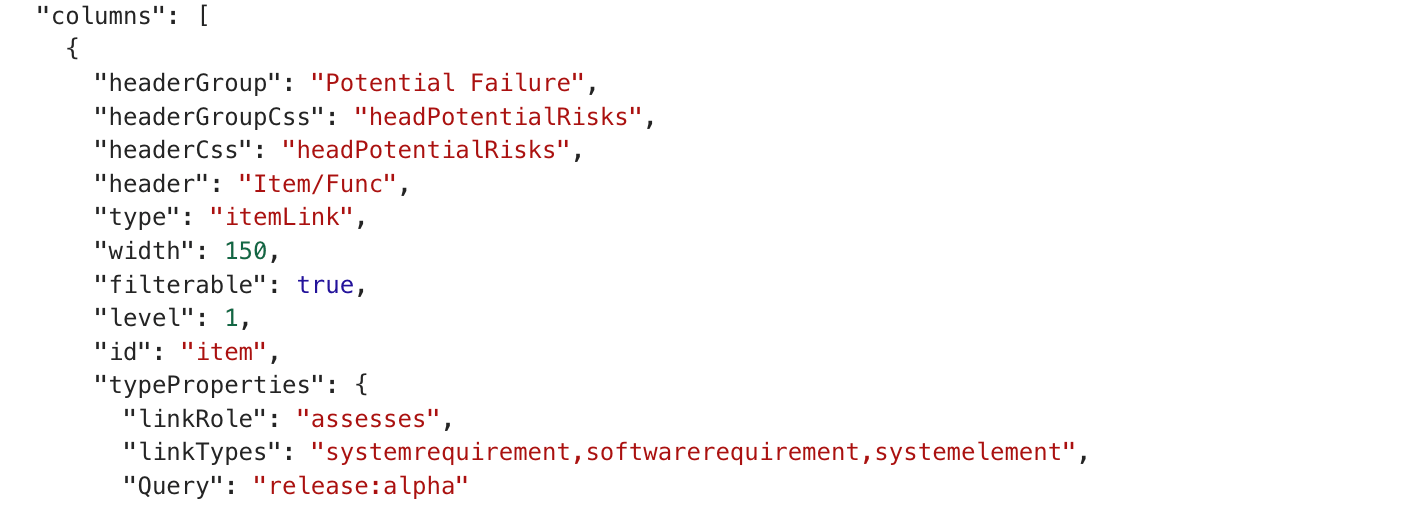
Add a new column object to the columns array with the minimal required properties:
{
  "headerGroup": "Potential Risks",
  "header": "Causes(s)",
  "bindings": "causes",
  "level": 2
}
Property explanations:
  • bindings: The Polarion custom field ID (e.g., "causes", "severity", "description")
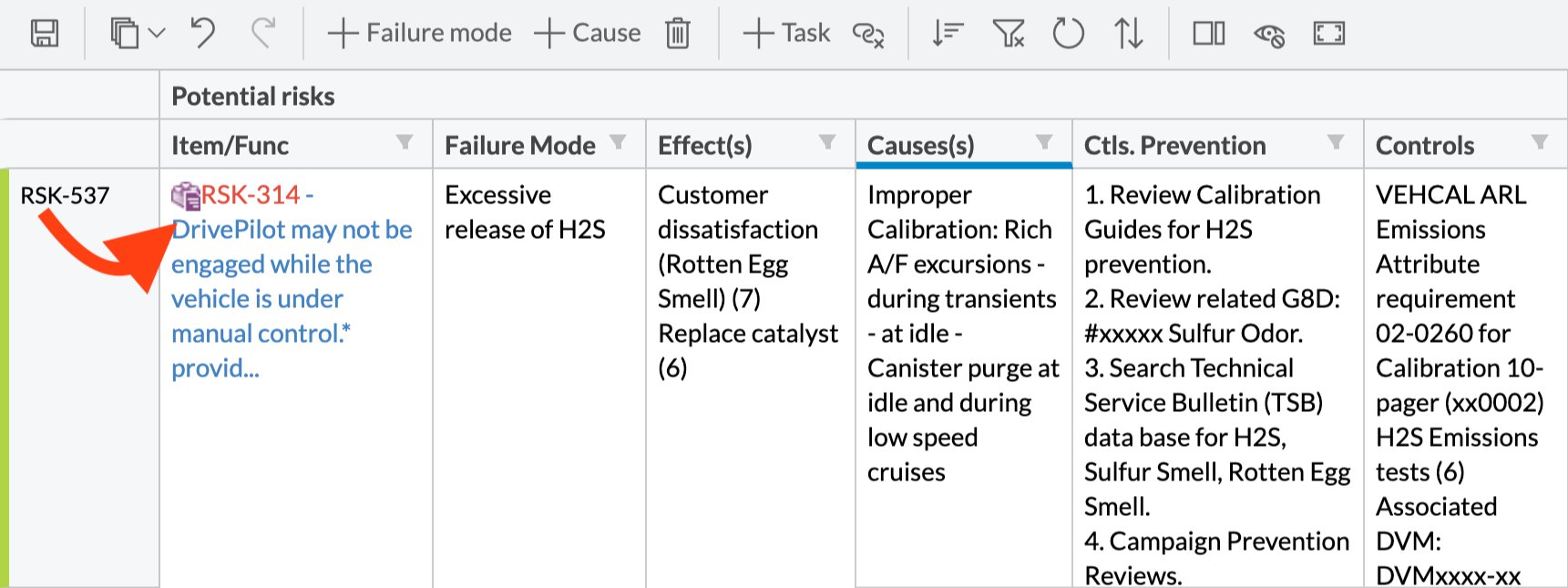
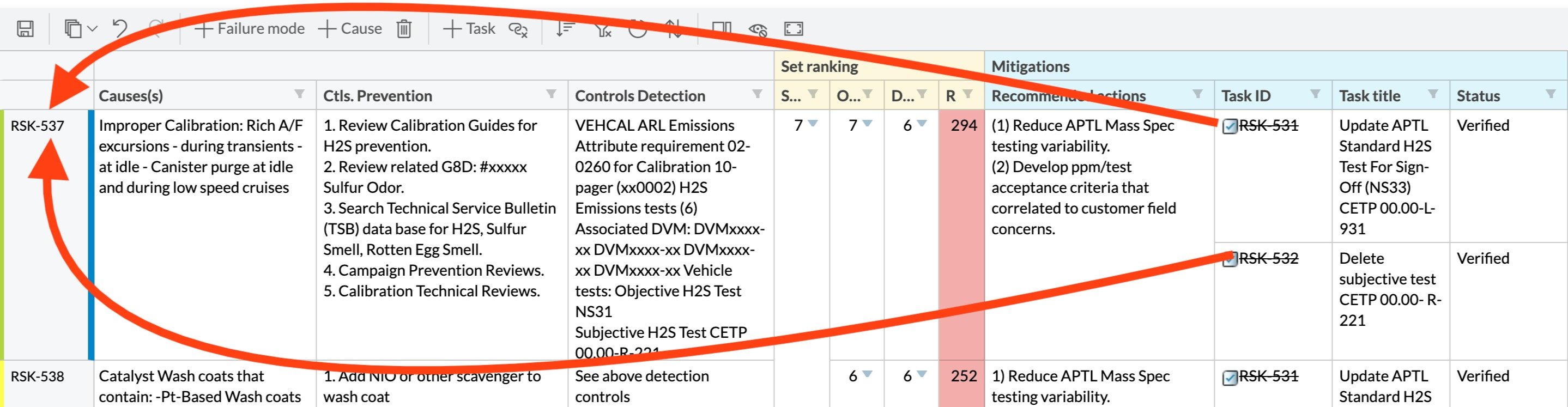
  • level: Controls merging and visibility hierarchy (1 = upstream, 2 = risk item, 3 = downstream)
  • header: Column title displayed in the interface
  • headerGroup: Optional grouping label shown above related columns
Field IDs match the Polarion custom field definition. Check your Polarion project’s custom field configuration in Administration > Work Items > Custom Fields to find the exact ID.

3. Configure Optional Properties

Enhance your column with additional properties:
{
  "headerGroup": "Potential Risks",
  "header": "Severity",
  "bindings": "severity",
  "type": "enum:severity_rating",
  "width": 120,
  "minWidth": 80,
  "readOnly": false,
  "filterable": true,
  "level": 2,
  "id": "sev"
}
Common optional properties:
PropertyPurposeExample
typeSpecify field type for proper rendering"enum:priority", "date", "text"
widthFixed column width in pixels150
minWidthMinimum column width when resizing80
readOnlyPrevent editingtrue or false
filterableEnable column filteringtrue
idUnique identifier for referencing in formulas"severity_col"
The level property determines cell merging behavior. Level 2 cells merge vertically when values are identical within the same parent item. Incorrect level assignment can cause unexpected merging or data visibility issues.

4. Save and Upload

  1. Save your risksheet.json file
  2. Upload to Polarion (if editing locally)
  3. Refresh your RISKSHEET view

Column Organization

diagram

Common Pitfalls

When adding enum fields, always specify the enum ID in the type property: "type": "enum:severity_rating". Without this, the column displays raw enum keys instead of human-readable labels.
By default, upstream (level 1) sub-columns showing linked item properties are read-only. To enable editing, explicitly set "readOnly": false. See Enable Editing of Upstream Columns for details.
Enable autocomplete suggestions for text columns by setting "global.suggestTextFields": true in your configuration. This provides users with existing values as they type, improving data consistency.

Verification

After configuration:
  1. Open your RISKSHEET document
  2. Verify the new column appears in the correct position
  3. Check that the column displays data from the specified field
  4. Test editing (if not read-only) to ensure values save correctly
You should now see your new column integrated into the RISKSHEET grid with proper data display and editing behavior.

See Also

KB ArticlesSupport TicketsSource Code
  • ConfigureColumnsCommand.ts
  • TextEditor.ts
  • ColumnsHelper.ts
  • AppConfig.ts
  • risksheet.json