

What you will achieve
By the end of this tutorial, you will have:- Chosen one of two evaluation paths (hosted by Nextedy, or self-hosted on your own Polarion server).
- Instantiated a working risksheet from a Nextedy solution template — starting from the functional safety template, the simplest entry point.
- Opened the risksheet, explored the grid, edited a risk item, observed Risk Priority Number (RPN) calculation and conditional formatting, and used the review workflow.
- Identified whether Risksheet covers your team’s Failure Mode and Effects Analysis (FMEA), Hazard Analysis and Risk Assessment (HARA), Threat Analysis and Risk Assessment (TARA), or other risk methodology needs.
Prerequisites
- A modern web browser (Chrome, Firefox, or Edge).
- For the hosted path: an email address to request demo access.
- For the self-hosted path: a Polarion server running version 19.1 or later, with administrator access for plugin deployment.
Evaluation paths

Part 1 — Hosted evaluation (Nextedy demo server)
Use this path when you want to evaluate quickly without installing anything on your own infrastructure.Step 1: Request hosted trial access
Contact Nextedy to request demo server credentials. Provide your email address and the methodology you want to evaluate. The Nextedy team responds with a URL, username, and password for a pre-configured Polarion instance that already has Risksheet installed. You should receive credentials for a Polarion instance that exposes one or more solution template projects — at minimum a functional safety FMEA example, often accompanied by HARA and other variants.Step 2: Log in and locate the template projects
Open the demo URL in your browser and log in with the provided credentials. In the Polarion project navigator, you should see one or more template projects (for example, a project named for functional safety FMEA). You should land on the Polarion home page with the demo projects listed. Skip ahead to Part 3 — Common evaluation flow.Part 2 — Self-hosted evaluation
Use this path when your security policy requires on-premises evaluation, or when you want to test Risksheet against your own Polarion configuration, user accounts, and link roles.Step 1: Verify Polarion version
Confirm your Polarion server is running version 19.1 or later. Risksheet does not support earlier Polarion releases. You should see the Polarion version on the About Polarion dialog (Help menu) or in the server admin panel.Step 2: Download Risksheet
Download the Risksheet plugin distribution from:Step 3: Deploy Risksheet
Stop the Polarion server, copy the Risksheet plugin into your Polarion extensions directory ([POLARION_INSTALL]/polarion/extensions/) as instructed by the download page README, then prepare to restart.
Restart Polarion. You should see Risksheet entries appear under Administration > Nextedy RISKSHEET > Setup after the server finishes initializing.
Create a sandbox project from a solution template
In Administration > Nextedy RISKSHEET > Setup, use Create New Project. On the template-selection page, choose the template Nextedy RISKSHEET FMEA Demo (or Nextedy RISKSHEET HARA Demo), then click Finish. Open the new project and select Risksheet in the left navigator (below Work Items and Documents & Pages). You should see a pre-configured risk specification with a working grid of example risk items, ready for exploration.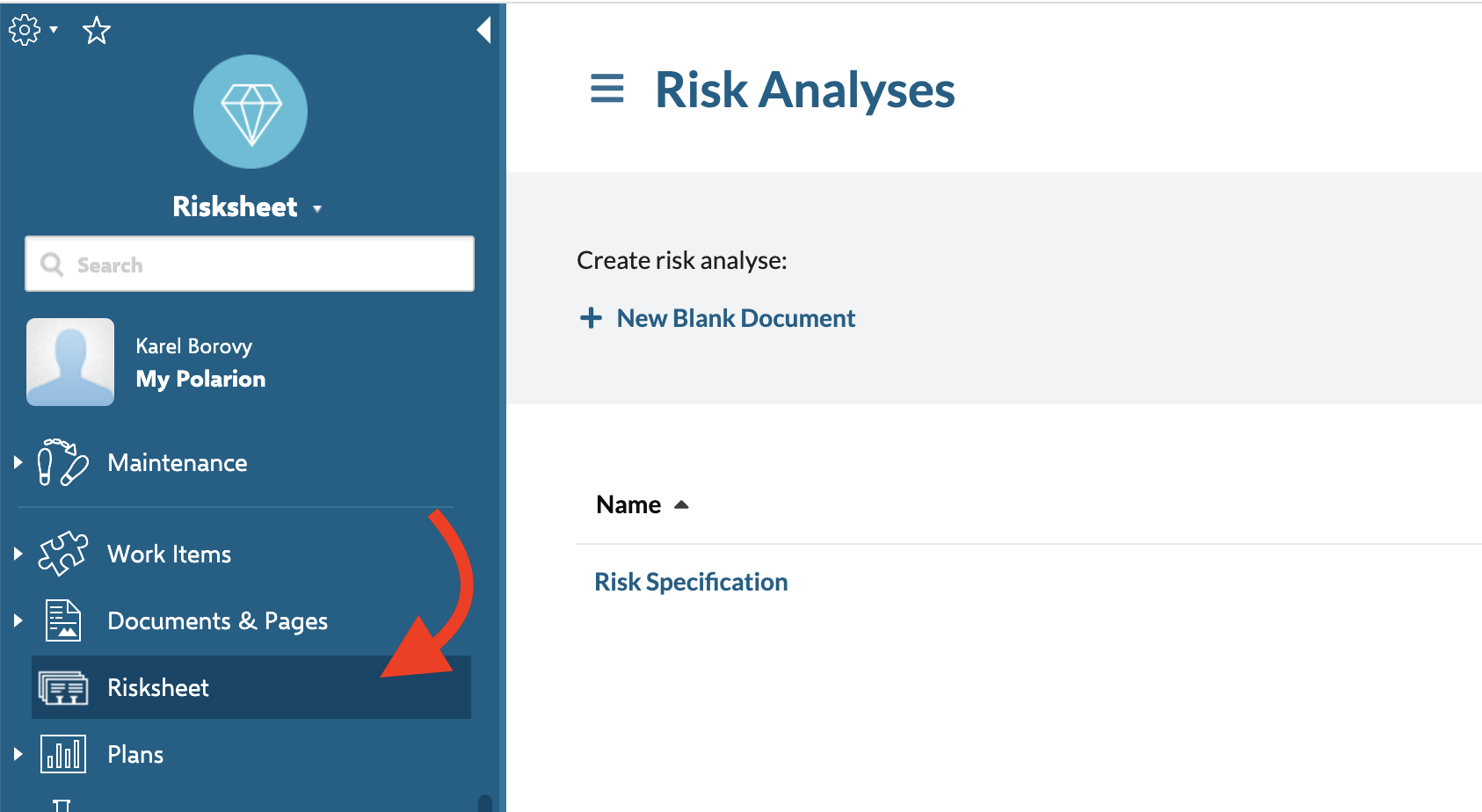
Part 3 — Common evaluation flow
Both paths converge here. Whether you are using the hosted demo or a freshly provisioned local template, the next steps are identical.Step 4: Open the risksheet
Open the template LiveDoc (for example, Risks/Risk Specification in the functional safety project). The Risksheet grid renders inside the LiveDoc page. You should see an Excel-like grid with:- Risk items as rows (failure modes, hazards, or your methodology’s equivalent).
- Hierarchical levels with cells visually merged where consecutive rows share the same parent value.
- Column groups organizing related columns (for example, initial assessment versus revised assessment).
- Color-coded cells for RPN and similar derived values.
- A top panel above the grid showing summary information.

Step 5: Explore RPN calculation and conditional formatting
Click an RPN cell to inspect how it is derived. The template defines aformulas section in the sheet configuration that multiplies severity, occurrence, and detection ratings:
cellDecorators section that applies CSS classes to RPN cells based on configurable thresholds. The functional safety template uses a three-band scheme:
Thresholds are template-specificRPN thresholds are not product defaults — they are defined inside the template’s
cellDecorators. Different templates use different thresholds. When you adapt a template, adjust the thresholds in the sheet configuration to match your organization’s risk policy.Step 6: Explore traceability — upstream and downstream
Risksheet does not store risk data separately — every row is a Polarion work item, so all data participates in Polarion authorization and traceability.- Upstream: locate a column bound to a requirement or hazard link (for example, an
itemLinkcolumn). The cell displays a linked work item ID; click it to open the source requirement in Polarion’s editor. - Downstream: locate the task column (typically labeled Mitigation, Safety Goal, or similar). Right-click a row and choose the option to open the linked task. The task opens in the Polarion item editor and shows a link back to the parent risk item.
Step 7: Try the review workflow
Risksheet supports three review strategies: comment-based, work-item-based, and approval review. The functional safety template typically ships with comment-based review, where each review is stored as a standard Polarion comment on the underlying work item. Add a review on any row using the Risksheet review action. You should see the review captured as a comment on the risk item, with your author name, timestamp, and the text you entered. The review remains visible in Polarion’s standard comment view.Step 8: Try export
Use the export action to export the current grid to Excel and then to PDF. You should receive a formatted spreadsheet and a paginated PDF that reproduce the column groups, conditional formatting, and merged cell hierarchy you see on screen. You have now exercised the core workflow: open, edit, recalculate, link, review, export. This is enough to judge fit against your process.Evaluation checklist
Use this checklist to decide whether to proceed beyond evaluation:What’s next — building your own risksheet
Once evaluation confirms the fit, move on to building a real risksheet for your project. The single most important rule: start from a solution template, never from a blankrisksheet.json. Templates encode methodology expertise — column structures, hierarchical levels, RPN formulas, cell decorators, review workflows, and risk-band styles — that took years of practice to refine. Copy the template that most closely matches your methodology (functional safety FMEA, HARA, TARA, or another variant) and adapt only what you need to change: rating scales, threshold bands, link roles, or column labels. Building from scratch almost always reproduces a worse version of what the templates already provide.
In practice this means: provision a new LiveDoc from a template (default folder path is Risks/Risk Specification), let the template’s risksheet.json configuration flow in automatically, and only attach a custom risksheet.json to the document when you need to override specific fields. If you do attach one, the filename must be exactly risksheet.json — anything else is ignored and the template configuration is used instead.
Next steps
- Install Risksheet in your own Polarion environment: Installation.
- Learn the grid layout, toolbar, and navigation: Understanding the Interface.
- Modify a template’s columns, formulas, and decorators: Basic Configuration.
- Browse pre-built configurations for other methodologies: Configuration Examples.
- Adapt a template to your process: Configuration Management.