

What you will achieve
By the end of this tutorial, you will be familiar with every major area of the Risksheet interface: the toolbar, column headers, column group headers, the data grid, row headers, hierarchical row levels, context menus, cell editors, filtering controls, and saved views. You will know how to navigate a risk analysis table, identify different column types by their visual cues, understand the hierarchical row structure used for Failure Mode and Effects Analysis (FMEA) and Hazard Analysis and Risk Assessment (HARA) workflows, and perform basic interactions such as editing, sorting, and filtering. Risksheet is a generic tool that supports any risk management methodology, including FMEA, HARA, Threat Analysis and Risk Assessment (TARA), STRIDE, and Common Vulnerability Scoring System (CVSS) analysis. The examples on this page use FMEA terminology, but the interface concepts apply identically to every methodology.Prerequisites
- Risksheet is installed on your Siemens Polarion ALM instance (see Installation)
- You have access to a Polarion project with at least one risksheet document
- You are logged into Polarion with a valid license (see Evaluate Risksheet)
Sample ProjectIf you do not have an existing risksheet document, follow Evaluate Risksheet to set one up before continuing with this tutorial. The recommended approach is to pick the closest Nextedy solution template for your industry and methodology, then adapt it — never start from a blank configuration.
1
Open a Risksheet Document
Navigate to your Polarion project and open a LiveDoc document that contains a risksheet. The grid loads within the document page, replacing the standard Polarion table view with an interactive, Excel-like sheet.You should see the full grid occupying the document area, with a toolbar row above and the data grid below.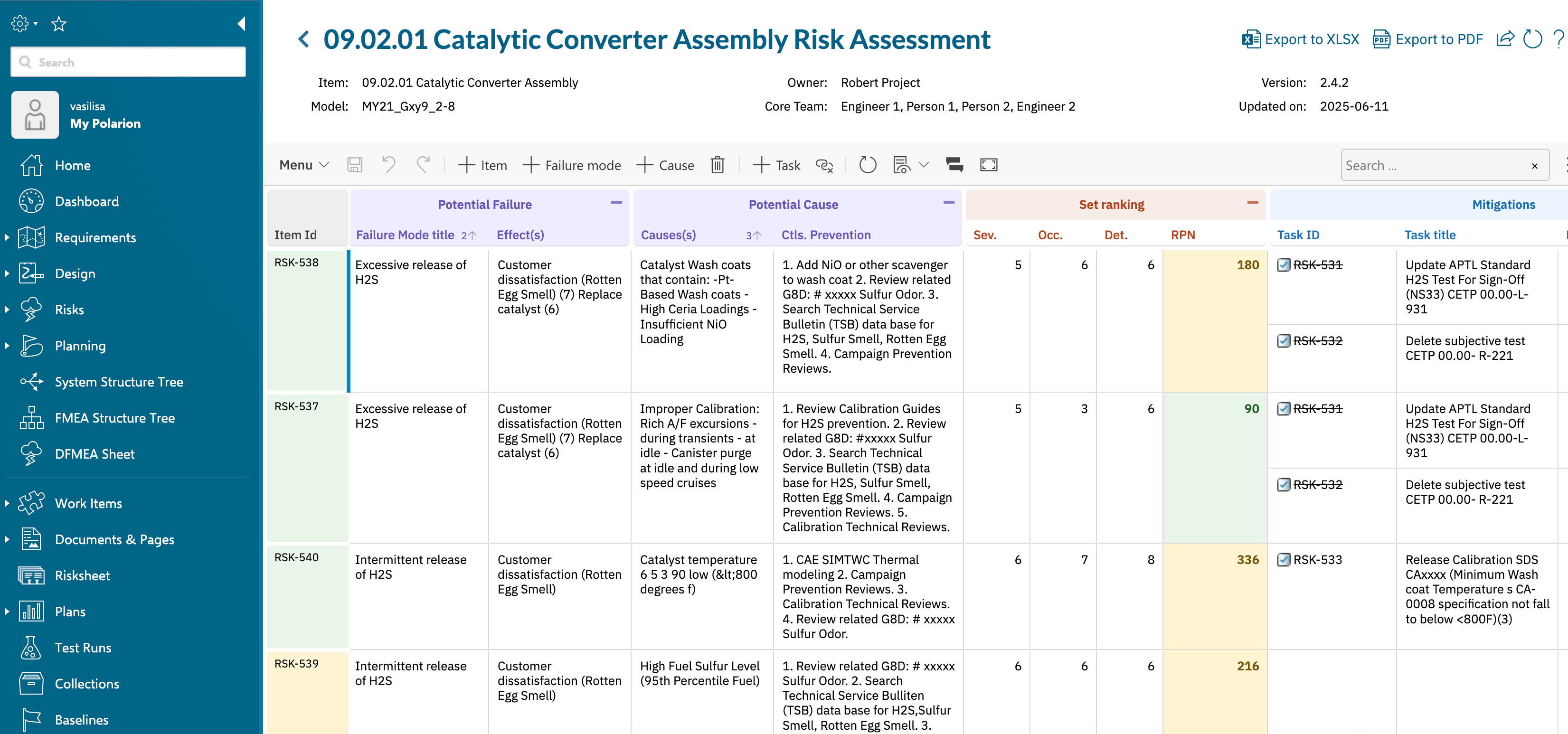
2
Explore the Toolbar
The toolbar row sits at the top of the grid. From left to right, it provides buttons for the most common operations:
At the top-right of the toolbar, Export to XLSX downloads the current view as an Excel file (respecting column visibility settings) and Export to PDF generates a formatted PDF export (configurable through the PDF export configuration).Hover over each button to see its tooltip description. The toolbar buttons are context-aware: some are disabled when there are no pending changes (Save, Undo, Redo) or when you lack the necessary permissions (configuration access).
3
Understand Column Headers and Groups
Risksheet supports two header rows above the data cells: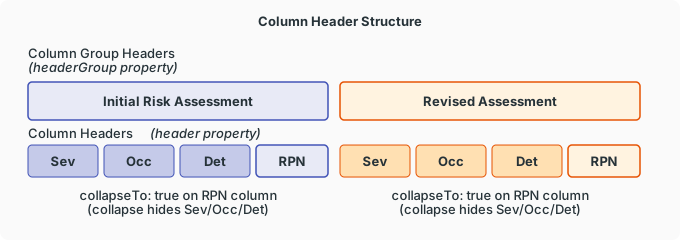
- Column group headers — the top row that spans multiple columns under a shared label (for example, “Initial Risk Assessment” or “Revised Assessment”). These groups are configured via the
headerGroupproperty on individual column definitions. The height of this row is set byheaders.columnGroupHeader.height(default:32pixels). Groups can be collapsed to hide their member columns; columns marked withcollapseTo: trueremain visible as a summary when the group collapses. - Column headers — the row directly above the data cells showing individual column names (for example, “Severity”, “Occurrence”, “Detection”, “RPN”). The height is set by
headers.columnHeader.height(default:32pixels). Each header displays the value from the column’sheaderproperty.
Collapsible GroupsClick the collapse icon on a column group header to hide grouped columns. The column whose definition includes
collapseTo: true stays visible as a summary; click the icon again to expand and show all columns.4
Navigate the Row Structure
Risksheet creates a visual hierarchy through cell merging, configured by the In this example, all risk rows are the same Polarion work item type (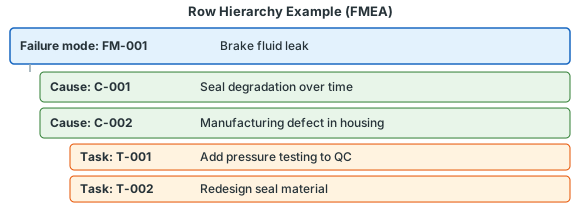
levels array in the sheet configuration. The underlying data model itself has exactly two entity types — risk items and downstream task items — both stored as ordinary Polarion work items. The grid can show three, four, or more visual levels by merging cells that share the same value in a designated control column.Each entry in the levels array requires three properties:A typical FMEA sheet configuration uses three visual levels on the risk side, plus a downstream task entity:
failureMode). The three visual levels appear purely through cell merging — the “Item” column merges consecutive rows that share the same item, and the “Failure mode” column merges consecutive rows that share the same failure mode. Downstream mitigation tasks are separate Polarion work items configured under dataTypes.task.headers.rowHeader.renderer property names a cell decorator function (defined in the cellDecorators section) that color-codes row headers based on the revised RPN value, giving you an at-a-glance risk summary.5
Identify Column Types and Edit a Cell
Click any editable cell in the grid to enter edit mode. The cell editor that appears depends on the column
type configured in the sheet configuration:Severity, occurrence, and detection scales are not defined inside the sheet configuration. They are Polarion enumerations defined once in Administration > Enumerations and referenced from a column via
type: rating:<enumId> plus bindings: <fieldId>. The server loads the available values automatically.After editing, your change is held in memory until you click Save or press Ctrl+S. Risksheet batches multiple edits and sends them to the server together, so you can make several changes before saving. The toolbar Save button shows an indicator when there are unsaved changes.6
Use the Context Menu
Right-click any row to open the context menu. The menu provides row-level operations:
The available menu items depend on the row’s hierarchical level, the
dataTypes configuration, and your Polarion user permissions. Custom context menu actions can also be added through the configuration’s extensibility points.7
Use Filtering
Risksheet supports column-level filtering for any column where 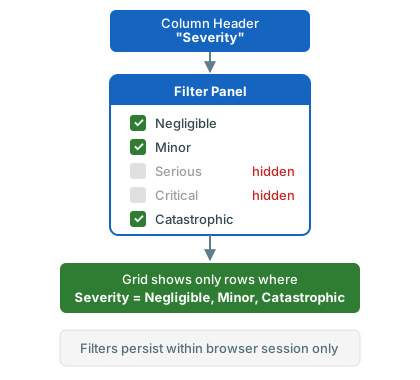
filterable is set to true (the default). Click the filter icon in a column header to open the filter panel, then select or deselect values to narrow the displayed rows.Filtering is performed client-side, so results appear instantly. You can apply filters to multiple columns simultaneously. Filtered rows are hidden from view but not removed from the data — clearing the filter restores all rows.8
Switch Saved Views
If your sheet configuration includes saved views (defined in the Common view configurations include:
views array), use the Views dropdown in the toolbar to switch between different column visibility presets. Each view shows a different subset of columns, allowing you to focus on specific aspects of the analysis without scrolling through all columns.A view is defined by its name and a columnIds array listing the columns to show. The special value @all includes every column, and a - prefix excludes a specific column from the set. One view per configuration may be marked defaultView: true to load automatically when the document is opened.You can also reset your personal column width and visibility customizations back to the configuration default using the reset columns command.
Next Steps
Now that you understand the interface layout and basic interactions, continue with these tutorials:- Basic Configuration — learn how to customize the sheet configuration
- How-To Guides — task-oriented guides for specific workflows such as column configuration, export, and review management
- Concepts — deeper explanations of architecture, data model, and traceability