

Symptoms
When editing rich text fields in Risksheet, you may notice one or more of these problems:- Line breaks disappear and all text runs together into a single block
- HTML formatting (bold, italic, lists, headings) is stripped from the field content
- The formatting loss persists in the underlying Siemens Polarion ALM work item XML after saving
- Saving the work item from Risksheet permanently removes the original rich text formatting
- Content that appeared formatted in the Polarion work item editor looks like a single paragraph in the grid

Understanding the Root Cause
Risksheet does not fully support editing rich text fields. The grid cell editor treats all content as plain text, which means HTML tags and formatting markup are stripped when you edit and save the cell. Because the save operation writes the edited plain text back to the Polarion work item XML, the formatting loss is permanent — the original HTML is overwritten. This behavior affects any field that Polarion stores as rich text (Text type), including description, custom rich text fields, and any field where users have added HTML formatting through the Polarion work item editor.
1
Switch to Multi-Line Text Type
The recommended workaround is to configure the column as type With The following table compares the behavior of each configuration option:
text instead of relying on rich text editing. This treats the field as plain text and prevents HTML formatting markup from being misinterpreted on save:type: text, the field is treated as plain text. Line breaks entered in the cell editor are preserved on save. Text wrapping is controlled via the styles section using a CSS class referenced by cellCss — not through a column-level boolean property:2
Configure Read-Only Rich Text Display
If you need to display rich text content with full formatting but do not need users to edit the field inline, render the field through a server-side Velocity template and mark the column read-only. HTML rendering in cells is handled by The 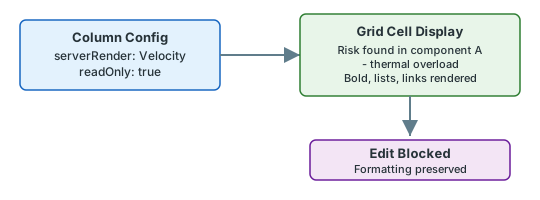
serverRender (Velocity), not by a column-level toggle:serverRender template emits the rendered HTML, preserving bold text, lists, links, and other HTML elements. Setting readOnly: true prevents users from editing the content through the grid, which protects the original formatting from being stripped.3
Use Server-Rendered Columns for Complex Content
For fields that require complex HTML rendering with clickable links, images, or custom formatting logic, use server-rendered columns with Velocity templates:For custom rich text fields, use the generic
get() method with the field ID:Server-Rendered Columns Are Always Read-OnlyColumns with
serverRender are implicitly read-only — server-rendered content cannot be edited through the grid. This approach gives you full control over the display via Velocity templates while protecting the underlying rich text content from accidental modification.4
Verify Export Behavior
When exporting to Excel or PDF, rich text fields behave differently depending on column configuration. Ensure your chosen approach produces acceptable export output:
Decision Matrix: Choosing the Right Approach
Use this matrix to select the best configuration for your specific scenario:
Verification
After applying your chosen configuration:- Reload the Risksheet page to pick up the sheet configuration changes
- If you used
type: text— edit a cell, add line breaks, save, and confirm the line breaks persist after page reload - If you used a read-only
serverRendercolumn — verify the cell displays formatted content (bold, lists) and that clicking the cell does not open an editor - If you used
serverRenderwith a complex template — verify the cell renders the Velocity output and that links are clickable
See Also
- Cell Editing Issues — for other cell editing problems
- Save Operation Failures — for save-related errors after editing
- Rendering and Display Errors — for display formatting issues
- Export Performance Issues — for export-related problems including PDF truncation