

Prerequisites
- You have administrator privileges for the Polarion project (the configuration option appears only when your account is authorized to edit Risksheet configuration)
- The Risksheet document is open in your browser
- You are viewing the current revision (not a historical baseline), since configuration editing is disabled in read-only mode
1
Open the Configuration Editor
- Open your Risksheet document in Polarion.
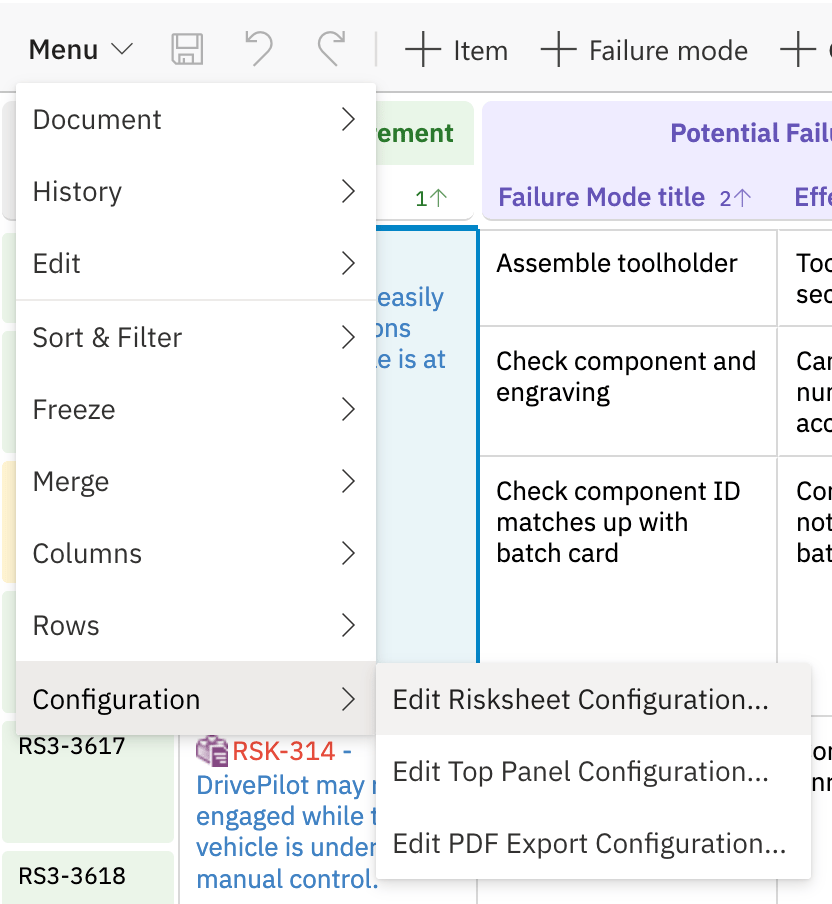
- Click the Menu button in the Risksheet grid toolbar.
- Hover Configuration to open its submenu, then choose Edit Risksheet Configuration
- The full path is Menu → Configuration → Edit Risksheet Configuration
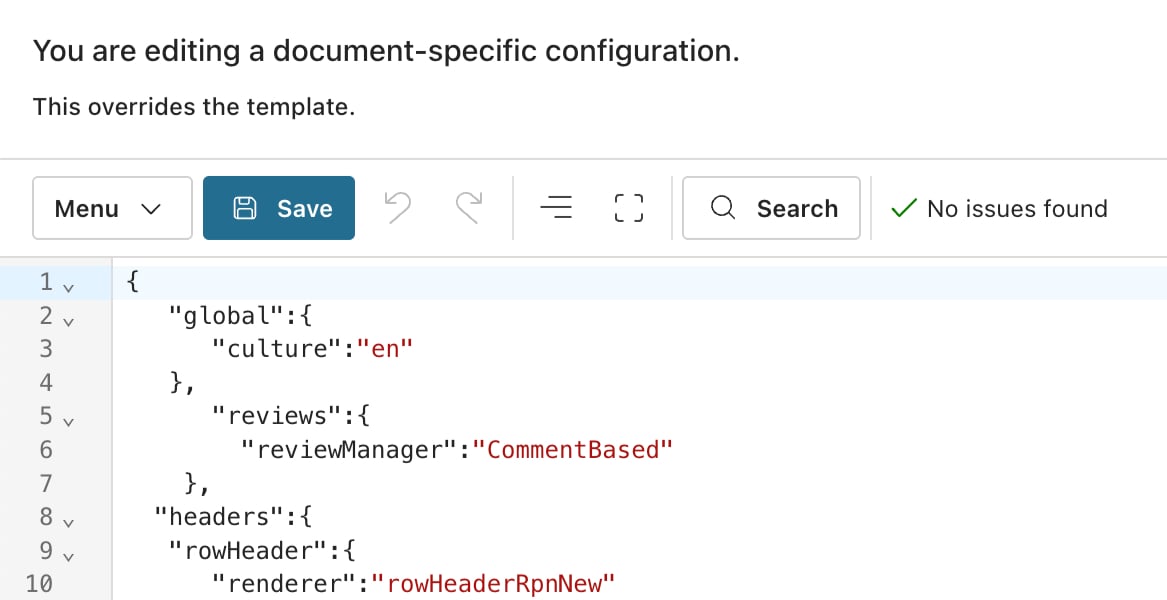
- The configuration editor opens in a new browser window with the project and document context automatically loaded.
type parameter determines which section of the configuration opens first. Valid values include columns, settings, and levels.2
Navigate Editor Sections
The configuration editor organizes your sheet configuration into the following sections:
Rating scales and enumerationsRisk severity, occurrence, and detection scales — as well as any dropdown options — are not defined inside the sheet configuration. They are managed as standard Polarion enumerations under Administration > Enumerations, and referenced from columns using
type: rating:<enumId> or type: enum:<enumId>. The editor does not contain a separate “Ratings” or “Enums” tab.3
Edit and Save Configuration
- Navigate to the appropriate section in the editor.
- Locate the property you want to modify.
- Make your changes in the editor form fields, or switch to the YAML view (v25.5.0+) for structural edits.
- Click Save to apply the changes.
Template vs. Document Configuration
When you open the editor, Risksheet determines whether the current configuration comes from a global template or a document-specific attachment:- Template-linked configuration — The editor shows the inherited template configuration. Changes update the template and affect all documents that inherit from it.
- Document-specific configuration — The editor shows the configuration attached directly to the current document. Changes affect only this document.
Ask the Admin AI Assistant while you edit
The editor toolbar carries an AI Assistant button — the sparkle chat icon — which opens the ✦ Risksheet AI panel beside the editor. This is the Admin AI Assistant, added by the separately installed Nextedy AI package. It answers configuration questions from the Risksheet documentation and links to the relevant pages, so you do not have to leave the editor to look something up. It never changes your configuration: you still make every edit yourself. See Use the Admin AI Assistant for the steps, and Admin AI Assistant for how it works and what it needs to be available.Common Configuration Tasks
Troubleshooting
- “Error while reading configuration” — The sheet configuration may contain a syntax error. Switch to the YAML view (v25.5.0+) to see error highlighting, or download the attachment and validate it externally.
- Editor opens but shows empty fields — Verify that you have read access to the project where the template configuration is stored.
- Browser console errors during editing — Check the browser console on non-Risksheet Polarion pages first. Some errors (such as “Uncaught Positive number expected”) may originate from Polarion itself rather than from the Risksheet configuration.
- My changes did not take effect — Confirm that you saved the configuration and that you are viewing the current revision, not a baseline. A hard refresh of the browser page forces the grid to reload from the latest configuration.
Verification
After saving your configuration changes and returning to the document view, the Risksheet grid should display the updated settings. All changes are stored in Polarion and tracked under the standard Polarion document history — Risksheet does not maintain a separate change log.See Also
- Use the Admin AI Assistant — ask configuration questions inside the editor and get documentation-grounded answers
- Find Configuration Files — understand where your sheet configuration is stored
- Set Up Global Templates — create shared configurations
- Override Template Configuration — create document-specific settings
- Configure Permissions — manage admin access for configuration editing