

How Template Inheritance Works
Risksheet configuration uses a simple inheritance model:- When a document is created from a template, it does not receive its own copy of the sheet configuration. Instead, it inherits the configuration from the template document.
- When Risksheet loads, it first checks for a sheet configuration attachment on the current document. If none is found, it searches the document’s template hierarchy.
- Changes to the template’s sheet configuration automatically propagate to all documents that inherit from it.

1
Create a Template Document
- Create a LiveDoc in a central project (for example, a
TemplatesorLibraryproject) that serves as the template repository. - Attach the configuration files to this template document:
- The sheet configuration (
risksheet.json) — the primary configuration with columns, levels, data types, formulas, styles, and cell decorators - The top panel configuration (
risksheetTopPanel.vm) — optional Velocity template for the info panel above the grid - The PDF export configuration (
risksheetPdfExport.vm) — optional Velocity template for PDF export formatting
- The sheet configuration (
- Configure the template with the settings that should be shared across all risk documents.
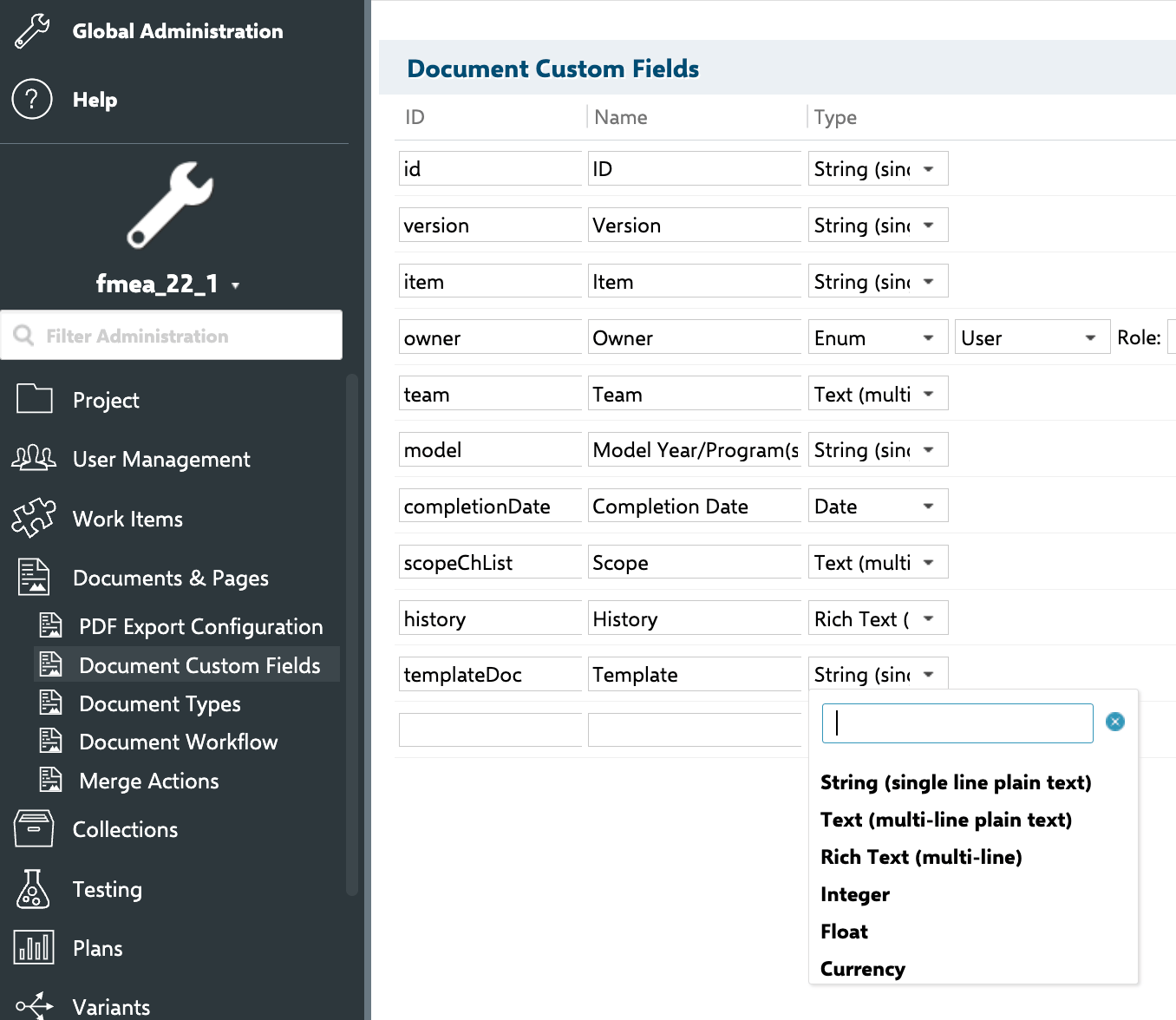

type: rating:<enumId> together with bindings: <fieldId>.2
Install Default Templates (Optional)
Risksheet ships with two built-in project templates:
To install:
- Navigate to Administration > Nextedy RISKSHEET > Setup.
- Click Install Templates.
- The system installs both templates into Polarion’s template repository.
Template detectionThe installer automatically checks whether templates are already present before installation. Reinstalling overwrites previous versions. The installation is transaction-safe — it either completes fully or rolls back on error.
3
Create Documents from the Template
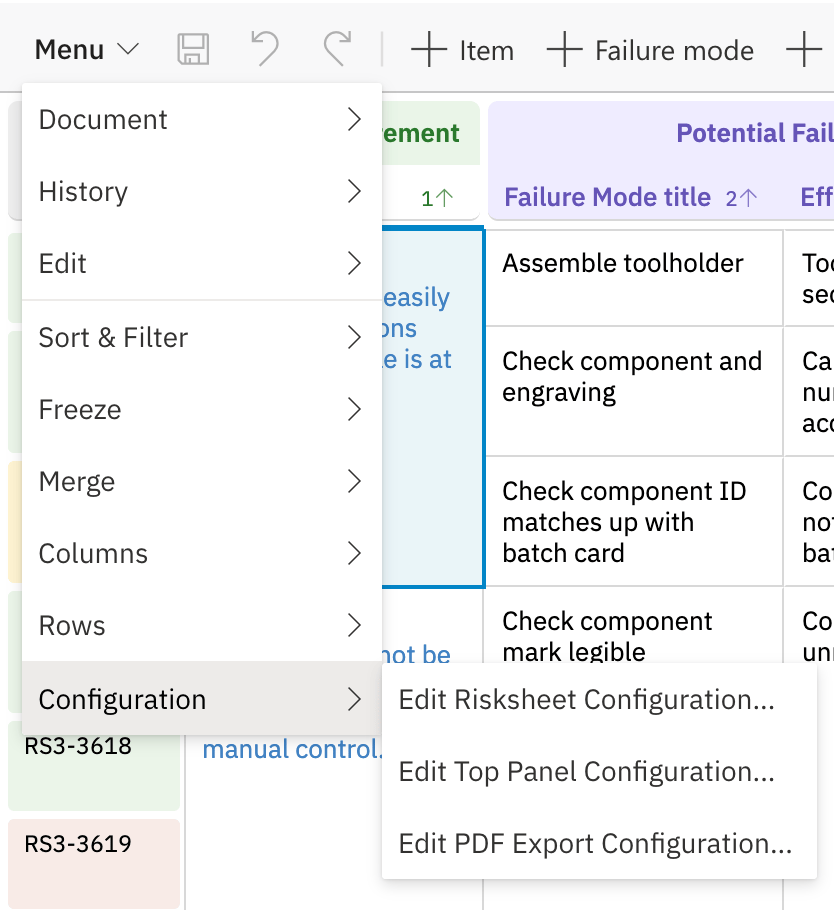
- Open the Risksheet home page for your project.
- Click Create New Document.
- Select a folder and enter the document name.
- Choose the template from the template list.
- Click Create.
4
Configure the Global Template Path
Risksheet locates the global template through the Polarion configuration property 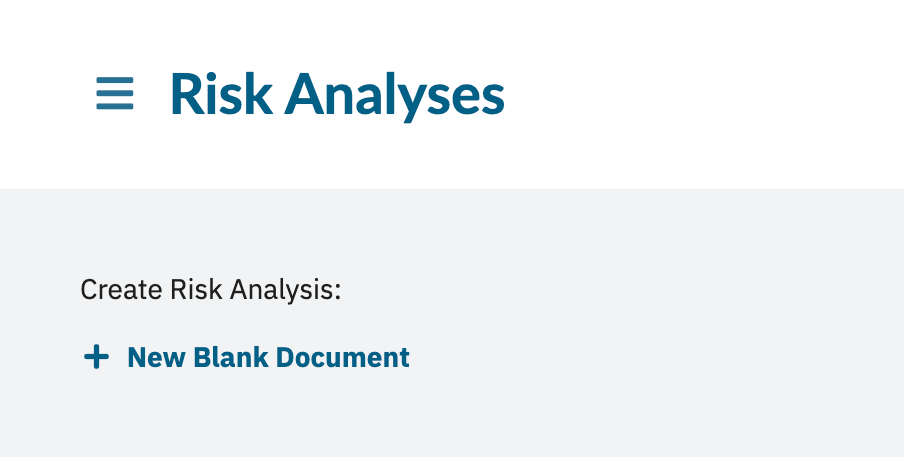
nextedy.risksheet.risksheetTemplatePath. This property is a STRING. To point at a template stored in another Polarion project, use the format PROJECTID:TEMPLATE_PATH, where PROJECTID is the project ID hosting the template document and TEMPLATE_PATH is the space and document name within that project. For a template in the current project, use a plain path with no prefix (for example, Risks/Risk Specification).In the example, the template is the document
Risks/Risk Specification in the project GlobalLibrary. Multiple paths can be separated with commas (for example, GlobalLibrary:Risks/FMEA,GlobalLibrary:Risks/HARA).Cross-Project Templates
Templates can be stored in a different project than the documents that use them, which is the typical pattern for centralized template libraries:- Create the template document in a shared project (for example,
GlobalLibraryorSharedTemplates). - Reference the template through
nextedy.risksheet.risksheetTemplatePathusing thePROJECTID:TEMPLATE_PATHformat. - Ensure all users have read access to the template project.
Multiple Configurations Per Project
You can maintain multiple Risksheet configurations within a single project. Each document or document group can inherit from a different template:- One template for FMEA analysis with RPN (Risk Priority Number) columns
- A separate template for HARA with ASIL (Automotive Safety Integrity Level) columns
- A third template for STRIDE or TARA (Threat Analysis and Risk Assessment) cybersecurity analysis
Update a Global Template
To modify the configuration for all documents that inherit from a template:- Open the template document in Polarion.
- Open the configuration editor (Menu > Configuration > Edit Risksheet Configuration). The editor supports YAML editing with syntax highlighting and error detection.
- Make your changes and save.
- All inheriting documents use the updated configuration on their next page load.
Verification
After setting up your global template and creating a document from it, you should now see:- The document loads with the template’s column layout and settings.
- The
templateNameproperty in the Risksheet metadata shows the template name. - The
fromTemplateflag istruein the configuration metadata.
See Also
- Override Template Configuration — detach a document from its template
- Configure Multi-Project Setup — share templates across projects
- Configure Template Paths — define document creation folders
- Find Configuration Files — identify which configuration a document uses
- Use Project Templates — project-level template integration