

Rendering Options Overview
Risksheet offers two approaches for custom data rendering:1
Add a Client-Side Cell Renderer
The column property The function receives an 
cellRenderer references a function name defined in the cellDecorators section of the sheet configuration. Add the renderer function under cellDecorators, then point the column at it:info object exposing info.value (current cell value), info.cell (the DOM element), and info.item (the full row data). It can modify the cell’s HTML content and styling.Renderer vs. Cell DecoratorThe
cellRenderer column property and the cellDecorators config section are interlinked: cellRenderer: "rpn" references the function cellDecorators.rpn. By convention, renderers replace the cell’s HTML content, while decorators apply CSS classes via toggleClass without changing content. Use renderers for custom HTML; use decorators for conditional styling.2
Add a Server-Side Rendered Column
For complex rendering that requires access to Polarion data relationships or cross-item queries, use
serverRender with a Velocity template:3
Use Cell Decorators for Conditional Formatting
Cell decorators apply CSS classes to cells based on their values. Define the function in 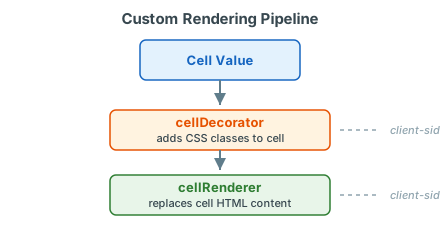
cellDecorators and the visual styling in styles. Cell decorators MUST use toggleClass (not inline styles), because the grid reuses cell DOM elements across rows:4
Combine Formulas with Decorators
A common pattern is using a formula to compute a value and a decorator to style it. RPN thresholds are configurable per deployment — pick the values that match your risk scale:The formula calculates the RPN value; the cell decorator applies color coding based on the result.
Verification
Save the sheet configuration through the configuration editor (YAML editing is supported in v25.5.0+) and reload your Risksheet. You should now see cells with custom rendering applied. For cell decorators, verify that the conditional CSS classes are applied by inspecting that cells display the correct background colors based on their values.See Also
- Apply Conditional Formatting — style-based formatting
- Configure Cell Styles — CSS class definitions
- Customize Link Rendering — customize how links display
- Create Custom Renderers — advanced renderer patterns
- Configure Calculated Columns — formula-driven columns