

Dependency Roles Come First
Polarion does not have one universal “depends on” relationship — it has a configurable set of work item link roles per project, and each role declares which work item types it may connect. Scheduler cannot guess which of those roles means “this task follows that one”, so nothing about dependencies works until you tell it. You do that with the Dependency Roles parameter, in the widget’s Work Items parameter section. It offers the link roles configured in the project, and accepts more than one. Until at least one role is selected:- Hovering a task card does not reveal the Add Link handle, so links cannot be created from the board.
- The Show Dependencies toolbar button is not displayed, so there is no overlay to turn on.
Listing more than one roleIf you select several Dependency Roles, Scheduler treats all of them as dependencies when reading the board, and when creating a new link it uses the first selected role that Polarion permits between the two work item types involved. Link roles carry type restrictions in Polarion’s configuration, so a role that is valid between two tasks may not be valid between a task and a requirement.
Only the Configured Roles Count
Reading the board follows the same rule as writing it. Scheduler inspects each task’s outgoing work item links and treats a link as a dependency only if its role is one of the roles listed in Dependency Roles. A work item may therefore carry plenty of links — relates to, verifies, parent — and still show no dependency arrow, because none of those roles is configured as a dependency role for this board. Two boards over the same project can legitimately disagree about what counts as a dependency, simply because they list different roles.Direction: Predecessor and Dependent
Dependencies are directional, and the direction comes from the order in which you click the two Add Link handles. The card whose handle you click first is the predecessor — the task that comes first. The second is the dependent — the task that follows it. Scheduler writes the link onto the dependent work item, pointing back at the predecessor, which is the natural reading of a “depends on”-style role: the follower declares what it waits for. On the board, the arrow runs from the predecessor to the dependent, with the arrowhead on the dependent — so an arrow always points at the task that is waiting.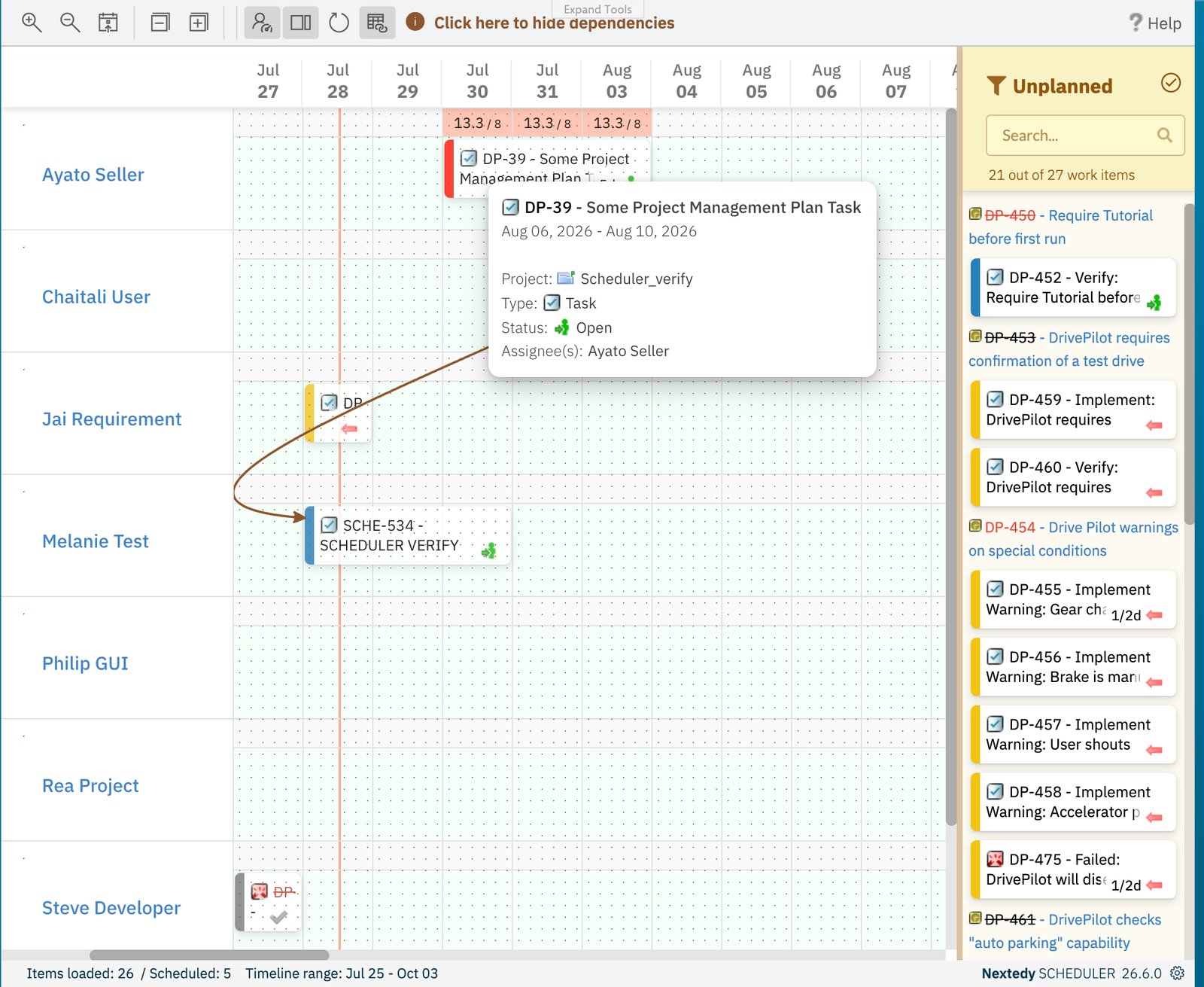
A dependency arrow curving from the predecessor down to the dependent, with the arrowhead on the task that is waiting.
The Overlay Draws Only What It Can See
Dependency arrows are not drawn permanently. They are an overlay you turn on with the Show Dependencies toolbar button, and Scheduler draws each arrow between the two task bars as they currently sit on screen. That has a consequence worth internalising: an arrow can only be drawn between two tasks that both have a bar on the board. For an arrow to appear, both ends must be- scheduled — an item sitting in the Unplanned sidebar has no bar to attach an arrow to, and
- inside the visible timeline window — a partner whose dates fall outside the range the board is currently showing has no bar either.
- Turning it on expands collapsed rows first, so that arrows are not drawn to bars hidden inside a folded swimlane.
- While it is on, a Click here to hide dependencies helper appears; using it — or clicking anywhere on the overlay — clears the arrows. The overlay is transient, so an action that redraws the timeline, such as Scroll to today, also clears it.
Unplanning and Dependencies
Unplanning a task clears its schedule and returns it to the Unplanned sidebar. Its bar disappears from the timeline, and with the bar go any arrows attached to it. The work item and its links are untouched. Schedule the task again and, with Show Dependencies on, its arrows come back.See Also
- Link Task Dependencies — configure a Dependency Role and create, inspect and remove links on the board
- Board and Timeline — the timeline window that decides which tasks are visible at all
- Dates, Duration and Effort — what makes a task scheduled in the first place
- Toolbar Controls — Show Dependencies and the rest of the toolbar
- Widget Parameters — the Dependency Roles parameter and its neighbours