

Prerequisites
- A configured board (see Add the Scheduler Widget) with Data Mapping pointing at real work item fields
- Write permission on the work items and on their mapped date, duration and assignee fields
- Items to plan: work items returned by the widget’s query that have no schedule yet
Schedule an Item from the Backlog
1
Show the Unplanned sidebar
The backlog sits on the right of the board under the Unplanned header. It is shown by default; the Show unscheduled items in sidebar toolbar button hides and shows it again.
2
Find the item
Type into the sidebar’s Search… box, or use the funnel filter to narrow the list to a saved query or a single swimlane. When a filter is active the count above the list reads as “N out of M work items”, so you can see how much of the backlog you are looking at. See Filter the Unplanned Sidebar.
3
Drag the card onto the board
Drag the card out of the sidebar and drop it on the row and day where the work should start.The drop does three things at once:
- Schedules the item from the day you dropped it on, writing the mapped date fields.
- Assigns the resource of the row you dropped it on — the user for a user row, or the mapped enumeration value for an enumeration row (see Configure Swimlanes).
- Sets the length of the bar from the item’s effort, rounded up to whole days against an eight-hour day. An item with no effort recorded gets a single day.
4
Check the result
The card disappears from the sidebar and appears as a bar on the row. The footer’s “Items loaded: N / Scheduled: M” counter increases its scheduled figure, and the load markers on that row recalculate to include the new work.
Move a Task
To reschedule, drag the task’s bar along the timeline and drop it on its new day. The mapped fields are rewritten to the new dates, the bar keeps its length, and the row’s load markers recompute on the drop.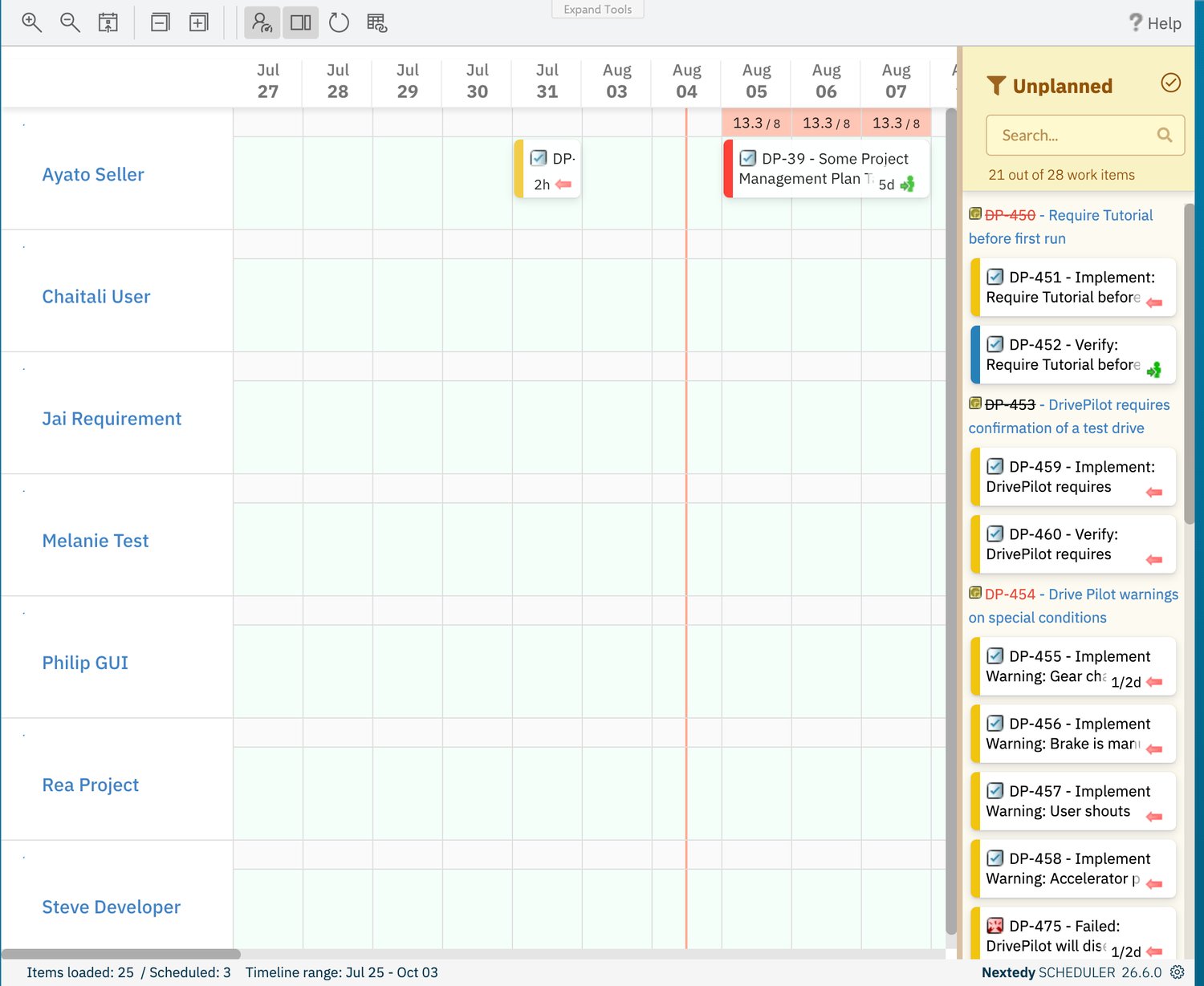
The DP-39 bar after being dragged to a later week — the load markers above it moved with it, and nothing was saved by hand.
Weekends are hidden by default, so the day columns skip Saturday and Sunday; off-days are drawn with a diagonal hatch. See Board and Timeline.
Change a Task’s Duration
Drag a bar’s edge to change its length. Each bar carries a narrow resize handle at its start and its end; dragging one moves that end alone, while dragging the bar’s middle moves the whole bar and keeps its length. The change is written back to the work item: the mapped end date is set, and where the mapping also has a Duration Field, the duration is recalculated as the number of working days spanned. A task’s length can equally be changed on the work item itself, in the fields the widget’s Data Mapping points at.1
Open the work item
Click the card body: Scheduler opens that work item in Polarion’s Work Item Prop. sidebar next to the board, where its fields can be edited. The card also carries the work item’s ID as a link.
2
Edit the mapped field
Change the mapped duration or date field and save the work item.
3
Reload the board
Click Refresh data on the toolbar. The bar redraws at its new length and the row’s load markers recalculate.
Where a Duration Field is mapped, moving a bar preserves the duration and rewrites the dates around it — so dragging never silently changes how long a task takes. A duration of zero is drawn as one day.
Unplan an Item
Unplanning takes a task off the timeline and returns it to the backlog, without touching the work item itself.1
Hover the task bar
Two small handles appear on the card: the chain icon (Add Link) and a calendar icon with a cross (Unplan item).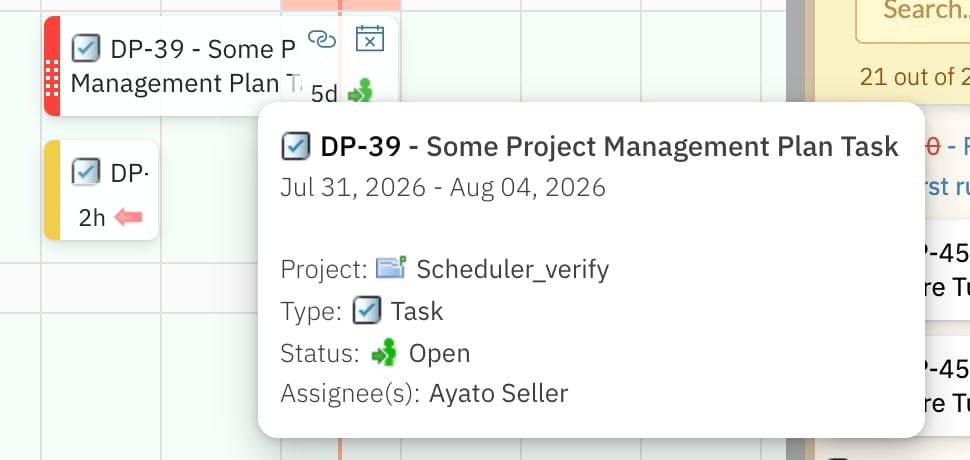
2
Click Unplan item
The task’s mapped date fields — and its mapped duration field, if one is configured — are cleared. There is no confirmation prompt.
3
Find it in the sidebar
The item reappears as a card under Unplanned, the footer’s scheduled count drops by one, and the sidebar’s item count rises by one. Drag it back onto a row whenever you want to schedule it again.
Everything Saves Automatically
The board has no Save control. Every drop, move and unplan is written to Polarion as you make it, and the toolbar carries no Save button to press afterwards. Two consequences are worth knowing:- There is nothing to confirm and nothing to discard. To undo a change, make the opposite change: drag the bar back, or drag an unplanned item out of the sidebar again.
- Widget configuration is different. Parameter changes are part of the Polarion page and must be saved with the page in edit mode. See Add the Scheduler Widget.
Tasks You Cannot Drag
Some cards do not respond to dragging, by design:- Resolved work items are drawn grey and are read-only on the board. Reopen the work item in Polarion if it genuinely needs rescheduling.
- Items marked read-only by an Item Script. A board can be configured to make selected items non-editable — see Advanced Configuration.
Verification
Work through one item end to end:- Drop a backlog card onto a row — it becomes a bar on that row, and the footer’s scheduled count rises by one.
- Open the work item — the mapped date fields hold the dates you dropped it on, and the resource of that row is set.
- Drag the bar two days later, then reload the page — the bar is still on the new dates, with no Save action in between.
- Drag the bar’s end edge one day to the right — the bar grows by a day, and the work item’s mapped end date (and its duration field, if the mapping has one) follows.
- Change the mapped duration or end date on the work item, then click Refresh data — the bar redraws at its new length.
- Click Unplan item — the card returns to Unplanned and the work item still exists, with its date fields empty.
See Also
- Create Tasks on the Timeline — create new work items directly on the board
- Dates, Duration and Effort — the three date-mapping modes and how effort is read
- Configure Swimlanes — what a drop assigns, per row type
- Navigate the Timeline — zoom, scroll to today, collapse and expand rows
- Link Task Dependencies — connect tasks with the Add Link handle
- Capacity and Load — why a row turns red after you schedule onto it