

What a Swimlane Represents
A swimlane is one horizontal band of the board that stands for a resource — the thing work is scheduled against. A task bar sits in a swimlane because the work item behind it points at that resource, and the per-day load markers on the swimlane’s summary row measure the effort landing on it. Scheduler builds those rows in one of two ways, and you choose which by setting Assignment Type in the widget’s Swimlanes (Rows) panel. To reach it on a page that already hosts the board, use Expand Tools → Edit, select the widget, then open Edit widget parameters.
Only these two modes exist — the Assignment Type dropdown has exactly these two options.
Users (Assignee) Mode
This is the out-of-the-box behaviour: one swimlane per person, which is what you want for team-level capacity planning. Which people appear is decided by User Role, a parameter in the widget’s Advanced panel rather than in Swimlanes (Rows). Its default value is the Polarion role IDproject_user, so a fresh board shows the users who hold that role, one row each. Clear the value to widen the board to all users instead of a single role.
A work item is placed by its assignees, so an item assigned to two people appears in both of their swimlanes.
User rows are scheduled against a working day taken from that user’s own Polarion working calendar: Scheduler reads the calendar per user and works out the available hours for each day. With Polarion’s default calendar that is 8 hours per day, which is the figure you will see in the load markers. Days the user’s calendar treats as non-working carry no capacity at all and are hatched in the grid.
Enumeration Field Mode
Choosing Enumeration Field reveals a second parameter, Field ID. Fill it with the ID of an enumeration field on work items, and the board draws one swimlane per option of that enumeration — for example one row per team, per component, or per severity level. Two constraints are worth knowing before you switch: Polarion’s built-in status, resolution, and type fields are not accepted as swimlanes. Naming any of them in Field ID produces a message that the field is not supported, rather than a board. Enumeration rows are not people, so Scheduler does not apply a working day to them: they are treated as available around the clock, and their load markers are measured against 24 hours per day. A row that reads12 / 24 is at half capacity, not at one and a half days of work.
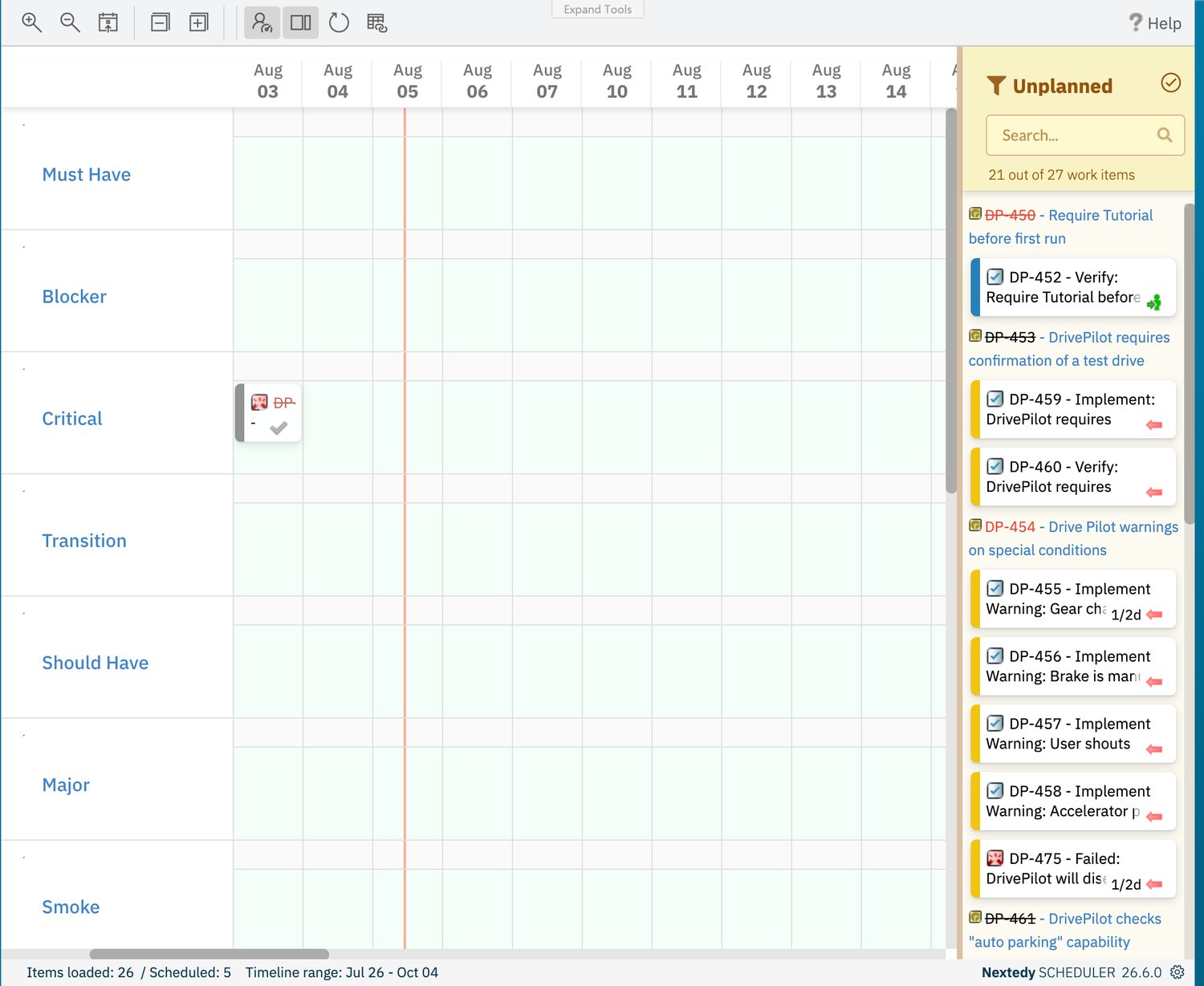
The same board with Assignment Type set to Enumeration Field and Field ID set to a severity enumeration: one row per option instead of one row per user.
Capacity per Row Type at a Glance
Working With Row Names
Row names are rendered as links, but the link has no real target: clicking a swimlane name opens a new browser tab on a dead URL, and neither opens the user’s page nor filters the board. The place where a row name is actionable is the Unplanned sidebar. Its funnel filter has a Swimlanes submenu listing every row on the board, and picking one narrows the backlog to the items belonging to that resource — which is the fast way to work through one person’s or one team’s queue. See Filter the Unplanned Sidebar.The Time Points Row
Below the resource swimlanes, Scheduler can add one further row — with a blank label — carrying Polarion time points that fall inside the visible window. It is governed by Show Time Points in the Advanced panel, which is on by default, and it appears only when there is at least one such time point to place. Markers in this row are read-only: they cannot be dragged, and they exist purely as date landmarks next to your bars.This row is populated only from Polarion’s legacy time points. Modern plans — iterations and releases — are not returned to it, and current Polarion versions offer no interface for creating legacy time points, so on a current installation the row does not appear even when the project has open plans inside the window. A board with no visible time-points row is therefore the expected result, not a configuration mistake.
See Also
- Configure Swimlanes — the step-by-step switch between assignee and enumeration rows
- Capacity and Load — how the 8-hour and 24-hour capacities drive the colours on the board
- Board and Timeline — how swimlanes are stacked in the timeline and flat views
- Widget Parameters — Assignment Type, Field ID, User Role, and Show Time Points with their defaults
- Filter the Unplanned Sidebar — filtering the backlog by swimlane