

Show or Hide the Sidebar
The toolbar button Show unscheduled items in sidebar toggles the whole sidebar. It is on by default; switching it off hands the freed space to the timeline, which then spans the full width of the board. See Toolbar Controls for the rest of the toolbar.Filter with the Funnel
The funnel at the top of the sidebar carries the label Unplanned. Click it to open the filter menu: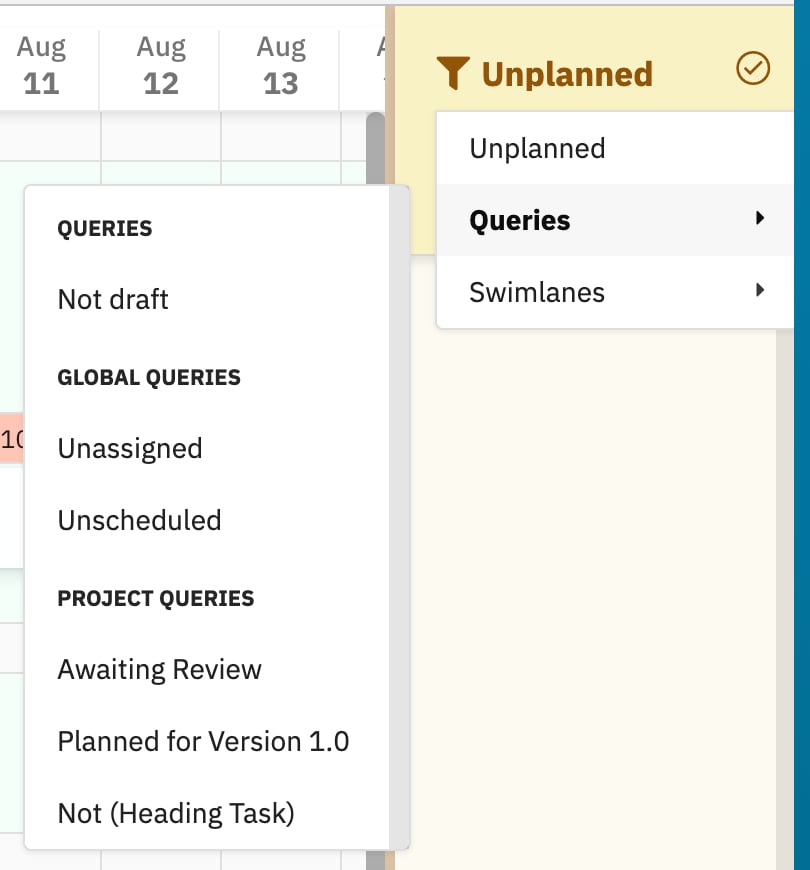
The funnel menu open on Queries, whose submenu groups the saved queries into Queries, Global Queries and Project Queries.
Saved Queries in the Submenu
The Queries submenu lists saved queries under group headings:- Queries — the queries defined on the widget itself, under the Queries parameter, each with the Name you gave it.
- Global Queries — saved queries available across the Polarion instance.
- Project Queries — saved queries belonging to the project the board is in.
Swimlane Entries
The Swimlanes submenu holds one entry per row of the board, labelled exactly as the row is: the user’s display name in assignee mode, or the enumeration option in enumeration mode. Picking one leaves only the backlog items that belong to that row, which is how you plan one person’s or one team’s work without reading the whole backlog. See Configure Swimlanes for how the rows are defined.Show or Hide Resolved Items
Resolved work items are hidden from the sidebar until you ask for them. The toggle at the left edge of the sidebar header, next to the funnel, switches them on and off.A resolved item that is already scheduled stays on the timeline — the toggle governs the sidebar list, not the board.
Resolved tasks on the timeline are drawn in grey and are read-only; see Colours and Load Thresholds.
Search the Backlog
The Search… box in the sidebar header filters the list as you type, a moment after you stop. The search is case-insensitive and matches the text of the card — work item ID, title and the fields shown on it — as well as the parent heading a card is grouped under. Search combines with the funnel filter and with the resolved toggle: the list shows the items that satisfy all of them. Clear the box to drop the text condition.Read the Item Count
Under the search box, the sidebar states how much of the backlog you are looking at:
The second form is the quickest check that a filter is still active.
The footer of the board gives you the other half of the picture with Items loaded and Scheduled.
Group Cards Under Their Parent Work Item
By default the sidebar is a flat list of cards. Setting Load Parents in the widget’s Unplanned Sidebar section to1 or more makes Scheduler walk up the parent links of each backlog item and group the cards under a heading for the parent work item.
1
Open the Widget Parameters
Open the page that hosts the board, click Expand Tools, then Edit.
Select the Scheduler widget and choose Edit widget parameters.
2
Set Load Parents
In the Unplanned Sidebar section, set Load Parents —
0 by default, which means no grouping.
Increase it to load the parents of the backlog items, and set Parent Roles to the link role or roles that lead from a backlog item up to its parent.
Grouping also needs at least one role in Dependency Roles, in the Work Items panel — with that parameter empty no parent is loaded, whatever Load Parents says.
Save the page.3
Read the Grouped Sidebar
Reload the board.
Cards are now sorted by parent and each group carries a heading naming the parent work item.
Items with no parent are collected under a heading reading 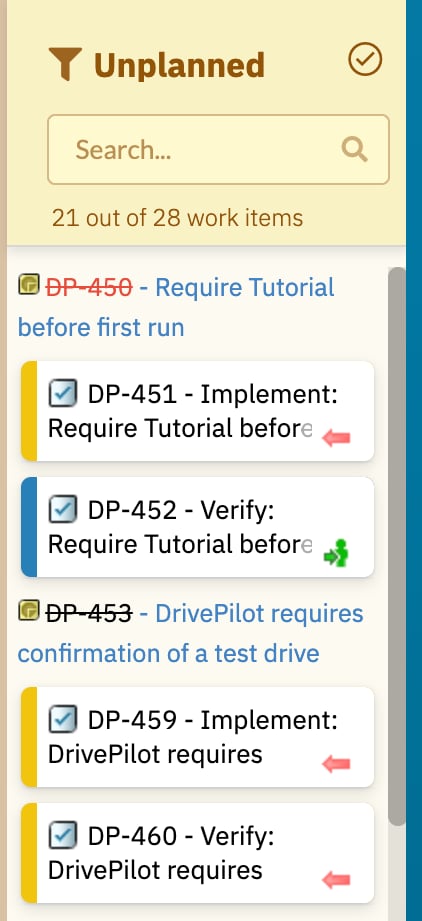
-- NO PARENT --.Verification
Working through the sidebar you should see:- Show unscheduled items in sidebar hides and restores the sidebar, and the timeline widens when it is hidden.
- The funnel opens a menu with Unplanned, Queries and Swimlanes.
- Picking a saved query or a swimlane shortens the list, and the count line changes to N out of M work items.
- Unplanned restores the full list and the count line returns to N work items.
- Typing in Search… narrows the list a moment later; clearing the box restores it.
- The toggle at the left of the sidebar header adds resolved items to the list and removes them again.
- With Load Parents above
0, cards appear under parent headings, with-- NO PARENT --for the rest.
See Also
- Schedule and Reschedule Tasks — drag a filtered card onto a row
- Navigate the Timeline — the toolbar controls around the sidebar
- Configure Swimlanes — what the Swimlanes entries are built from
- Add the Scheduler Widget — the board query that decides what reaches the sidebar
- Widget Parameters — Queries, Load Parents and the other parameters with their defaults