Find answers to the questions that come up most often when planning work on a Nextedy SCHEDULER board.
General
Changing a task's duration, saving, empty boards, swimlane errors, the Time Points row, unplanning, and load over 100%.
How do I change how long a task takes?
Either on the board or on the work item.On the board, drag the bar’s start or end edge. Each bar carries a narrow resize handle at both ends, and dragging one changes the task’s length — as opposed to dragging the bar’s middle, which moves it and keeps its length. The new dates are written straight back to the work item.On the work item, edit the fields the widget’s Data Mapping points at:
Your Data Mapping
Change the duration by
Start Field + End Field (the out-of-the-box mapping)
Editing the mapped end date — or the start date — on the work item
Start Field + Duration Field
Editing the mapped duration field
End Field + Duration Field
Editing the mapped duration field
Click a card’s body to open that work item in Polarion’s Work Item Prop. sidebar next to the board, edit the field there, then click Refresh data on the toolbar to redraw the bar at its new length.A bar carries no resize handles when the item is read-only — an Item Script can set that per item, as described in Advanced Configuration.
The full procedure is in Schedule and Reschedule Tasks.
Where is the Save button?
There isn’t one, and the board does not need one: every change is written back to Polarion the moment you finish the gesture.That covers every editing action on the board — dragging a bar to new dates, dropping an item from the Unplanned sidebar onto a row, unplanning an item, creating a work item on the timeline, and adding or removing a dependency link.
Because there is no Save step, there is no Cancel step either.
An accidental drag is a real change to the work item’s dates.
To undo it, make the opposite change: drag the bar back, or drag the item out of the sidebar again.
Two things follow from this:
If you are unsure whether a change landed, click Refresh data. The board reloads from the server, so what you see afterwards is what is stored.
Widget configuration behaves differently. Parameter changes are part of the Polarion page: they are made in page edit mode and saved with the page. See Add the Scheduler Widget.
Why does my board look empty?
An empty board is not an error state and Scheduler does not display a message about it — the rows and day columns are drawn as usual, with nothing on them.
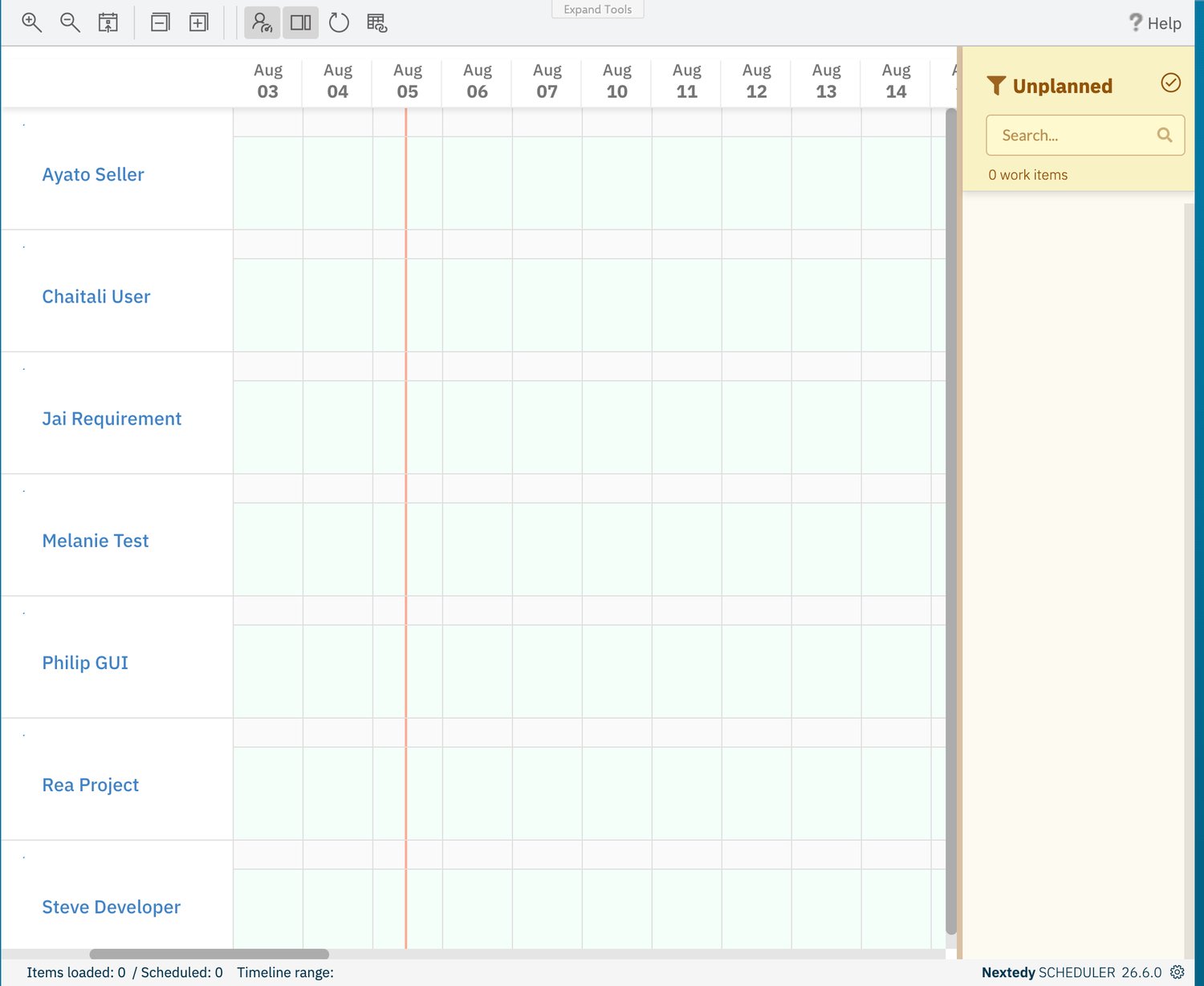
A board whose query matched nothing: rows and day columns are still drawn, the sidebar reads 0 work items, and the only evidence is the footer's Items loaded: 0.
Read the footer first, because it tells you which of four different situations you are in:
Work items were found, but none of them has dates yet
They are all waiting in the backlog. Turn on Show unscheduled items in sidebar and drag them onto a row
Items loaded: N / Scheduled: M, but no bars in view
The scheduled tasks fall outside the days currently drawn
Compare the footer’s Timeline range with your tasks’ dates, click Scroll to today, and widen the window with the Days Back and Days Forward parameters
The board has a field error instead of rows
The swimlane configuration is not valid
See the enumeration-field question below
If there are no rows at all in assignee mode, the User Role parameter is the thing to check: out of the box it is project_user, so only users holding that role in the project get a row.
Clear it to give every project user a row.
See Configure Swimlanes.
Why do my enumeration swimlanes show a field error instead of rows?
Because Field ID names a field that Scheduler cannot use as a row, and the board reports that in place of the rows rather than falling back to a default.There are two ways to land there:
You switched to Enumeration Field without changing Field ID. The parameter arrives pre-filled with team, and that is only a valid setting if your project actually has a team enumeration. If it does not, the board reports that the field team does not exist or is not of type enumeration.
You entered a field that is not an enumeration, or one that Scheduler rejects.status, resolution and type are rejected with a message that the field is not supported as a swimlane, even though they look like enumerations on a work item form.
What you enter in Field ID
What the board does
An enumeration field that exists on your work items
Draws one row per option of that enumeration
status, resolution or type
Rejects it as not supported as a swimlane
A field that does not exist, or is not an enumeration
Rejects it as not existing or not of type enumeration
The fix is the same in both cases: set Field ID to the ID of an enumeration field that exists on the work item types your query returns — the technical field ID from Polarion, not the label shown on the form — then reload the board.
Configure Swimlanes walks through both swimlane modes.
Why is there no Time Points row on my board?
Because the row is populated from legacy Polarion time points, and there are none in your window.The Show Time Points parameter in the widget’s Advanced panel is on out of the box, but the row is drawn only when there is at least one such time point inside the timeline window.
Current Polarion versions plan with Plans — iterations and releases — and those do not feed this row, so on a current Polarion server leaving Show Time Points on does not add a row.Nothing is misconfigured when the row is absent, and nothing else on the board depends on it: the row only ever showed read-only date landmarks alongside your bars, never anything schedulable.
For date orientation, use the current-date line and Scroll to today instead, described in Navigate the Timeline.See Swimlanes and Resources for what the row contains when it does appear.
Why does clicking a swimlane name do nothing?
Row names on the board are rendered as links, but the link has no real target — clicking one opens a new browser tab on a dead URL and changes nothing on the board itself.To narrow your view to a single resource, use the Unplanned sidebar’s funnel filter instead: its Swimlanes submenu lists the board’s resources, and picking one filters the backlog to the items belonging to that row.
The sidebar’s count then reads as N out of M work items, and clearing the filter with the Unplanned entry brings the full backlog back.Filter the Unplanned Sidebar covers the funnel filter, the saved queries it offers, and the free-text search next to it.
What happens to the work item when I unplan it?
Only its schedule is removed.
Unplan item — the calendar-with-a-cross handle that appears when you hover a card — clears the task’s mapped date fields, and its mapped duration field if one is configured.
There is no confirmation prompt.Everything else about the work item is untouched: its title, its type, its assignee, its links, its history, its attachments.
The item itself still exists in Polarion, and it reappears as a card under Unplanned with the footer’s scheduled count down by one and the sidebar’s item count up by one.
Drag it back onto a row whenever you want to schedule it again.
Unplan item is not a delete.
Deleting a work item remains a Polarion operation, done from the work item itself — Scheduler offers no way to do it.
The reverse is worth knowing too: dropping a card from the sidebar onto a row both schedules the item and assigns it to that row’s resource.
See Schedule and Reschedule Tasks.
Why does a day show more than 100% load?
Because more effort is scheduled against that row on that day than the row’s daily capacity, which is exactly what the red band is there to tell you.Load markers read load / capacity in hours, so a marker of 15.3 / 8 means over fifteen hours of work are scheduled against an eight-hour day.
The number arrives like this:
Every task bar covering that day in that row contributes a share of its effort.
A task’s effort is spread evenly across the working days its bar spans, so a five-day bar carrying 20 hours contributes 4 hours a day.
The shares of all the bars in the row are added together for that day.
So an overload has two possible causes, and they call for different responses:
Too many tasks on the same days. Move one of the bars to a quieter stretch of the timeline.
One task given too few days. Lengthen it through the mapped duration or end-date field — the same estimate spread over ten days instead of five halves its daily contribution.
Check the denominator before reading the colour.
User rows are measured against an eight-hour day and enumeration rows against a 24-hour day, so 12 / 24 on a team row and 12 / 8 on a user row hold the same amount of work while only the second is an overload.
A task that pushes a day over capacity is also drawn red itself, ahead of the colour its work-item status would otherwise give it.
A red bar therefore has two possible readings — over capacity, or past the work item’s due date — and the card’s hover tooltip tells you which: an overdue task adds a red Overdue line with the due date.
Capacity and Load covers the calculation, and Colours and Load Thresholds lists the four load bands and the order the card colours are applied in.
Can’t find your answer?The Concepts section explains how the board reads and writes Polarion data, the Guides section gives step-by-step procedures, and the Reference section lists every parameter, toolbar control and colour.
If your question is still unanswered, raise it at support.nextedy.com.