

Prerequisites
- Polarion administrator rights on the server and on the project.
- The Nextedy AI package installed, and a valid Nextedy AI license — see Install Nextedy AI and Nextedy AI.
- A Risksheet document whose configuration you can edit.
- Access to a language-model endpoint. The in-sheet assistant calls the model from your Polarion server, so the server needs an endpoint and a key it can use.
Connect a language model
The in-sheet assistant sends its requests from your Polarion server to a language model you provide. Setnextedy.ai.baseUrl and nextedy.ai.model in the global configuration properties, then store the API key in the Polarion User Account Vault under nextedy-openai-apikey. Install Nextedy AI walks through both, including what the endpoint must support and what the requests carry; AI Action Configuration lists the defaults.
Switch the assistant on for a project
Three project properties control what a project offers. All default to on, so a licensed server with a configured endpoint offers the assistant everywhere unless you opt out.Hiding a feature versus hiding an advert
These are two different jobs, and it is worth being clear which one you want:- You do not have the assistant, and do not want it advertised. While the assistant is not ready — the package cannot be reached, no model key resolves, or the license is not valid — the toolbar still shows the sparkle button, disabled, whose tooltip says what is missing: what the Nextedy AI package would add and how to get it, or that the license is invalid. That is deliberate promotion. Setting
nextedy.risksheet.promotionstofalseremoves it. - You have the assistant, but not in this project. Setting
nextedy.risksheet.aiAssistanttofalseremoves the in-sheet assistant from that project’s documents entirely — no button, no cell-menu entries — while other projects on the same server keep it.
nextedy.risksheet.promotions takes effect whenever the assistant is not ready, licensed or not: a licensed server without a model key still shows the promotion. Once the package, the model key and the license are all in place, the button is shown regardless of it, and nextedy.risksheet.aiAssistant set to false is the switch that removes it.
Write an action
Action files are YAML, and they live in the Polarion configuration folder.polarion/nextedy/ai/ — either in the project, or globally so several projects can share them. You can edit them through Administration → Nextedy AI → AI Assistant Actions, which lists the files in that folder.
Start with one action. This one looks for existing harm work items to link onto a HARA row:
actions.yaml
labelis the text in the cell menu and the panel list.messageis the prompt title the analyst sees above the results.scope.columnsrestricts the action to those columns in the cell menu. Omit it and the action is offered on every column.contextSources.row.fieldsmaps sheet field ids to the labels the model reads. Write the labels as prose — they are the model’s only description of the row.discover.keywordPrompttells the assistant what kind of thing to look for;discover.rankPrompttells it which of the items it finds are worth proposing.apply.fieldnames the column a recommendation is written into — and it also determines which work-item types the assistant proposes, since those come from the column’s own configuration.globalsare reusable strings; a${globals.<key>}placeholder is substituted into an action’s prompts.
Point the sheet at the file
In the Risksheet configuration, name the file in theglobal block:
.yaml extension is optional. To share one project’s file with another, qualify it with the project id — "OtherProject/actions".
Until assistantConfig is set, the sheet requests no actions and the assistant has nothing to offer even on a fully configured server.
Verify
1
Reload the LiveDoc
Actions are read once when the sheet loads, so a configuration change needs a reload — not just a refresh of the grid.
2
Check the toolbar
A sparkle AI Assistant button sits at the right-hand end of the toolbar. Hover it: an enabled button tooltipped “AI Assistant” means everything resolved. A disabled one names the problem — the promotional text when the package or endpoint is unreachable, the license when the license is invalid, or “AI Assistant — configure AI actions for this risksheet to enable it.” when the actions have not loaded.
3
Check the cell menu
Right-click a cell in one of the columns named in
scope.columns. Your action should appear in its own group, after the Open … Item entries and before the New … entries. If the toolbar button is greyed out, no cell-menu entries appear at all.4
Run it on a row with real content
Pick a row whose descriptive fields are filled in. An empty row gives the assistant nothing to work with, and a thin result is easy to misread as a broken configuration.
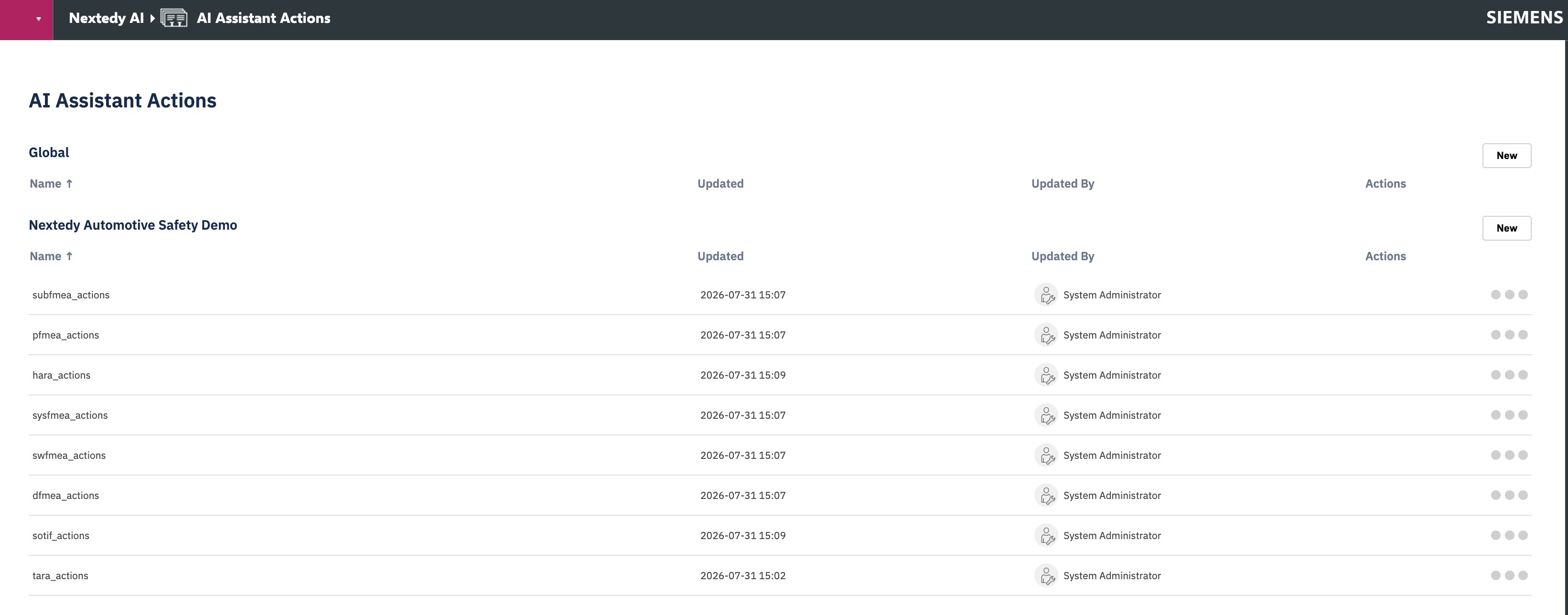
Administration → Nextedy AI → AI Assistant Actions, listing the files found globally and in the current project.
Tune the results
Most disappointing results are a prompt problem rather than a plumbing problem.- Put the direction in the right prompt.
keywordPromptshould describe the kind of result you want found;rankPromptshould describe what makes a suggestion acceptable. Judgements about plausibility belong inrankPrompt; keepkeywordPromptto a plain description of the subject matter. - State the system context once in
globalsand reuse it, rather than repeating it per action. - Give the model permission to return nothing. An explicit “return none rather than the closest match” measurably reduces weak suggestions being offered as real ones.
- Write distinctive words, and expect loose matching. Matching is deliberately broad, so precision comes from
rankPromptrather than from a cleverer choice of words. Very short abbreviations do not help — prefer whole, distinctive terms in the fields the action reads.
Overriding the built-in prompts
Four global context properties replace the assistant’s built-in prompt wording for every action. Leave them unset to keep the defaults.nextedy.ai.jsonPrompt governs the format the assistant expects the model’s answer in. Changing it can stop recommendations appearing at all. Override it only when you know the shape you are asking for.Troubleshoot
Turn on logging while diagnosing, then turn it off again:
Warnings and errors are always logged regardless.
See Also
- AI Assistant — the model behind actions and what has to be in place
- Use the AI Assistant — the analyst’s task
- AI Action Configuration — every field, with defaults
- Nextedy AI — the package and its license
- Configure Permissions — how sheet permissions apply to what the assistant can see
- Customize the Top Panel — where a script can add extra context to an action