

The AI Assistant proposes, you decide. Every result is a recommendation for you to review, adjust, or reject. The assistant does not change work items, sheet data, or configuration on your behalf — a link is only created when you click Apply.
Select, Discover, Apply
Every action follows the same three-beat shape, and it is worth holding onto because it explains both the strengths and the limits of the feature.
The assistant never skips a beat. It cannot go looking on its own, and it cannot apply anything you have not clicked.
What an action does
An action reads the context configured for your row, finds work items in your own Polarion project that fit it, and comes back with a short, ordered list of proposals — each one an existing work item with a one-sentence rationale for why it fits. The panel reports progress while it works. Two properties of that are worth holding onto:- It only proposes what belongs in the target column. An action is scoped to the work-item types that can legitimately go into the column it fills, so a HARA harm action cannot propose a test case.
- It only sees what you can see. The assistant reads your project with your own Polarion permissions, so it can never surface an item you would not be allowed to open yourself.
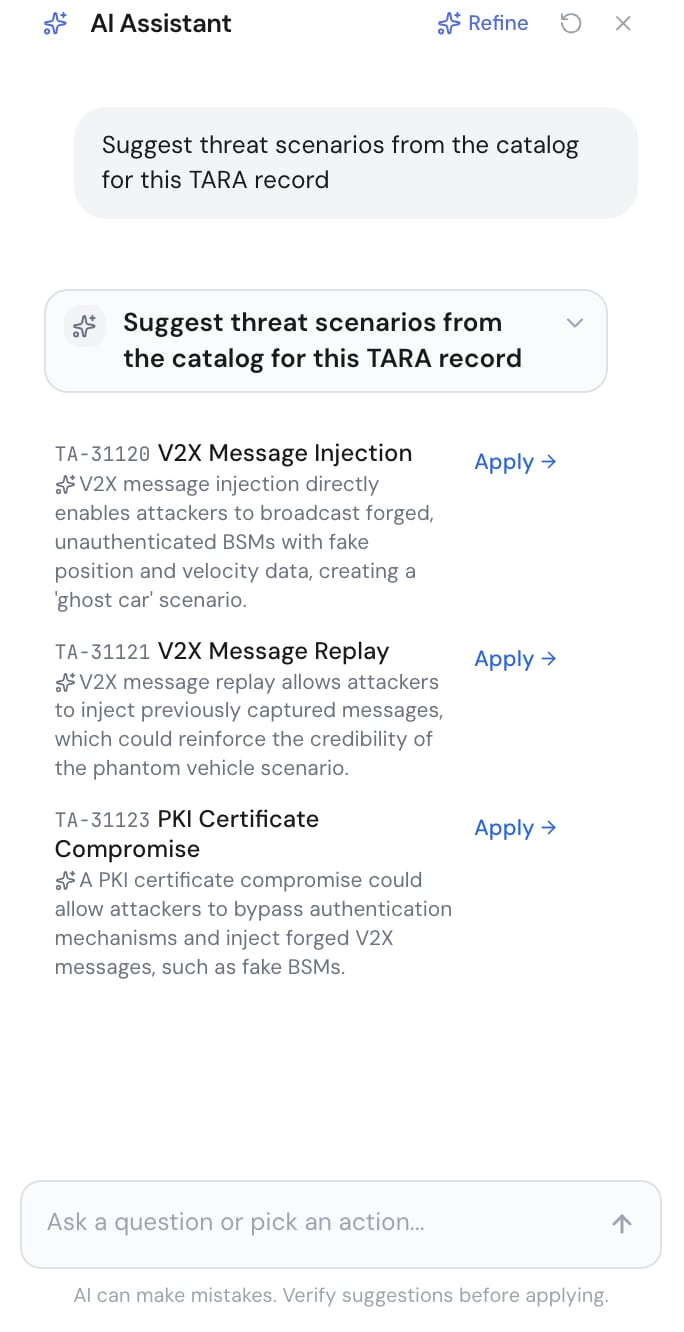
A completed action: the prompt that was sent, then each suggested work item with its ID, its title as Polarion holds it, and the model's one-sentence rationale.
What the assistant is told about your row
The assistant does not read your sheet. It receives a small set of labelled values, assembled fresh each time you run an action:- Which row you are on — its ID and its title.
- The fields your administrator chose. An action’s configuration maps sheet fields onto labels, and those labels are what the model reads. A HARA action typically passes the use step, the hazardous situation, and the hazard; an FMEA action passes the failure mode and its cause.
- How many items to return, and how to sort them, when the action sets them.
- Anything a project script adds. A document’s top panel can contribute extra context — a device name, an intended use, a governing standard — so an action can be told things that live outside the grid.
Because the labels are what the model reads, they are worded as prose rather than as field ids. That is a configuration choice, and it is the main lever an administrator has over how well an action performs.
Why you can trust what comes back
A language model asked for work items will happily invent plausible ones. The assistant is built so that invented items cannot reach you. Every recommendation is a work item that really exists in your project. Each proposal is confirmed against your project data before it is shown to you, and anything that cannot be confirmed is discarded. The assistant never presents an item it has not verified, and it never invents a work-item ID. Titles come from Polarion, not from the model. Every recommendation is shown with the title Polarion currently holds for that work item, so even for an ID that does exist you are never shown a title the model made up. If nothing survives that check, the panel tells you so rather than quietly showing less:No matching items found in the project.— nothing in your project matched the row.No verified matches found. The AI suggested items that don't exist in the search results.— there were proposals, but none of them could be confirmed against your project.
Where it is weak
The assistant is built to offer a generous set of candidates rather than risk missing the right item. Three things follow from that:- Matching is loose, and it is only as selective as the least distinctive word in your wording. Phrases are not matched as phrases: a row whose fields say “tissue damage” will also draw in items that speak only of damage. Distinctive, domain-specific wording in the configured fields produces sharper results than generic wording.
- Very short abbreviations and common words do not help. One- and two-character terms such as “UV” or “CO”, and everyday English words, will not narrow anything down. Spell the term out where the sheet allows it.
- There is a ceiling on how many items a single run considers. Raising an action’s requested result count past about thirty makes no difference to what comes back.
What has to be in place
The assistant is deliberately layered, and each layer fails visibly rather than silently. Five things must all be true before an action appears on a row:1
The Nextedy AI package is installed
Without it, Risksheet works exactly as it always did. The toolbar may still show a disabled sparkle button as a promotion, whose tooltip explains what the package would add. Install Nextedy AI covers the package, the license and the model connection.
2
A model endpoint and key are configured on the Polarion server
The in-sheet assistant sends its requests from your Polarion server, so the server needs an endpoint to send them to. Until that is set, the assistant reports itself unavailable and cannot be opened.
3
A valid Nextedy AI license is installed
The in-sheet assistant is license-gated. With an invalid license the toolbar button is shown but disabled, its tooltip naming the license as the problem — and no AI entries appear in the cell menu at all.
4
The assistant is enabled for the project
A Polarion project property turns the in-sheet assistant on or off per project, so a project that should stay AI-free can opt out even on a licensed server.
5
At least one action is configured
Actions are not built in. Until an administrator defines them, the panel has nothing to offer.
See Also
Use the AI Assistant
Run an action on a risk row and apply a suggestion into the sheet.
Configure the AI Assistant
Turn the assistant on for a project and write your first action.
AI Action Configuration
Every field of the action configuration file, with defaults.
Nextedy AI
The package, its license, and where the assistant appears across products.
- Admin AI Assistant — the other assistant Nextedy AI adds to Risksheet, in the configuration editor
- Traceability and Linking — the link model an applied recommendation writes into
- Configure HARA Workflows — the sheet an action typically runs against
- Understanding Licenses — how Nextedy licensing works in Risksheet