

Supported Size
- Tested size: one sheet with about 8,000 risk items and 86,000 rows.
- No fixed row limit. Risksheet itself does not cap the number of rows. The practical limit is the browser’s memory: the loaded rows stay in the browser tab, and Chrome lets a tab use about 4 GB.
- Timeouts: a load has to finish within the request timeouts of Polarion and of any proxy in front of it. Configure the sheet as described below so that it stays well within them.
- Document tree: a
$treetree can hold up to 500,000 rows; administrators can raise the limit. See Size Limit.
Load and Export Times
Measured on a test server (Polarion 2606) in Chrome, with the server already warm. “Before 26.11” is Risksheet 26.10.1 on the same sheets.
Both sheets are risk analyses whose risk controls are shared by many risk items, with four
serverRender columns that list linked work items: the controls’ implementations, their evidence, the related functions and further risk items. “Original column scripts” means those columns as first written, following links from $item. “Configured for a large sheet” means the same four columns rewritten with $tree and $render, as described in Speed Up Server-Render Columns with the Document Tree, and global.simpleLinks turned on; the columns show the same content.
Your times depend on the server, the network and above all the configuration — mostly the columns that show linked work items. The first load after a Polarion restart takes about twice as long. A document opened in a revision or a baseline takes longer than its current version.
While a Sheet Loads
While the rows arrive, the footer shows Loading… and a progress bar in place of the row count. The bar fills as the risk items come in; hovering over it shows how far the load has come — The server is preparing the rows before the first rows arrive, then for example 618 of 1,500 risk items received, 2,471 rows so far. Until the number of risk items is known, a short segment moves back and forth along the bar. When the load finishes, the footer shows the row count again.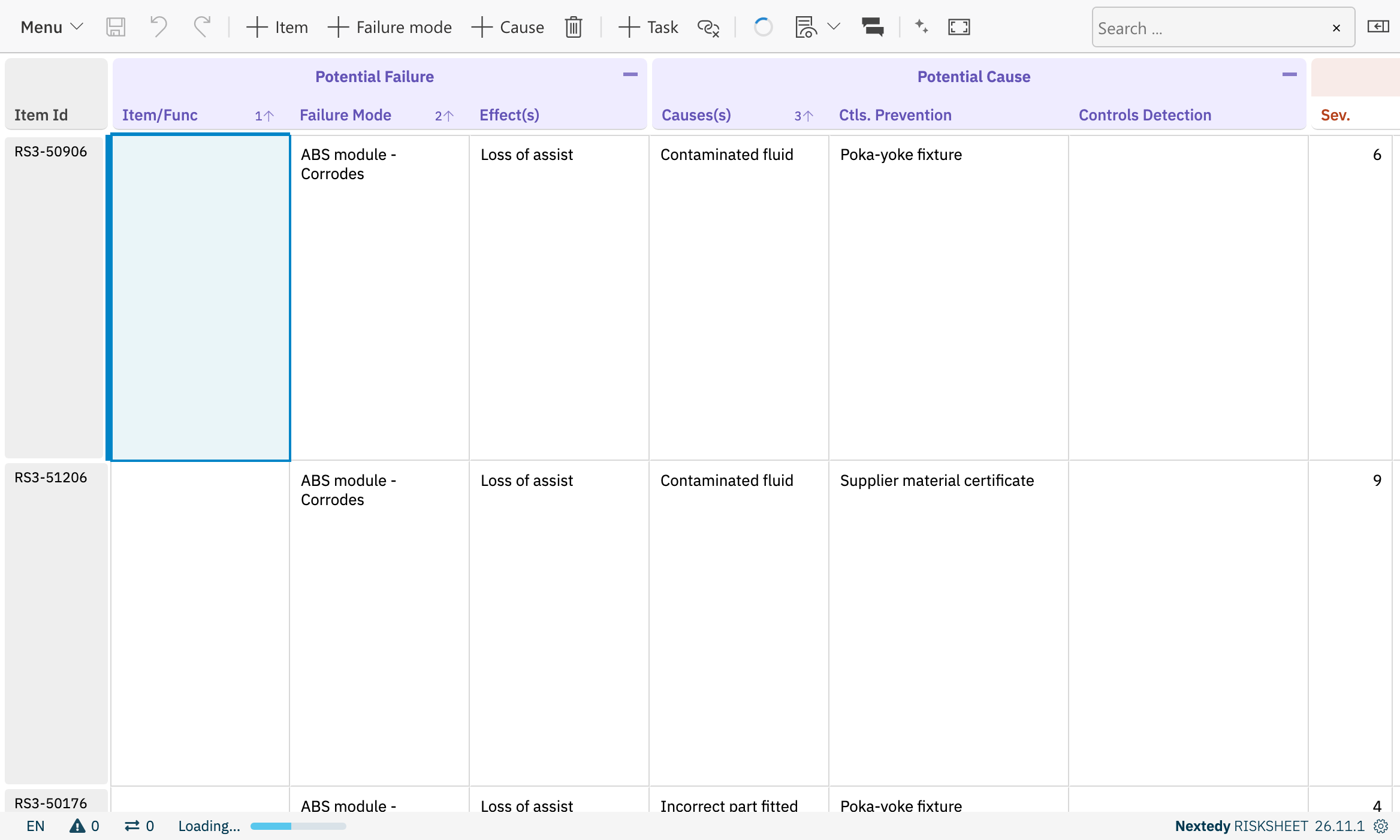
Reloading a 6,000-row sheet: the toolbar's reload icon spins, and the footer shows the load part-way through.
Configure a Large Sheet
A large sheet needs no special setting to load. How long it takes depends mostly on the columns that show linked work items. In order of effect:- Use simple link cells. Set
global.simpleLinks: true. Item-link, multi-item-link and task-link cells then show the type icon, ID and title and open in a new browser tab, without Polarion’s hover card and revision icon. See Global Settings. - Read linked items through the document tree. A
serverRendercolumn that follows links from$item— from a risk item to its controls, from a control to its evidence — is usually the slowest part of a large sheet. Rewrite it with$treeand$render, as described in Speed Up Server-Render Columns with the Document Tree. - Keep task columns independent of the risk item. A
serverRendercolumn of the task that reads$masterObject, or hands its work to a macro it does not define itself,#parse,#includeor#evaluate, makes the whole sheet load slower. - Define tasks by one link role. A sheet whose task definition names a single link role loads faster than one that uses a query or several link roles.
- Turn off the reload after save. With
global.refreshOnSave: false, saving does not reload the whole sheet. If the sheet has multi-item link columns, use Risksheet 26.11.2 or later: in earlier versions their cells can show empty after a save until the sheet is reloaded. See Slow Page Loading.
Exporting a Large Sheet
PDF and Excel exports keep the page responsive. A progress notification names the step the export is in and how far it has come, and changes to Done when the file has been downloaded. During a PDF export the sheet is read-only until the export ends; during an Excel export you can keep editing. Exporting from Flat table view is faster than from a hierarchical view. See Export to PDF, Export to Excel and Export Performance Issues.See Also
- Speed Up Server-Render Columns with the Document Tree — rewrite columns that follow links
- Document Tree and Link Renderer — reference for
$treeand$render - Slow Page Loading — diagnose a slow sheet step by step
- Export Performance Issues — slow PDF and Excel exports