Speed Up Server-Render Columns with the Document Tree
Rewrite Nextedy RISKSHEET server-render scripts that follow work item links so that they read them through the document tree, and render their links with the built-in link renderer.
A serverRender script that follows links from $item — from a risk item to its controls, from a control to the evidence that verifies it — is usually what makes a sheet with thousands of rows slow to load. Reading the same links through the document tree, $tree, makes such columns much faster. The link renderer, $render, then turns the items into links in the same form as Risksheet’s own link cells.This guide rewrites one such column. For the background, see Large Sheets.
Prerequisites
Risksheet 26.11.0 or later.
Edit rights on the sheet configuration of the document or of its template.
1
Describe the Links as a Tree
Write down the chain the script walks: the work item types on each level and the link role and direction between them. The example below lists, for each risk control, every risk item it mitigates — including the row’s own:
Level
Work item type
Reached by
Root
risk (the risk items of the document)
—
1
task (the risk controls)
a mitigates link from the control to the risk item, so a back link from the risk item’s side
2
risk (every risk item the control mitigates)
the control’s own mitigates links
$tree.from($module) starts at the document the sheet shows. types([...]) selects the root level’s types; each expandLink(), expandBacklink() or expandAnyLink() adds a level, and the byRole(...) or byRoles([...]) and byType(...) or byTypes([...]) after it narrow that level. load() reads the tree.
2
Rewrite the Column
Replace the script’s link walking with the tree, and look up the current row’s items with children(...). In a column of the task, $item is the row’s task:
Build the description one hop per #set, as here, or keep the whole chain on one line: a call chain broken across lines leaves the cell empty.$render.withTitle(false).link($r) renders each item as its type icon and ID, with its title as the tooltip. Use $render.link($r) to show the title after the ID, and $render.target('_blank').link($r) to open the item in a new browser tab. For every option, see Document Tree and Link Renderer.
Keep task columns independent of the risk itemDo not read $masterObject in a column of the task, and do not hand the rendering to a macro the script does not define itself, or to #parse, #include or #evaluate. Any of them makes the sheet load noticeably slower.
3
Use Simple Link Cells
Optionally, also switch the sheet’s own item-link, multi-item-link and task-link cells to simple links:
global:
  simpleLinks: true
The links then show the type icon, ID and title (a task link shows the icon and ID, with the title as the tooltip) and open in a new browser tab — links set to open in Risksheet still open there. They no longer show Polarion’s hover card or revision icon. See Global Settings.
4
Save the Configuration and Reload the Sheet
Save the sheet configuration, then reload the sheet so that it reads the new configuration.
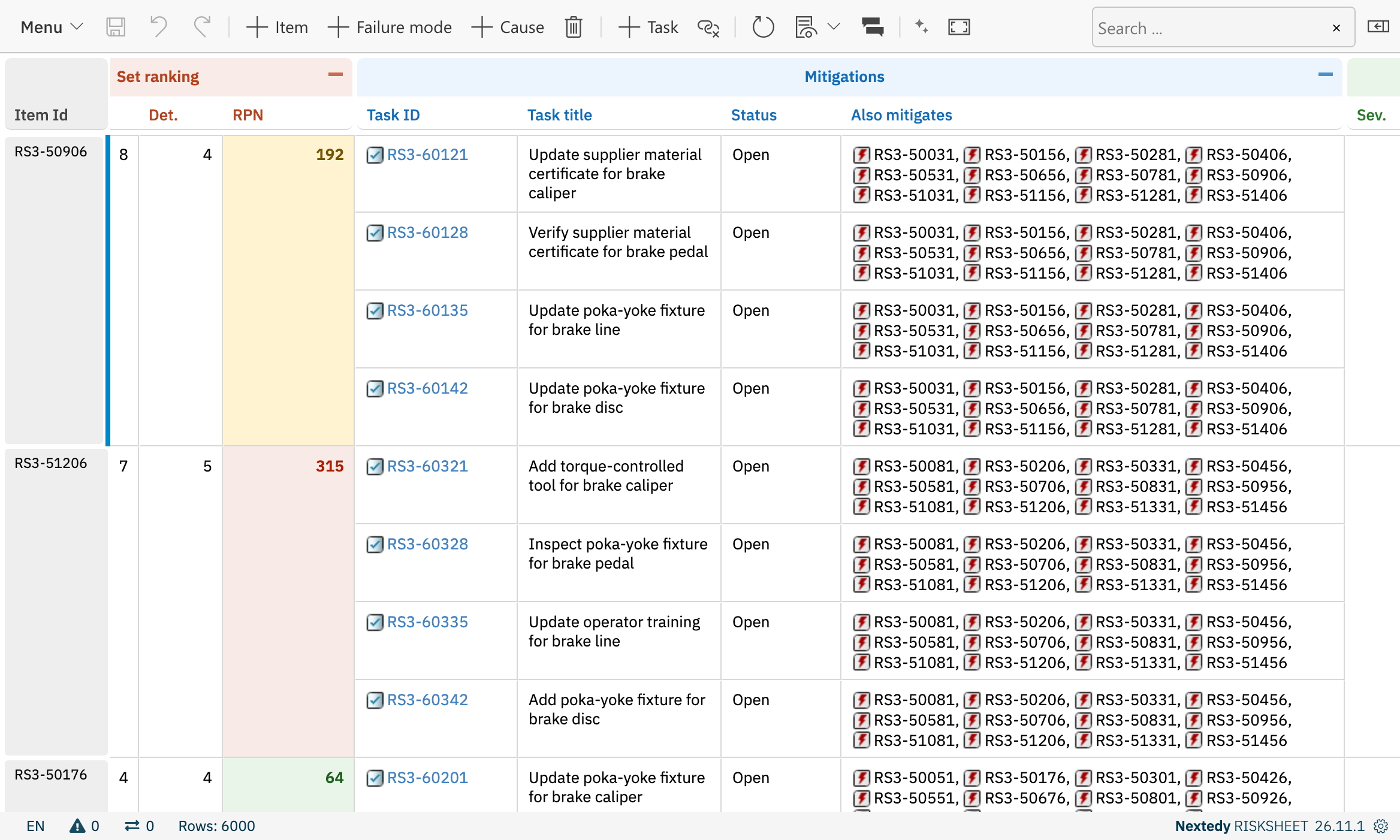
The Also mitigates column built from the document tree: each risk control lists every risk item it mitigates.
Verification
You should now see:
The rewritten column shows the same items as before. Items you may not read do not appear, because the tree reads them with your permissions.