

Prerequisites
- Access to Administration > Nextedy POWERSHEET > Configurations in your Siemens Polarion ALM project
- An existing sheet configuration you want to download
1
Open the Configuration Manager
- Navigate to Administration > Nextedy POWERSHEET > Configurations
- You will see a list of all available sheet configurations for the current scope (project, project group, or global)
2
Locate Your Configuration
Find the configuration you want to download. Project-specific configurations appear by filename. Global configurations are listed with their full repository path.
3
Download the YAML Content
Open the desired configuration entry. The YAML content is displayed in the editor. You can: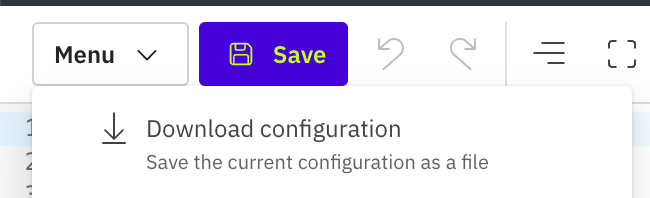
- Copy the YAML content directly from the editor and paste it into your local text editor
- Use the file manager download option if available in your Powersheet version
Verify in applicationThe exact download mechanism may vary depending on your Powersheet version and the file manager interface. If a direct download button is not available, copy the YAML content from the configuration editor.
4
Edit Locally
Once you have the YAML file locally, you can edit it with any text editor or IDE that supports YAML syntax highlighting. Common modifications include:
- Adding or removing columns
- Adjusting column widths and formatters
- Modifying expansion paths in sources
- Creating new views
5
Upload the Modified Configuration
After making changes:
- Return to Administration > Nextedy POWERSHEET > Configurations
- Open the configuration you downloaded or create a new entry
- Paste or upload the modified YAML content
- Save the configuration
Verification
After downloading and re-uploading a configuration:- Open a LiveDoc that references the configuration
- You should now see the sheet reflect any changes you made to the YAML
- Verify that all columns load correctly and data sources return expected results
See Also
- Assign Configuration to Document — link a configuration to a LiveDoc
- Creating Your First Sheet Configuration — build a new configuration from scratch
- Configure Sources — define data sources within the YAML
- Add a Column — add columns to your configuration