

Verify the ExternalReference Entity Type
Open the data model for your sheet (Menu > Configuration > Edit Data Model). In thedomainModelTypes section, confirm that ExternalReference is defined:
Shared entity typeThe
ExternalReference entity type may already exist if it is used elsewhere in your model (for example, linked to verification or validation test cases).Add the Relationship
In therelationships section of your data model, add a relationship from ExternalReference to the target entity. For example, to link external references to DesignRequirement:
storage: linkedWorkItems and linkRole to the link role configured in the next step (for example, relatesTo). Without storage and linkRole, the relationship cannot traverse the underlying Polarion links and the column stays empty.
The back.name value (externalReferences) becomes the expansion path used in the sources and column binding.
Configure the Link Role in Polarion
Go to Administration > Work Items > Enumerations in Polarion and open theworkitem-link-role-enum.xml configuration (this is where work item link roles are defined). Verify that the link role (for example, relatesTo):
- Can be created from
externalReferenceto the target work item type (for example,designRequirement) - Is bidirectional (recommended)
linkRole value set on the relationship in the previous step.
Update the Sources Section
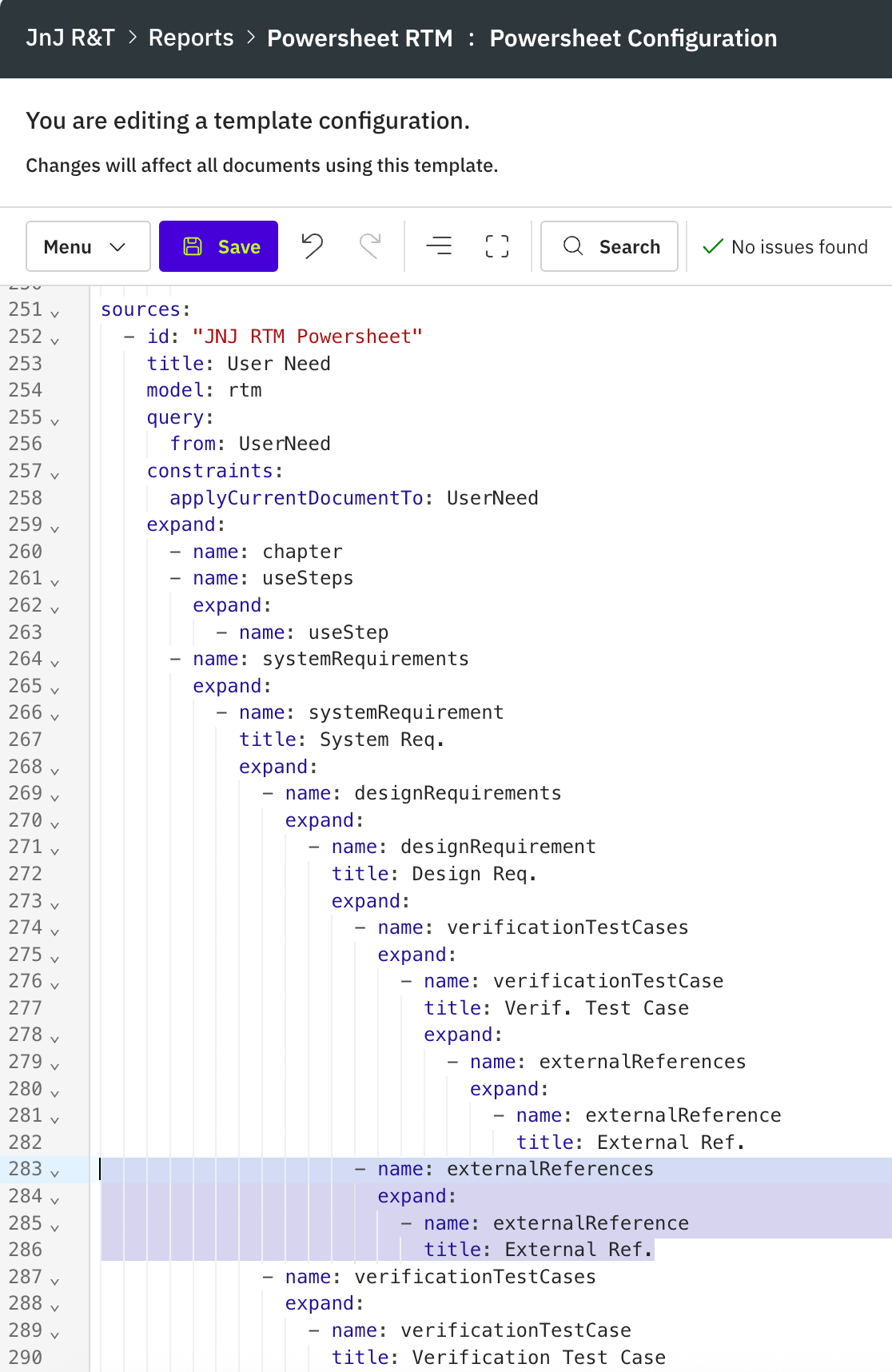
sources section, and add the externalReferences expansion under the appropriate entity:
back.name, such as externalReferences) must be followed by a nested expand that names the related entity (the singular direct.name, such as externalReference). The externalReferences entry sits at the same level as other relationships on designRequirement.

Add the Column
In the same sheet configuration, define the column in thecolumns section using the full binding path through the entity hierarchy. Set multiItem: true to enable multi-reference picker behavior:
externalReference entity. The YAML anchor &blue reuses a previously defined header style.