

Prerequisites
- At least one sheet configuration created in Administration > Nextedy POWERSHEET > Sheet Configurations
- A data model configured in Administration > Nextedy POWERSHEET > Data Models
- The
nextedySheetConfigcustom field defined for your document type
1
Create the Custom Field
If the 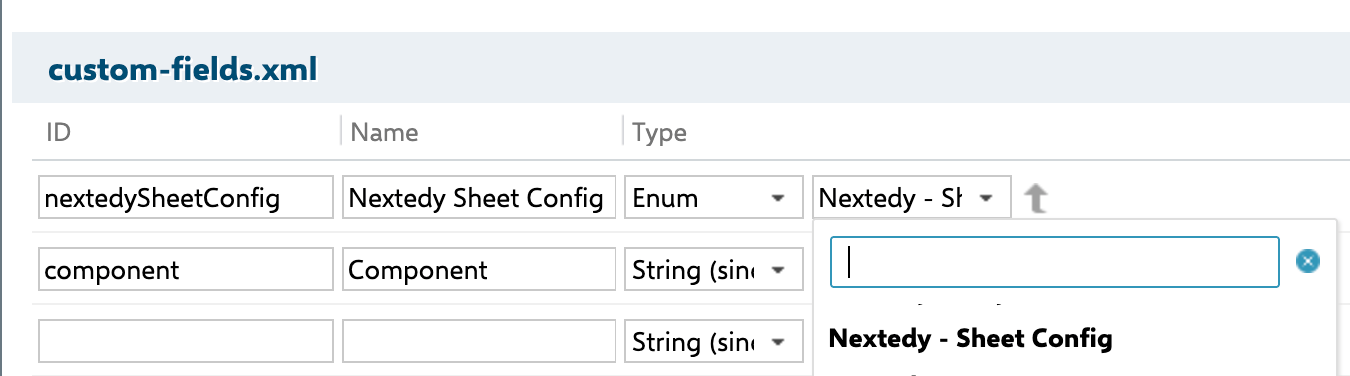
nextedySheetConfig custom field does not yet exist, create it in Siemens Polarion ALM:- Navigate to Administration > Documents & Pages > Document Custom Fields
- Decide whether the field applies to all documents or only a specific document type (e.g.,
powersheet,userNeedsSpec) - Create a new field with these settings:
(Global) suffix in the dropdown. There is no default configuration — users must explicitly select one.2
Assign the Configuration to a Document
- Open the Polarion LiveDoc you want to connect to Powersheet
- Open the document properties panel
- In the Sheet Config field, select the desired sheet configuration from the dropdown

- Project-specific configurations — shown by filename without path
- Global configurations — shown with
(Global)suffix, ID starts with/
3
Understand Configuration Scopes
Powersheet discovers configurations at two levels:
A single sheet configuration can be reused across multiple documents. Each document references the configuration independently through its
nextedySheetConfig field.4
Edit the Assigned Configuration from the Document
Once a configuration is linked to a document, authors can open it directly from the Powersheet toolbar without returning to the administration page. Inside the document, open Menu > Configuration > Edit Sheet Configuration to jump straight into the YAML editor for the currently assigned configuration. The same submenu also exposes Edit Data Model to reach the associated data model.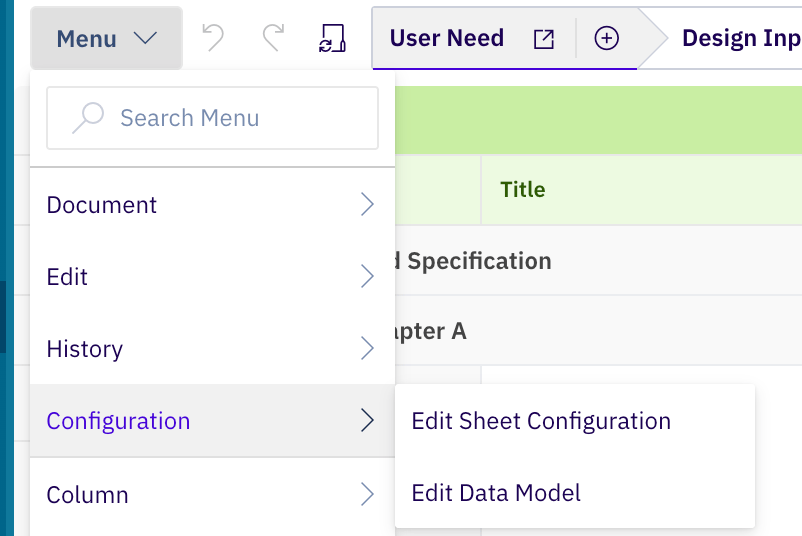
5
Use Template-Based Documents
For standardized deployments, you can create template documents that already have the sheet configuration pre-assigned. New documents duplicated from the template inherit the configuration assignment, saving administrators from manually assigning configurations for each new document.Templates can be duplicated across projects. The configuration and data model are resolved in the target project context.
Verification
After assigning the configuration and saving the document:- Open the LiveDoc in Polarion
- You should now see the Powersheet table view embedded in the document, displaying columns and data according to your configuration
- The sheet should load data from the sources defined in the configuration
- The Powersheet Drive sidebar topic should list your document
See Also
- Creating Your First Sheet Configuration — build a configuration from scratch
- Creating Your First Powersheet Document — end-to-end document setup tutorial
- Download Configuration as YAML — export an existing configuration for editing
- Configure Sources — define data sources within a sheet configuration
- Incremental Configuration Approach — best practices for building configurations gradually