

where scopes the query on the server).
Prerequisites
- A sheet configuration with at least one data source
- Familiarity with dynamic value expressions (
() => …) - A property you want to filter on (a primitive field or an enum id)
Reference a Parameter in the Query
query.where, replace a fixed value with a dynamic expression that reads a URL parameter. The parameter name (domain here) is yours to choose:where object is combined with AND, so you can keep fixed conditions alongside parameter-driven ones.Open the Sheet with the Parameter in the URL
HW is injected into the query before it runs, so Polarion returns only the matching rows. Change domain=SW and the same configuration returns the software slice instead. The URL is shareable and reloads to the same data.
A sheet whose query reads a URL parameter returns only the matching rows. In this example the parameter is named match, so opening the sheet with ?…&match=Dosage returns just the user needs whose title contains “Dosage”.
Filter an Expanded Level Independently
query.where to the expand node:…&system=iOS shows only the expanded requirements whose targetSystem is iOS, while the parent rows are unaffected. See Expand Navigation Properties for expand subqueries in depth.Declare Required and Optional Parameters
where condition is simply dropped and the sheet loads the broader set. When loading everything would be too heavy, declare the parameter in a top-level parameters block and mark it required, optionally giving it a default:- A required parameter with neither a URL value nor a
defaultblocks the sheet and shows theifMissingmessage and button (administrators additionally get an Open Configuration action). - A
defaultfills in the value when the URL omits it.
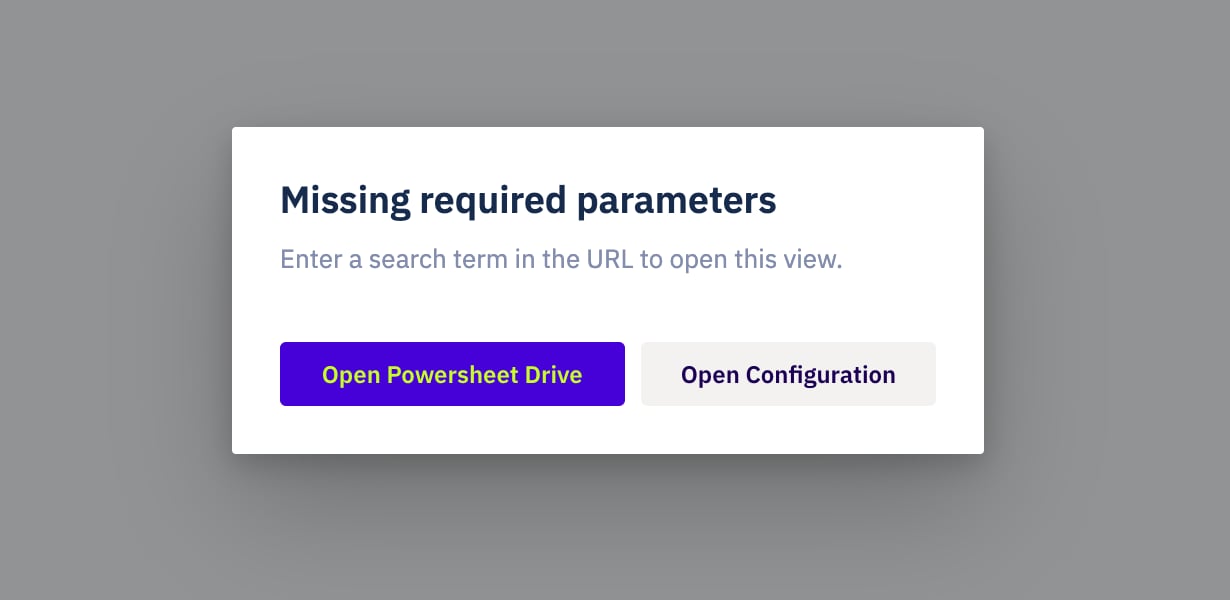
Opening the sheet without a required parameter blocks it and shows the ifMissing message and button instead of loading everything. An administrator additionally sees the Open Configuration action.
Show a Readable Label in the Header
title, subtitle, and icon — accepts dynamic values too, so it can state which slice a parametrised URL opened. Reflect the parameter in the sheet’s name, add the project name, and pick an icon per variant:() => … expression — build any surrounding text inside it (a template literal or concatenation) rather than mixing literal text with () =>. When an expression resolves to nothing, title falls back to the document name, while subtitle and icon are hidden. See the Sheet Header reference for icon glyph-vs-image values and the full fallback rules.
The header title, subtitle, and icon are computed from the URL parameter, so the same configuration states which slice is on screen.
Open the Sheet in a Specific View
_view system parameter, using the view’s id:_view is absent). Because _view is part of the URL, the chosen perspective is shareable along with the data scope.Verify Your Configuration
- Open the sheet with a parameter value in the URL and confirm only the matching rows load.
- Change the value and reload — the data slice should change accordingly.
- Remove a required parameter from the URL and confirm the sheet shows the missing-parameter message rather than loading everything.
- Copy the full URL into a new tab and confirm it resolves to the same scoped view.

Changing the parameter value re-scopes the same configuration: ?…&match=Glucose returns a different slice than match=Dosage, and the header updates to match.
See Also
- URL Parameters — how a URL value reaches the configuration through
context.parameters - Server-Side Filtering — why a
wherescopes the query on the server, at the root and on expand levels - URL Parameters Reference — the
parametersblock schema and reserved names - Sheet Header — title, subtitle, and icon; glyph-vs-image icons and fallback rules
- Configure Dynamic Expressions — the
() => …syntax - Expand Navigation Properties — expand subqueries for downstream levels
- Create a View — saved perspectives selectable via
?_view=