

Prerequisites
- A working Risksheet configuration with risk items displayed
- Access to the sheet configuration file (see Find Configuration Files)
- A target Polarion work item type for tasks (e.g.,
task,mitigationAction,countermeasure) - A link role in Polarion connecting risks to tasks (e.g.,
mitigates,controls)
1
Define the Task Data Type
Open the sheet configuration in the YAML editor and add a
task entry under dataTypes. This tells Risksheet which work item type represents your downstream tasks, how they relate to risk items, and how they appear in the toolbar and zoom navigation.Set
name and zoomColumn so users get a clear menu label and a meaningful entry point after task creation.2
Add Task Columns
Add columns to display task properties in the grid. The Task columns have no 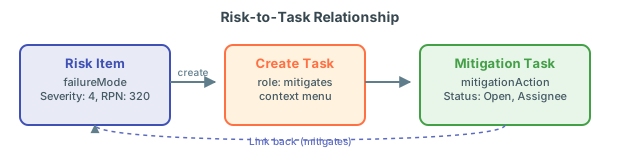
bindings property maps each column to a Polarion field on the task work item. Columns bound to task.* fields automatically participate in task-level cell merging — sibling tasks belonging to the same risk are grouped visually.level property — they merge by parent risk item plus task ID instead of joining the risk-item visual hierarchy.3
Scope Tasks to a Specific Document
Two related properties control where Risksheet looks for tasks and where new tasks are created.Restrict task loading with
Set With
Restrict task loading with document
Set document to a LiveDoc path to restrict which existing tasks Risksheet loads for the current risksheet. This is the recommended pattern when tasks are organized in a dedicated mitigation document.document set, only tasks residing in the specified LiveDoc are considered candidates — link traversal still applies, but the result is filtered to that document.Control where new tasks are placed
By default, new tasks are created in the Polarion project tracker. Two properties influence the destination:4
Configure Cross-Project Tasks
For tasks that reside in a different Polarion project, use the For multiple target projects:
project property for a single target or projects for multiple. The projects array form requires v23.7.0 or later.5
Filter Tasks with a Custom Query
To further narrow which tasks appear in the grid — for example, to exclude rejected or obsolete items — add a Lucene The query is combined with the link-role lookup and the optional
query to the task data type:document scope to produce the final task set.6
Disable Task Creation
Use This is useful when tasks are managed in a separate process and the risksheet should only reference them. Combine with column-level
canCreate at the data-type level to globally disable creating new tasks. When false, users can only link to existing items from a library:canCreate: false on individual task-link columns for finer control.7
Manage Multi-Task Behavior
Risksheet supports multiple downstream tasks per risk item. When you add a task to an item that already has tasks:
- The current record is cloned with task-level fields cleared.
- A new unique task ID is generated automatically.
- The new row is inserted immediately after all sibling tasks (grouped by
systemItemId).
Verification
After saving the sheet configuration:- Open the Risksheet in the configured LiveDoc document.
- Right-click a risk item and select the option labeled by
dataTypes.task.name(for example, Create Mitigation). - Verify the new task row appears below the risk item with an auto-generated ID.
- Confirm the task lands in the correct location (current document, target document, or tracker).
- Check that the
zoomColumnreceives focus for immediate editing. - If
documentis set, confirm only tasks from that LiveDoc load.
See Also
- Configure Downstream Traceability Columns — column layout for task fields
- Configure Multiple Downstream Types — separate task categories
- Configure Remove/Delete Actions — removing tasks from risk items
- Configure Cross-Project Linking — cross-project relationships
- Configure Target Document Creation — document-scoped item creation