

Prerequisites
- A working Nextedy RISKSHEET with basic downstream tasks configured (see Configure Downstream Tasks)
- Separate Siemens Polarion ALM work item types defined for each mitigation category
- A Polarion link role connecting risk items to their downstream measures
1
Identify Your Mitigation Categories
Determine the distinct mitigation categories your workflow requires. For example, ISO 12100 machinery safety defines three risk reduction steps, each backed by its own Polarion work item type:
All three types are downstream measures reached through the same link role (for example,
mitigates). They are listed together in the comma-separated dataTypes.task.type and distinguished in the grid by per-type taskLink columns (see the column step below).2
Define the Task Data Type with Multiple Types
Risksheet recognizes a single The 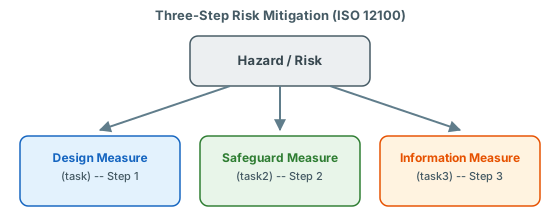
task data type slot for downstream items. To support multiple downstream work item types, set dataTypes.task.type to a comma-separated list of Polarion work item type IDs (supported since v25.3.1):type property lists every downstream work item type the sheet may create or link. The role property is the Polarion link role connecting the risk item to its downstream measures. The name property sets the display label shown in the toolbar and creation menus. The zoomColumn property names the column used for zoom/drill-down navigation after a task is created.One link role for all downstream typesThe comma-separated
type mechanism applies the same link role (dataTypes.task.role) to every listed downstream type. If your methodology requires a genuinely different link role per downstream category (for example, a distinct role for design vs. safeguard vs. information measures), that is not expressible through this single task data type — see the note in the next step before designing around it.3
Add Columns for the Downstream Measures
The single The task-link column (
task data type is surfaced by one task-link column plus nested task-attribute columns that read fields from the linked measure. Add the linked item’s own type as an attribute column so readers can tell design, safeguard, and information measures apart in the grid:measureId) stores the link to the downstream measure; the nested task.* columns use the linkedItem.fieldId binding pattern to display read-only fields from whichever measure is linked. The task.type column shows the work item type (designMeasure, safeguardMeasure, or informationMeasure), so all three categories share one column group but remain individually identifiable. Make sure each task.<field> binding matches a Polarion field ID present on the downstream measure types.Separate column groups per type need a different mechanismA single
task data type produces a single task-link column group. Splitting the measures into separate, type-dedicated column groups (one taskLink per downstream type, as an earlier version of this page showed) relied on the unsupported task2 / task3 keys and does not work. If your workflow genuinely requires per-type columns — or a different link role per category — those are not expressible through the comma-separated dataTypes.task.type; treat that as an open configuration question rather than copying the multi-key pattern.4
Configure Risk Recalculation Between Steps
For workflows that require recalculating risk after each mitigation step (common in ISO 12100), add intermediate RPN columns with formulas referencing post-mitigation ratings:This lets you track residual risk at each stage and demonstrate the cumulative effect of your mitigation strategy.
5
Load Downstream Items from Multiple Projects
If mitigation items are distributed across projects, use the The
projects property (v23.7.0+) on the task data type:projects property accepts an array of project IDs and enables cross-project autocomplete for the task link column.Verification
After saving the sheet configuration:- Open the risksheet in the configured LiveDoc document.
- Verify that the mitigation-measure column group appears, including the
Categorycolumn that shows each linked item’s work item type. - Right-click a risk item — the context menu should show a creation option for the task type, labeled with the
nameyou defined. - Create a new measure of each downstream type and confirm the correct work item type and the shared link role are applied.
- Confirm that the
Categorycolumn correctly reports the type of each linked measure (design, safeguard, or information). - Use the zoom navigation to drill into a newly created item — it should focus the column named in
zoomColumn.
type field.
See Also
- Configure Downstream Tasks — basic task data type setup
- Configure FMEA Workflows — FMEA mitigation patterns
- Configure HARA Workflows — HARA with countermeasure types
- Display Sub-Columns — sub-column display for linked items
- Configure Cross-Project Linking — cross-project downstream items