

What you will achieve
After completing this guide, each swimlane on your Nextedy PLANNINGBOARD will display a capacity bar that accurately accounts for individual user availability within the plan’s date range. Over-allocated users will be flagged visually, and users with no capacity in the current plan window will be suppressed from the board.Prerequisites
- Planningboard is installed and a board is already configured on a Polarion Wiki page or LiveDoc.
- Swimlane assignment type is set to Users (Assignee). Capacity normalization works at the per-user level; it requires user-based swimlanes.
- Teams Service is set up with at least one team, team members, and a calendar. See Set Up Teams Service.
- At least one Polarion Plan with a start date and due date is visible on the board.
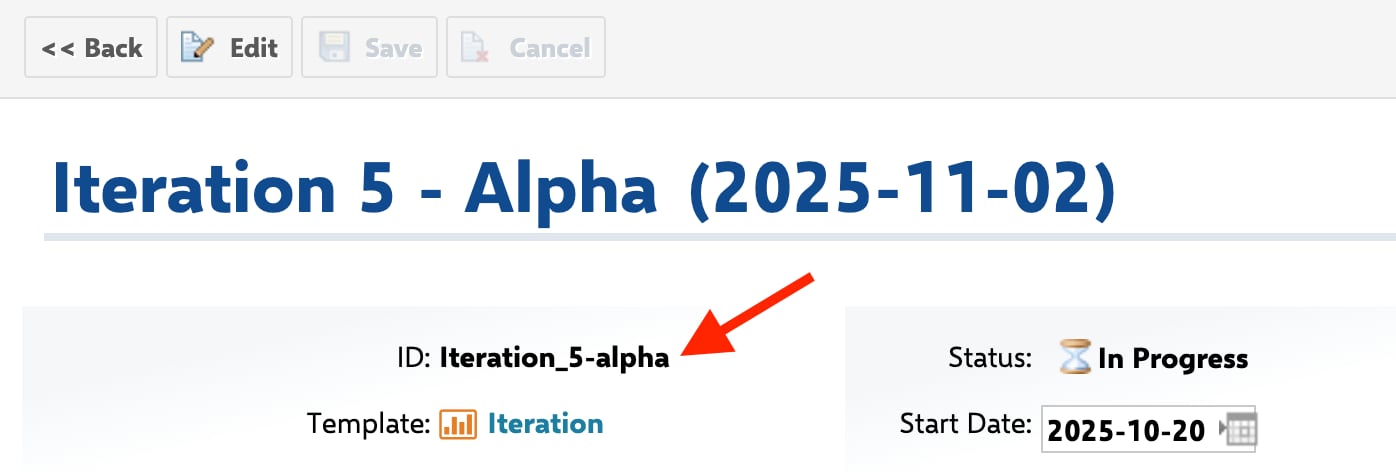
Iteration_{planNum}-{teamName} (e.g. Iteration_5-alpha). This naming convention is what allows Planningboard to group plans by iteration number across teams:
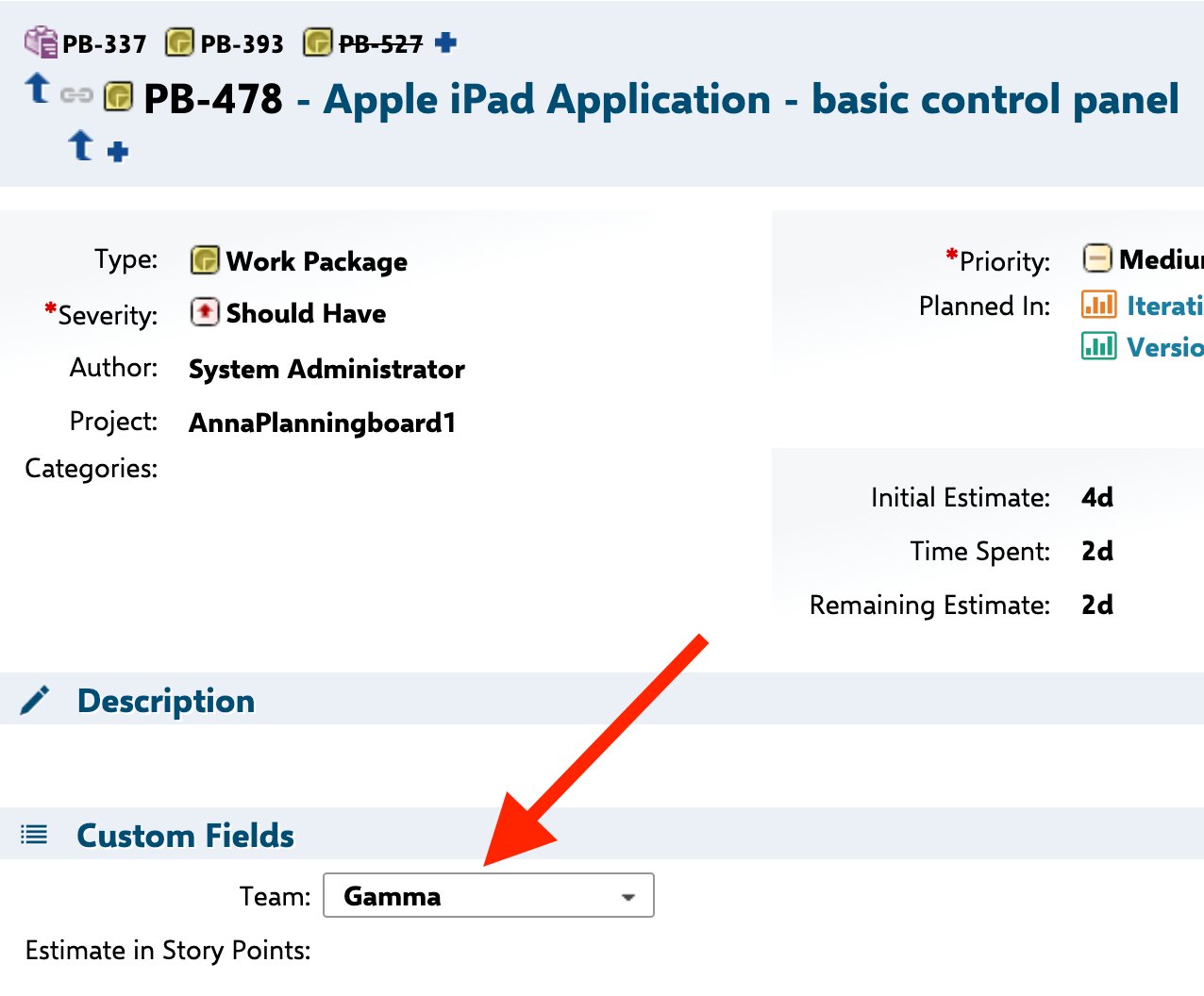
team). Planningboard uses this field to map each work item to its swimlane:
1
Verify Teams Service is providing capacity data
Capacity normalization depends on data from the Teams Service. Before configuring normalization, confirm that user capacity is flowing through correctly.Open the board and inspect the capacity bar in any swimlane. If the bar shows
0 / 0 for all users, the Teams Service is either not configured or not returning calendar data for the current plan range.Refer to Track User Capacity and Track Team Capacity to confirm the prerequisite setup is in place.2
Enable useTeamsService in the widget
In the Widget Parameters panel, locate Capacity and confirm the When 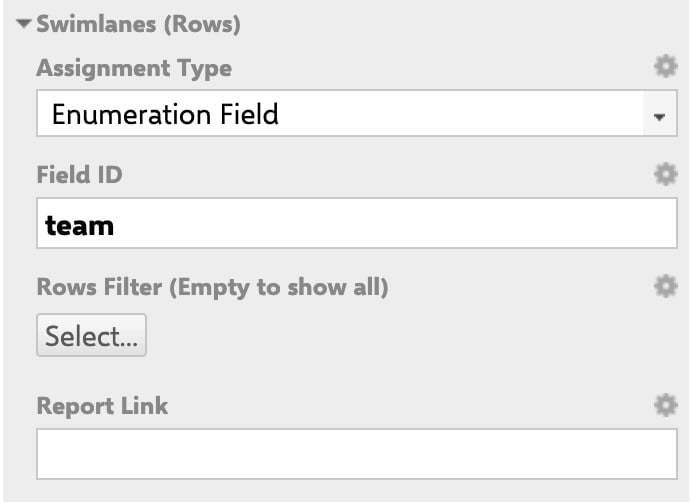
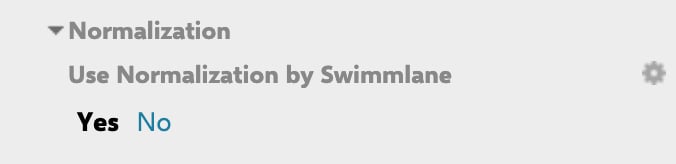
useTeamsService parameter is enabled. This parameter connects the board to the Teams Service, which supplies totalCapacity, allocatedCapacity, and availableCapacity per user per plan.useTeamsService is active, the plan’s flat capacity value is replaced by per-user capacity values derived from the team calendar and the percentage assignment for each user.In the same Widget Parameters panel, also confirm that the Swimlanes (Rows) section is set to use the team enumeration field. Set Assignment Type to Enumeration Field and enter the field ID (for example, team):Users who have no team calendar entry for the plan’s date range will default to
totalCapacity = 0.0. Their swimlane will show zero available capacity but will still appear on the board unless you also enable Plan Range filtering (see Step 4).3
Configure capacityLoad to track effort
In the Widget Parameters panel, set the Capacity Load mode. Planningboard derives effort from The
remainingEstimate / initialEstimate time-tracking fields by default. If your team uses a custom field for effort points, specify it here.setEffort calculation produces three values per work item:Effort values are rounded to one decimal place. Ensure the field you reference holds numeric values in the same unit as your team calendar (hours or story points, whichever the Teams Service is configured to use).
4
Suppress out-of-range users with Plan Range filtering
When a plan covers a short iteration and some team members have assignments only outside that window, their swimlanes contribute noise. Enable Plan Range filtering to show only users with active capacity in the currently displayed plans.Go to Polarion Administration → Configuration Properties and add:Once applied:
- Users with team assignments overlapping the displayed plan range are shown.
- Users with assignments entirely outside the plan range are hidden.
- Work items previously assigned to hidden users are moved to the Not Assigned / Other swimlane.
5
Review the per-user capacity breakdown
After the configuration above is in place, each swimlane capacity bar reflects:Where:
totalCapacity— hours derived from the team calendar for the plan’s start-to-due-date window, multiplied by the user’s percentage assignment.allocatedCapacity— sum ofremainingEstimate(or custom field) for all work items assigned to the user within the plan.availableCapacity— the remaining headroom. A negative value indicates overallocation.
Capacity flow at a glance

Common pitfalls
Verification
You should now see:- Each user swimlane displays a capacity bar with distinct values — not identical values across all swimlanes.
- Users without team assignments in the current plan range are absent from the board (if
activeTeamAssignmentsInPlanRangeOnly=trueis set). - Overallocated swimlanes show a filled or overflowing capacity bar.
- The Not Assigned / Other swimlane contains any work items that belonged to now-hidden users.