

Prerequisites
- Planningboard is installed and a board is configured on a Polarion Wiki page.
- The Teams Service is set up for the project, with team work items and team assignment work items in place. See Set Up Teams Service.
- Capacity bars are already showing for the team’s named members. See Track Team Capacity.
- The Gantt plugin is installed on the same Polarion. This is what supplies the capacity calculation.
- Administration access to the project, to add a work item type, a custom field and configuration properties.
A department’s size comes from the hours per day field. The hours a department contributes on each working day are read from an hours per day field on the department work item.
Although **% Assignments **are supported for department-level items, assignments defined in % Assignment are not recommended.
A department work item with no value in hours per day field falls back to 8 hours per working day, and an assignment with % Assignment empty contributes nothing at all. The steps below set the field up before the assignment is made.
Although **% Assignments **are supported for department-level items, assignments defined in % Assignment are not recommended.
A department work item with no value in hours per day field falls back to 8 hours per working day, and an assignment with % Assignment empty contributes nothing at all. The steps below set the field up before the assignment is made.
1
Enable the Teams Service for the project
In Administration → Configuration Properties for the project, set:The default is
false. This one property both enables team assignments on the board and allows the board to obtain its capacity figures from the Gantt teams service. A project that leaves it off is not using team assignments and has no team capacity to delegate.This is the main step to enable department capacity on Planningboard. The rest can be done prior as part of Gantt setup.2
Create a work item type for departments
In Administration → Work Items → Types, add a type for the organizational units you want to plan with — a validation department, a test lab, a supplier. The examples on this page use the id
department.This type exists so that departments can be told apart from ordinary work items when the resource field is filled in, and so that the capacity field in the next step applies only to them.3
Add the capacity field to the department type
On the department type, add a float custom field for the hours the unit delivers on each working day. The examples on this page use the field id
capacityHoursPerDay, with the label:Capacity (hours per working day)Fill it in on every department work item. This value is the base the department is sized from; If the assignment’s % Assignment is also set, they are ignored, and hours per day have priority. Ideally **% Assignment **shall never be set on a department level work item, so everything is always defined in hours. A department work item left with an empty capacity field falls back to 8 hours per working day.4
Name the capacity field for the capacity calculation
Back in Administration → Configuration Properties, tell the capacity calculation which field to read and how to read it:The first property names the custom field added in the previous step. The second says the value is hours per working day rather than a total for the whole period.Without these two properties the capacity field on the department work item is never read.
5
Point the team assignment's resource field at departments
The team assignment work item needs a field that holds the department. Define it as an enum field scoped to the department type, so the Resource picker offers departments and nothing else:Then name that field for the teams service:Replace
resource with the id of the field you defined, if it differs.Gantt 26.9.0 also allows the resource field to be named per widget, so a board whose widget configuration names a different field uses that one instead of the project-level default above.
6
Create the team assignment and point it at the department
Create a team assignment work item under the team, exactly as you would for a person, but:
- Set the resource field to the department work item. This is what marks the assignment as department-level.
- Leave the assignee empty. Not because an assignee would take precedence — it would not — but because an assignment that names both is charged on the resource side, so the person named would silently contribute nothing while still appearing as a team member.
- Set the
fromandtodates that bracket the period the department is available to the team. - Set Capacity (hours per working day) on the assignment. Left empty, the assignment contributes nothing.
7
Size the department with its capacity field
A department’s size lives in Capacity (hours per working day) on the department work item. Eight hours is one full-time person, so at % Assignment 100 the field value divided by 8 is the number of full-time equivalents the unit contributes:The board shows the figure in working days, at eight hours to a day; set
The board then works out the contribution over the plan’s date range:
nextedy.planningboard.durationUnit=hours to show raw hours instead. For a named member, their own calendar hours take the place of the declared per-day value. For example, a department at 40 hours per working day and % Assignment 100, over a ten-working-day plan on a team carrying capModA=10 and capModB=10, contributes 40 — five times the 8 that a member at 100% contributes over the same period.8
Reload the board and check the total
Reload the board, or press Refresh data in the board toolbar. The team’s capacity bar should now include the department’s contribution.Read the number at the team level, not the per-user rows: a department-level resource produces no swimlane and no line in the per-user breakdown, so the team total will be larger than the sum of the rows beneath it. That difference is the department’s contribution and is expected.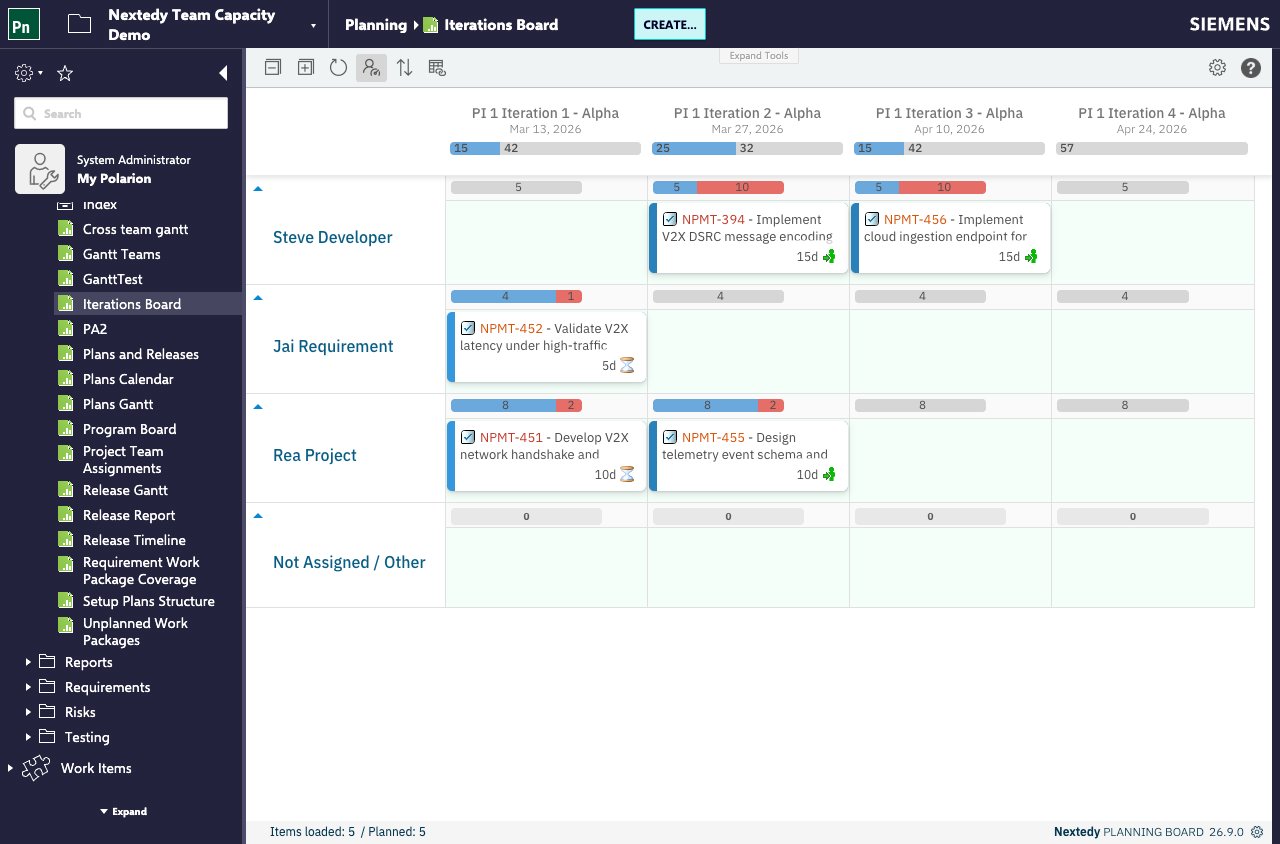
Applying capacity modifiers (optional)
If the team already uses capacity modifiers, they reduce the department exactly as they reduce a named member — no extra configuration is needed:capModA=10 with capModB=10 reduces capacity by 20% — a factor of 0.8, not 0.81.
The capModB term is skipped for dates within nextedy.gantt.capacityModifierBFieldDayLimit days of today. See Teams Service Properties for the field names and how to override them.
What department capacity does not do
- No personal absences. A department has no Polarion user, so there is no personal leave to subtract from it. Model a known reduction by lowering the Capacity (hours per working day) value, or with a capacity modifier.
- No swimlane. You cannot drag cards onto a department; work items are still assigned to people.
- No per-user row. The department does not appear in the per-user capacity breakdown.
- Load is unchanged. This affects the capacity side of the bar only. Effort still comes from work items assigned to individuals.
Troubleshooting
For capacity values that are wrong for reasons unrelated to departments, see Capacity Calculation Issues.
See also
- Department-Level Capacity — what the board does with a resource-only assignment
- Track Team Capacity
- Set Up Teams Service
- Teams Service Properties
- Visualize Capacity Load