

Prerequisites
Before you begin:- Planningboard is installed and a board widget is configured on a Polarion Wiki page.
- You have project-level administration access in Siemens Polarion ALM.
- Team work items exist in the project (or a supporting project). Each team work item must have team member assignment work items with
fromandtodate fields so the service can filter members by active date range. - Users are assigned to teams via team assignment work items with valid
from/todate fields. Users whose IDs cannot be resolved are automatically excluded from capacity calculations.
1
Verify Team Work Items Are in Place
The Teams Service queries for team work items in the current project and any supporting projects. Before enabling the service, confirm your team data is set up correctly.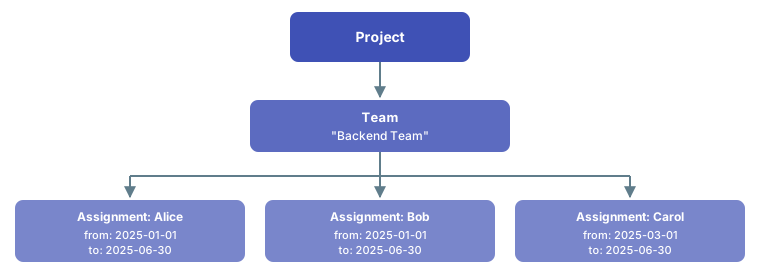
- Open your Polarion project.
- Navigate to Tracker and search for work items of the type used to represent teams.
- For each team work item, verify that member assignment child work items exist and include
fromandtodate field values.
2
Enable the Teams Service in the Widget
The Teams Service is activated via the
useTeamsService widget parameter. When enabled, the service provides team member data, per-user capacity hours, and overrides any static plan.capacity values.- Open the Polarion Wiki page containing your Planningboard widget.
- Enter edit mode and open the Widget Parameters panel.
- In the Capacity section, locate the Use Teams Service parameter and set it to
true.
- Save the widget parameters and reload the page.
3
Configure the Selected Team (Optional)
By default, the Teams Service aggregates across all teams in the project. To focus capacity calculations on a single team, configure the Replace
selectedTeam parameter.<team-work-item-id> with the Polarion work item ID (e.g. PROJ-42) of the target team. When set, only users belonging to that team appear in capacity rows, and userCapacities reflects only those members.4
Configure the Calendar Fallback (Optional)
If some users have no working calendar defined in Polarion, the service defaults to the system calendar, which may not reflect your organization’s working hours. To set a named user as the calendar fallback, add the following property to the project’s This property specifies a base user whose calendar is used as a fallback when a team member has no personal calendar. This is the same property used by Nextedy GANTT.
context.properties:5
Optionally Enable Capacity Modifiers
The Teams Service supports optional capacity modifier fields on team work items that reduce team capacity by a percentage. This feature is disabled by default.To enable it, add to When enabled, the service reads modifier percentages from fields on the team work item. The default field names are:
context.properties:To use different field names:
How Capacity Is Calculated
Once the Teams Service is active, capacity on the board is calculated per user as follows:allocatedCapacity and availableCapacity are rounded to one decimal place. Negative availableCapacity values indicate overallocation and are surfaced visually on the capacity bar.
Users without a team calendar entry or an unresolvable user ID default to totalCapacity = 0.0.
Verification
After completing the steps above, reload the board. You should now see:- Per-user swimlane rows populated with team members from the configured team (or all project teams if
selectedTeamis not set). - A capacity bar in each plan column showing allocated vs total capacity for the visible users.
- Summary cells displaying each user’s
allocatedCapacity,totalCapacity, andavailableCapacity.
0 / 0, revisit Step 1 to confirm team assignment work items exist with valid from/to dates, and verify useTeamsService=true is saved without extra whitespace.