

Prerequisites
Before you begin, ensure that:- A Polarion project holds your resource work items, each linked to its parent by the project’s parent link role. Resources at the top of the structure have no parent
- You have administrator rights on the project whose Gantt you are configuring, so you can set configuration properties
- Team Assignments are configured and a Resource Field is in use — see Set Up Team Assignments Gantt
1
Name the Hierarchy Project
In Administration > Configuration Properties of the project holding the Gantt, set:This single property turns the picker on. Until it names a project, the resource field keeps its usual control and nothing changes.
Not the Team Management ProjectThe hierarchy project is deliberately separate from the project you are configuring and from the project holding your teams. A deployment can keep its resource breakdown and its teams in different places.
2
Narrow the Hierarchy, if the Project Holds Other Work
If the project carries more than the resource structure, restrict which work items take part with a Lucene query:Work items outside the query are neither shown as nodes nor reachable by search.
3
Decide Which Nodes Can Be Selected
Most structures mix containers with real resources: you browse through a department, you assign to a team. Mark the ones that can be assigned to with a boolean custom field on the resource work item and name it:Nodes whose field is
true can be selected; every other node can only be opened to show the level below.Leave the property unset and every node can be selected.4
Confirm Which Field Renders the Picker
The picker replaces exactly one field: the one already resolved as the team assignment resource field. Every other field keeps its usual control.That field is the Resource Field widget parameter where a widget is in play, then the project default
nextedy.gantt.workitems.default.resource_field, then nextedy.gantt.teamAssignmentResourceField. The first of the three naming a custom field wins — assignee and categories are not custom fields, so a value of either is passed over and the next candidate is tried.5
Use the Picker
Open a Team Assignment in the Gantt lightbox and click the resource field. The drop-down opens on the top level of the structure.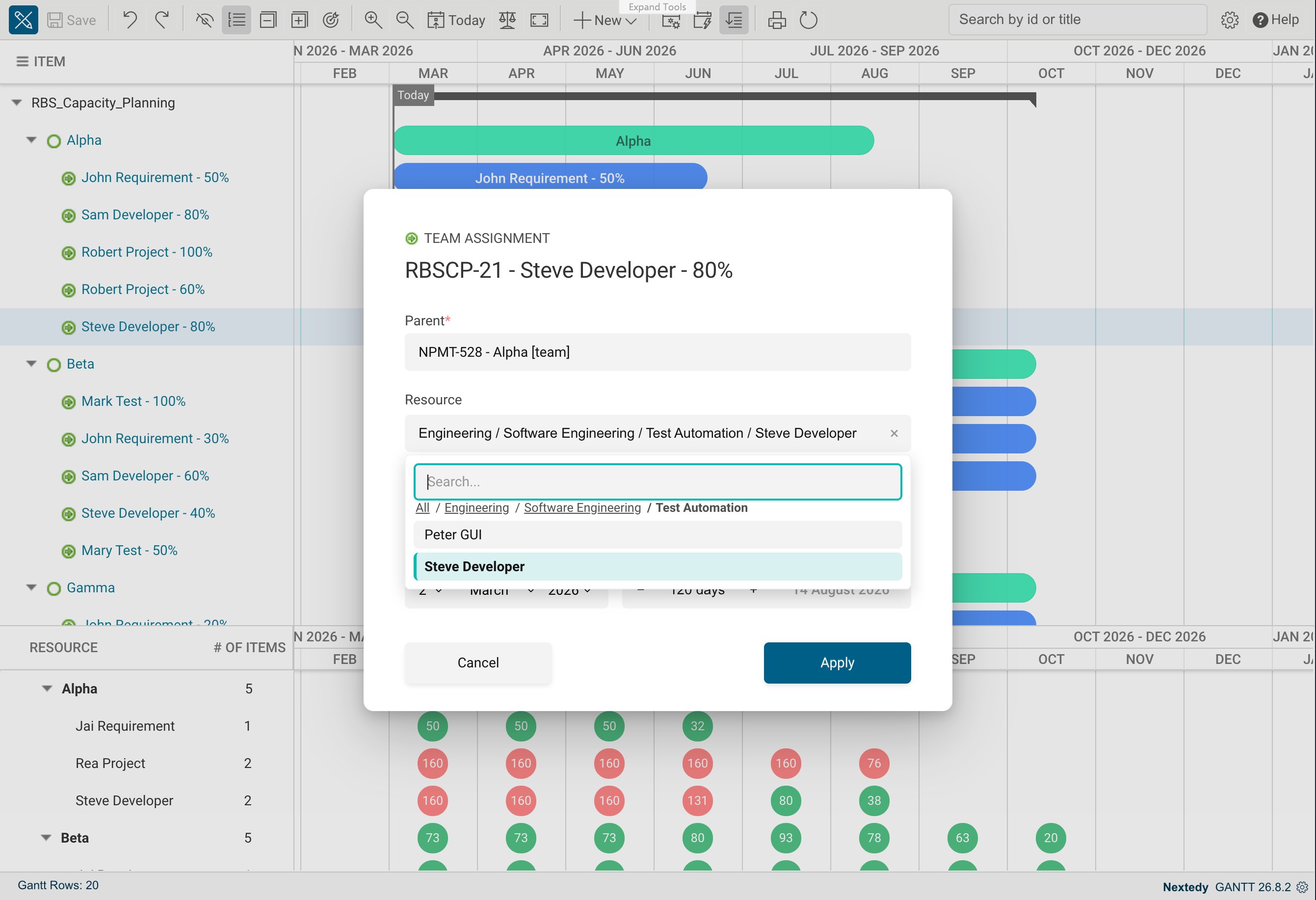
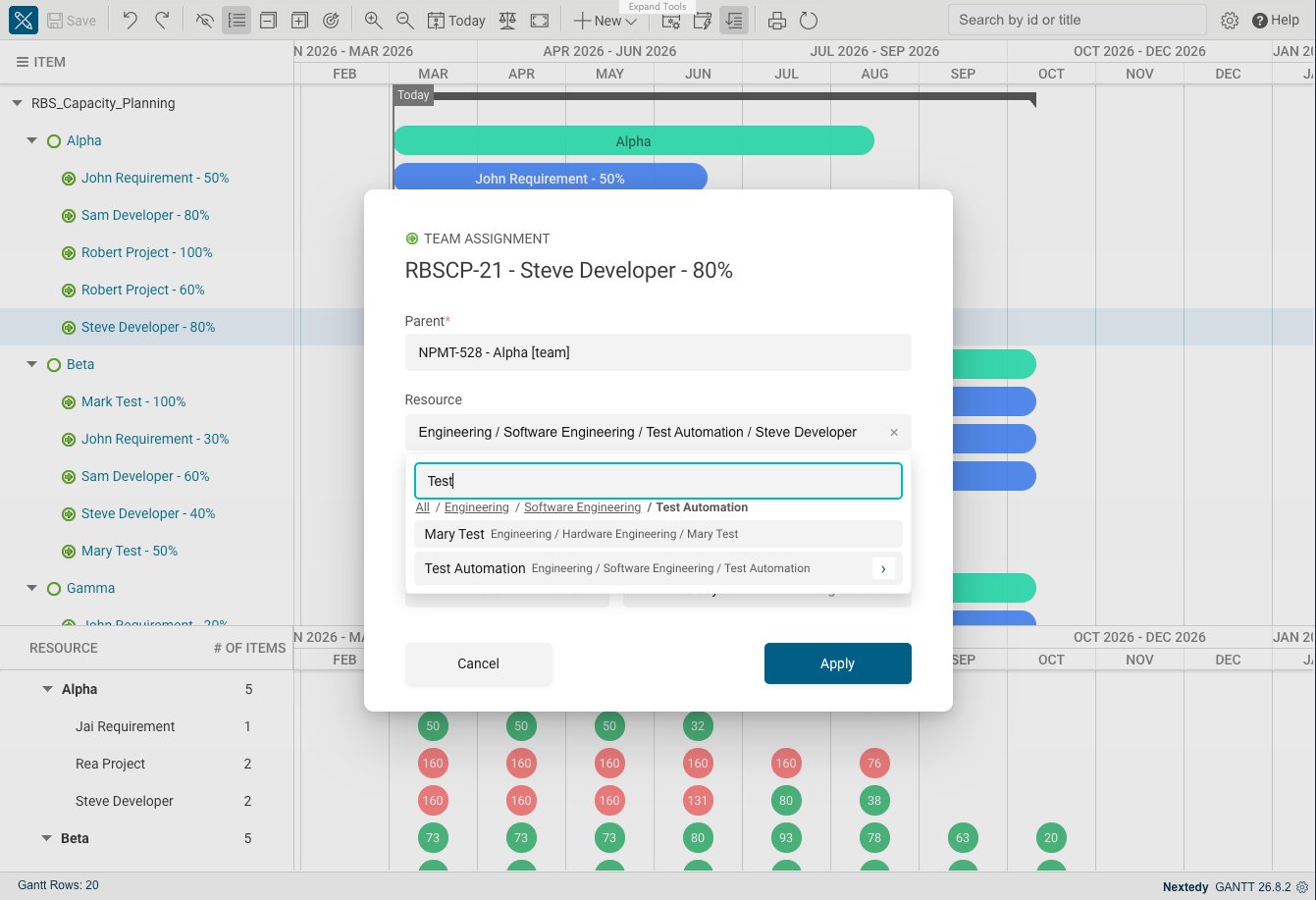
Type at least two characters to search. Search matches a node’s title, its work item ID, and the fields holding a user — the built-in Assignee always, plus anything named in
nextedy.gantt.resourceIdentity.userIdField; several words must all match, and each is matched as a prefix. nextedy.gantt.resourceHierarchy.searchLimit caps how many results come back, by default 50 — narrow the search rather than raise the cap.Every result and the picked value are shown with their full path, with / between the levels.Where the Path Shows Up
Once a resource is picked, the Gantt labels the two places differently, because sibling names repeat across branches:- The bar and the resource row carry the node’s own name.
- The picker itself, showing the value already chosen, carries the full path — which is what tells two same-named nodes apart while you are choosing between them.
Tuning a Large Structure
Troubleshooting
Verification
You should now see:- The resource field in the Team Assignment lightbox opening as a drill-down list rather than a flat dropdown
- A path above the list, starting at All, that steps back through the levels you opened
- The picked resource shown with its full path in the picker, and with its own name on the bar and in the resource row