

How No-Allocation Marking Works
When a task has no assignee, the Gantt chart applies two visual indicators:- Red task bar background — the task bar in the Gantt chart receives a red highlight, making it immediately distinguishable from assigned tasks
- Grey resource view cell — in the resource view, cells for unallocated tasks display with a grey background instead of the usual green or red allocation markers
Done Tasks Are ExcludedTasks with a Done status are exempt from the no-allocation marking even if they have no resource assignment. This prevents completed items from cluttering the view with false warnings.
1
Enable the Resource View
To see both the task bar and resource view indicators, enable the resource view in your Gantt widget parameters:
- Open the Gantt widget parameters
- Set Show Resource View to
Yes - Configure the Resource Field (defaults to
assignee)
2
Enable the Show Unassigned Row
To see unallocated tasks grouped in the resource view:
- In the widget parameters, set Show Unassigned to
Yes - This adds a dedicated row in the resource view for all work items that have no value in the resource field
3
Review Unallocated Tasks
With the configuration in place: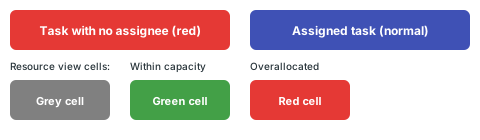
- Open the Gantt chart and look for task bars highlighted in red — these are tasks without an assignee
- Check the resource view for grey cells indicating unallocated time periods
- Open any highlighted task in the lightbox to assign a resource
Verification
You should now see:- Task bars with no assignee highlighted in red in the Gantt chart
- Grey cells in the resource view for unallocated time periods
- Completed (Done) tasks displaying normally without the red highlight, even if they have no assignee