Prerequisites
Before you begin, ensure that:- You have Team and Team Assignment work item types configured in Polarion (version 23.4.0 or later)
- Team Assignment work items are linked to parent Team work items
- Custom date fields exist for team assignment start and end dates
1
Create a LiveDoc for the Gantt
Unlike Polarion’s built-in Time-split Assignments (Administration > Users), which allocate a user’s time to a project rather than to a team, this setup models allocation at the team level:
- Set the Work Item Type to
Team - Set Load Children to
1so the Gantt loads both Team and Team Assignment work items
2
Configure the Parent Role
In the widget parameters, specify the Parent Role that links Team Assignment work items to their parent Team work items — the 
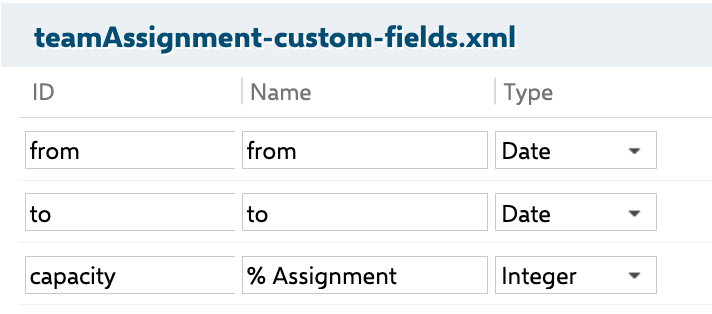

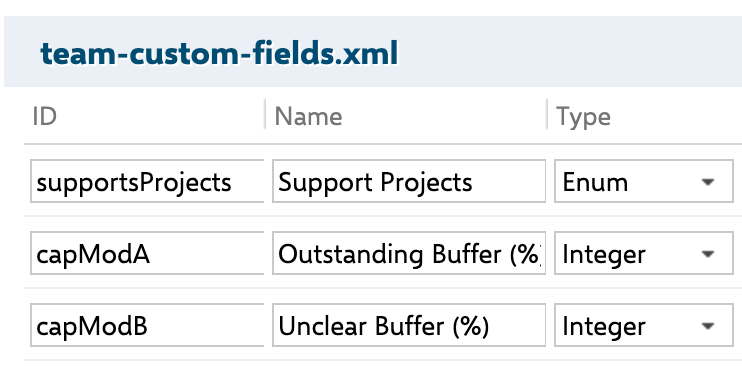
assignment link role (opposite role “is assigned to”). Fill in the WI Type Configuration section to define how each work item type appears in the chart.In Polarion Administration, define the two work item types this guide relies on — team (Team) and teamAssignment (Team Assignment):teamAssignment type — from and to (Date) and capacity labeled % Assignment (Integer):assignment work item link role (opposite role “is assigned to”) that connects each Team Assignment to its parent Team:team type — capModA (Outstanding Buffer %) and capModB (Unclear Buffer %) — to reserve a share of each member’s time for unplanned work or future uncertainty:3
Set Date Fields
Select the start and end date fields that correspond to your team assignment custom fields:
4
Set Resource Load Calculation
Set the Resource Load Calculation field to Assignment Allocation. This tells the Gantt to calculate resource load based on the percentage allocation specified in each team assignment rather than task estimates.
5
Enable the Resource View
In the widget parameters under Resource View:
- Set Show Resource View to
Yes - Configure the Resource Field to point at the field that identifies the resource
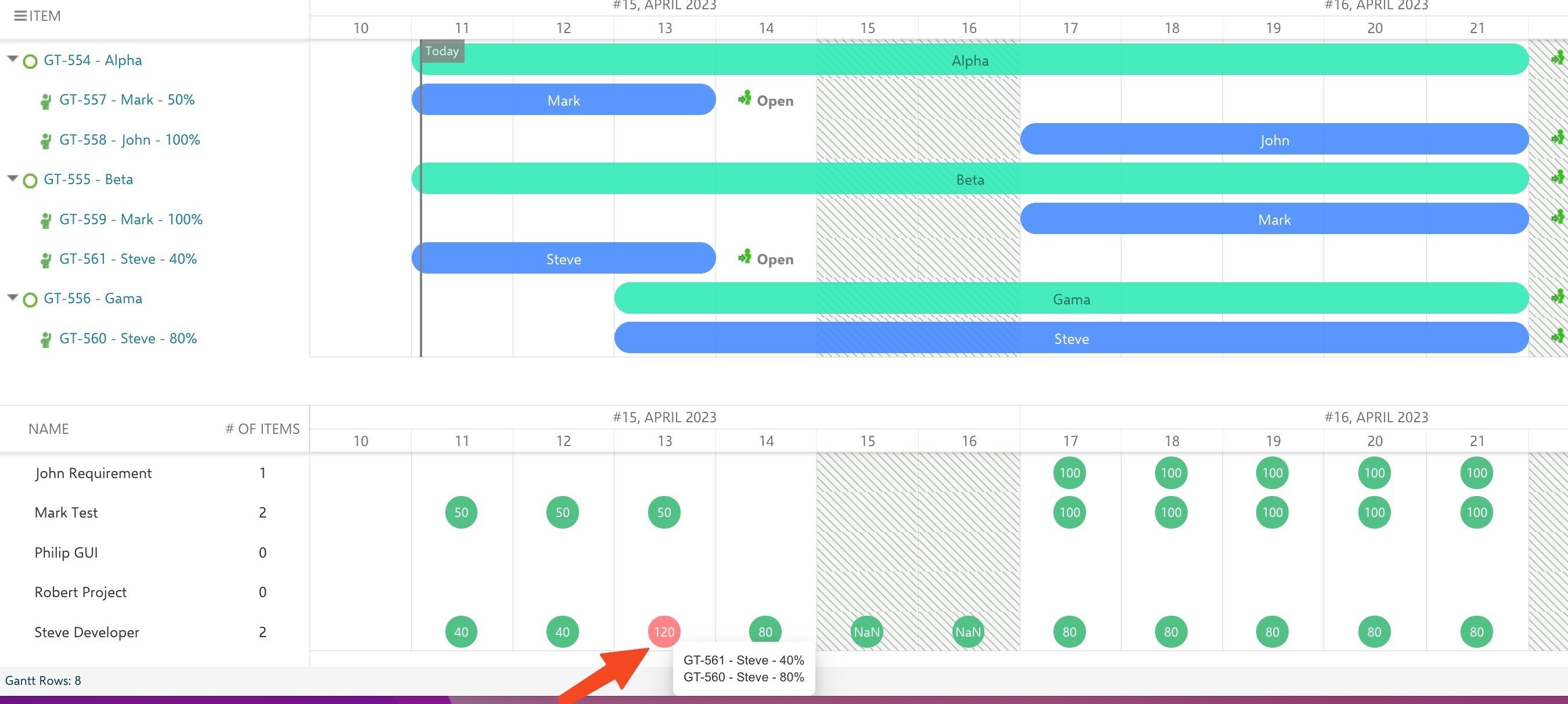
assignee for a plan of named people, or at a field holding a resource work item to draw from a Resource Breakdown Structure. It defaults to the project property nextedy.gantt.workitems.default.resource_field, and to assignee where that is unset.The resource view displays each team member’s allocation percentage. Cells turn green when allocation is within capacity (at or below 100%) and red when the resource is overallocated.How Allocation Percentages Work
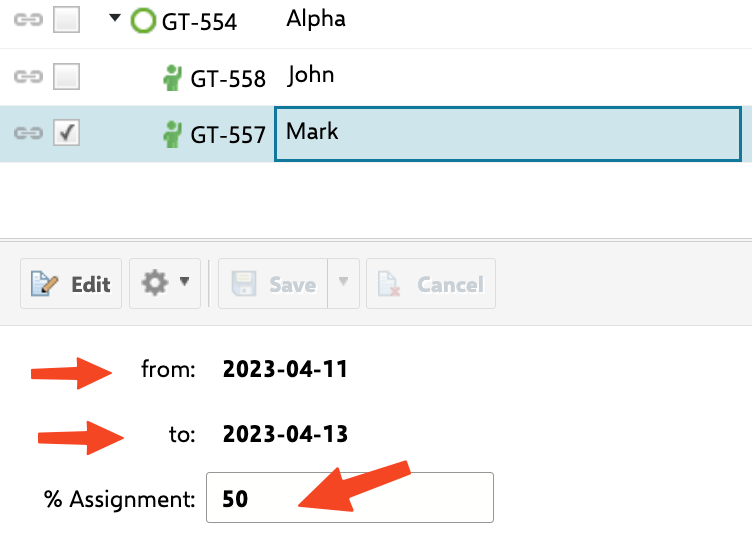
When you open a team assignment in the lightbox, you see two required fields:- The resource field (marked with a red asterisk) — select the team member, or the resource, from its control
- Assignment — specify the allocation percentage for that member
assignee is configured, the lightbox hides the Assignee field entirely for a new assignment and for one that already carries a resource, so the two cannot be filled in inconsistently.
The lightbox title updates dynamically to show the selected resource and assignment percentage. The resource view then aggregates these percentages across all teams for each user, making overallocation immediately visible.
Allocating in Hours Instead of Percent
Where an assignment is better expressed in hours than as a share of a day, name the field carrying that figure:Cross-Project Team Management
If your teams span multiple Polarion projects, you can centralize team management in a single project and reference it from other projects. See Configure External Team Management Project for details on cross-project team setups.Verification
A working setup has each Team work item (Alpha, Beta, Gama) as a parent with its Team Assignment children carrying the assignees: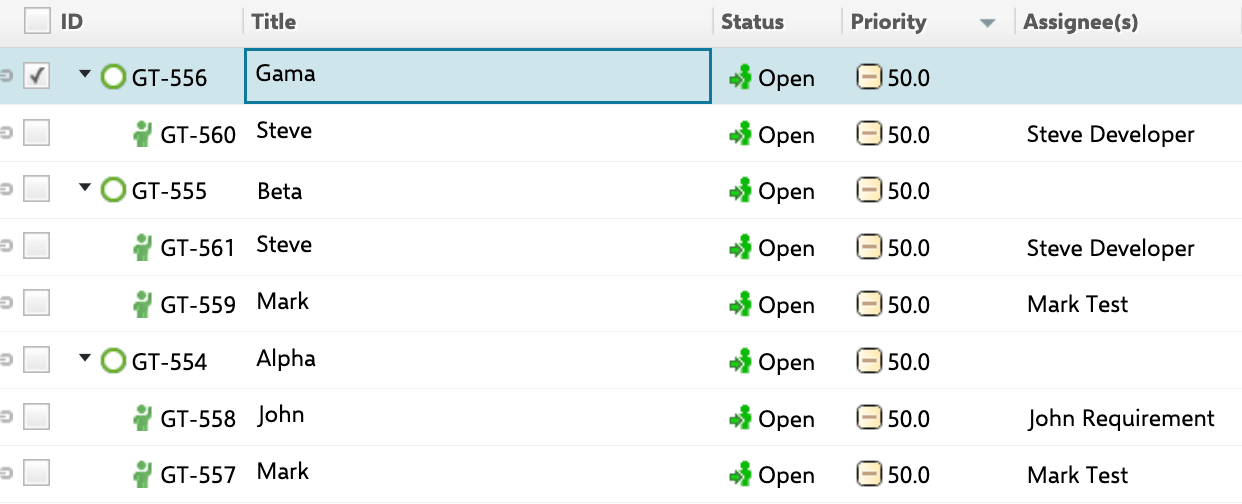
- Team work items displayed as parent rows in the Gantt chart
- Team Assignment work items nested under their respective teams
- The resource view showing allocation percentages per user, with green cells for normal allocation and red cells for overallocation